
1. Open the Import menu
Click on the Import icon above the data table.

2. Access PowerPoint Files
Click the PowerPoint option to open a file browsing window to select your file.

3. Browse and Select your PowerPoint file
Use the file browser to find the PowerPoint file you'd like to import.

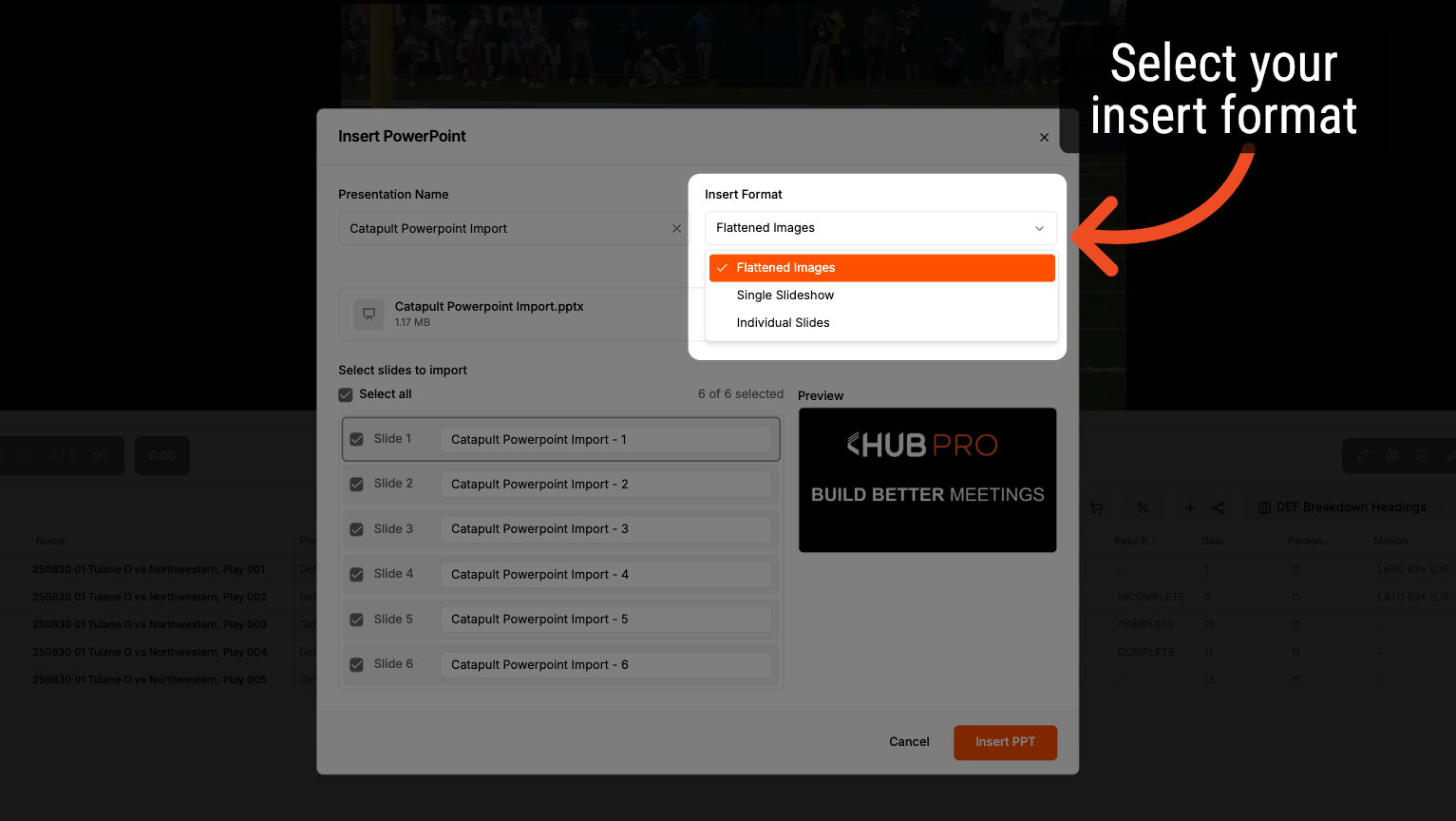
4. Select your insert format
Click on the Insert Format dropdown to pick how you'd like to add your PowerPoint file. There are three import options to choose from. Flattened Image: This option will import an image of your PowerPoint slide. Each slide will appear as its own row in the list. Single Slideshow: This option will import all of the selected PowerPoint slides as a single slideshow. All slides will appear as one row in your list. Individual Slides: This option will import each PowerPoint slide as its own row within the list.
5. Selecting and Rename Slides
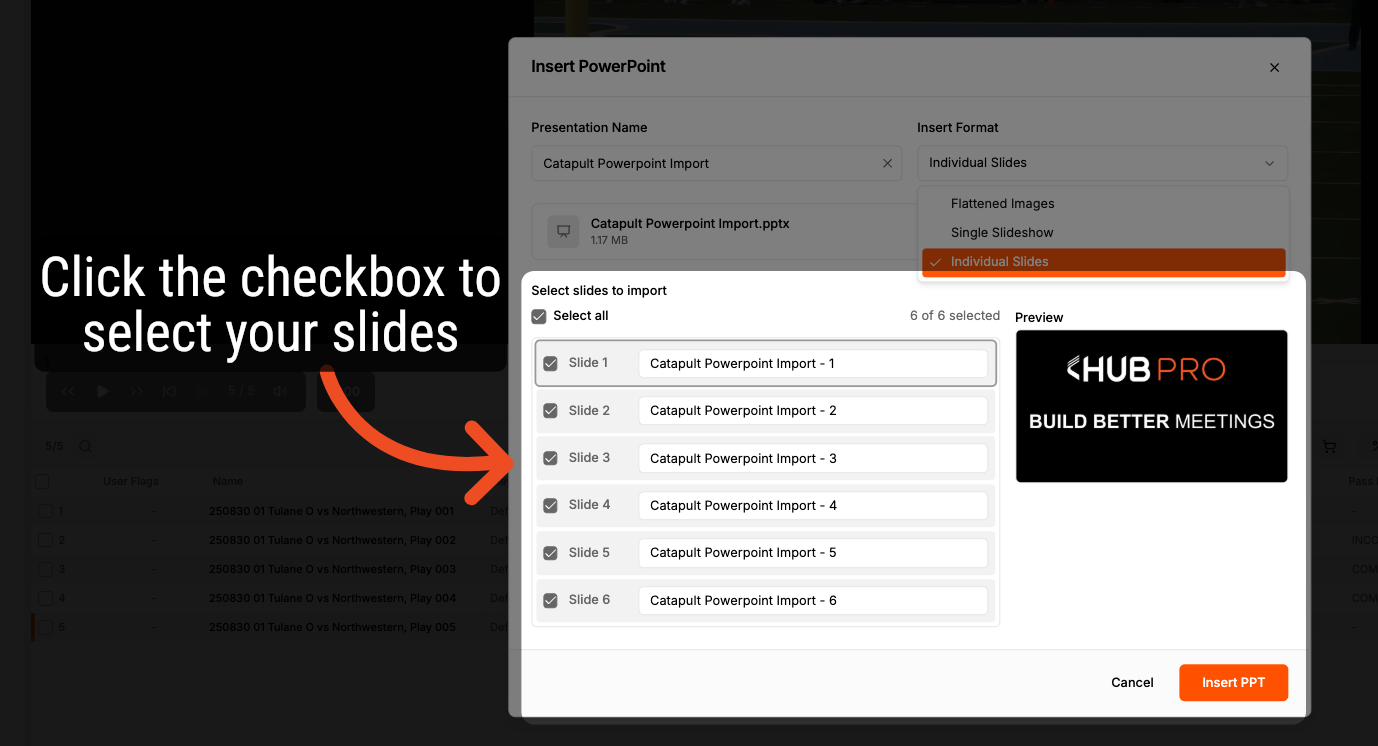
You can select specific PowerPoint slides to add to your list by checking or unchecking the corresponding checkbox. Additionally, you have the option to rename each slide prior to adding them to your list.
6. Insert your PowerPoint Slides
After selecting your insert format and slides, click the Insert PPT button. This action will add your selection to the list.

Comments
0 comments
Please sign in to leave a comment.