
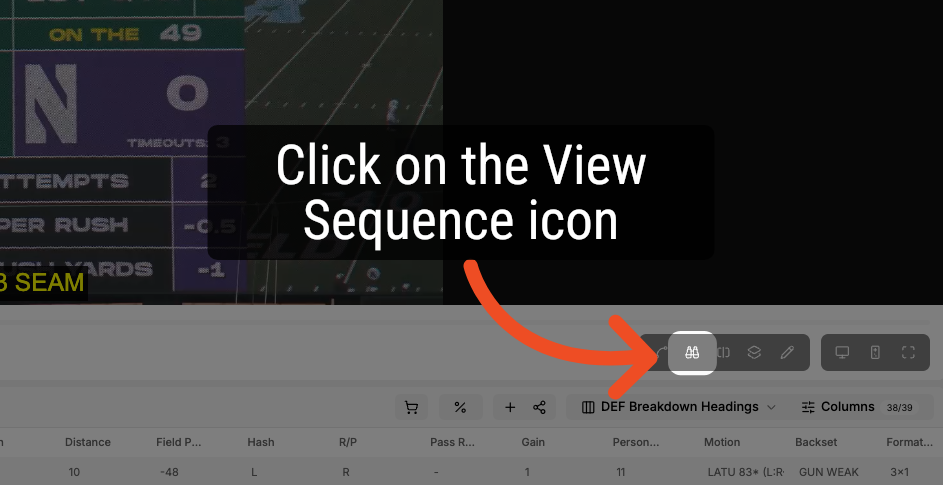
1. Open the View Sequence dropdown
Click on the View Sequence icon.
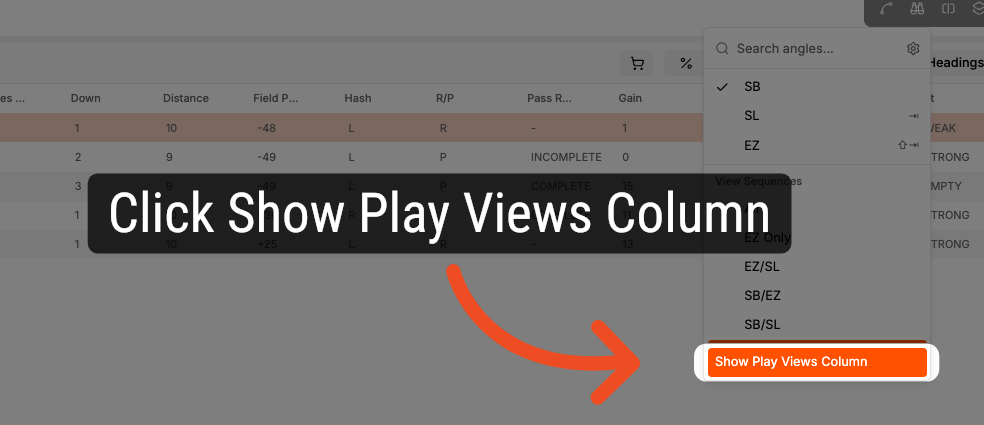
2. Enable Play Views Column
Click "Show Play Views Column" to display the play views column.
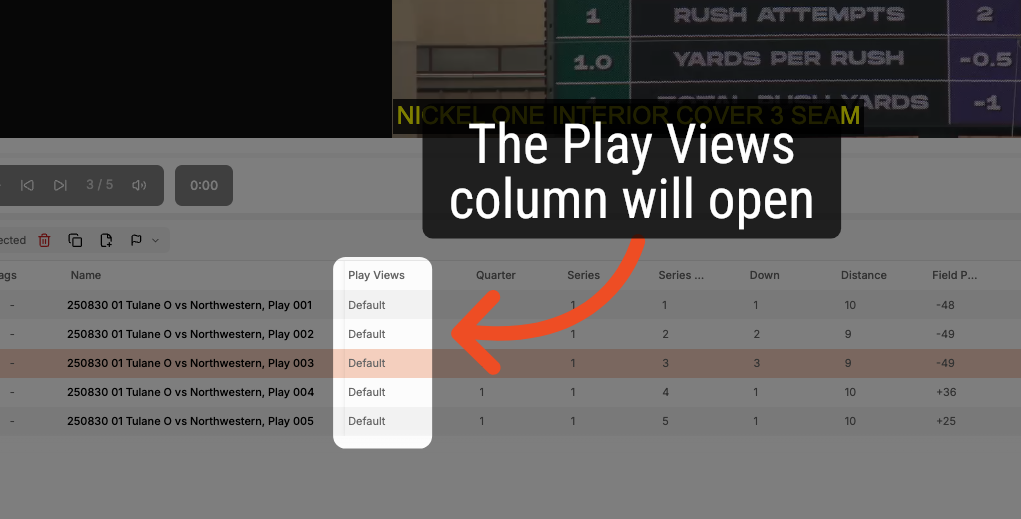
3. Proceed to Next Section
The Play Views column will open to the right of the Name column.
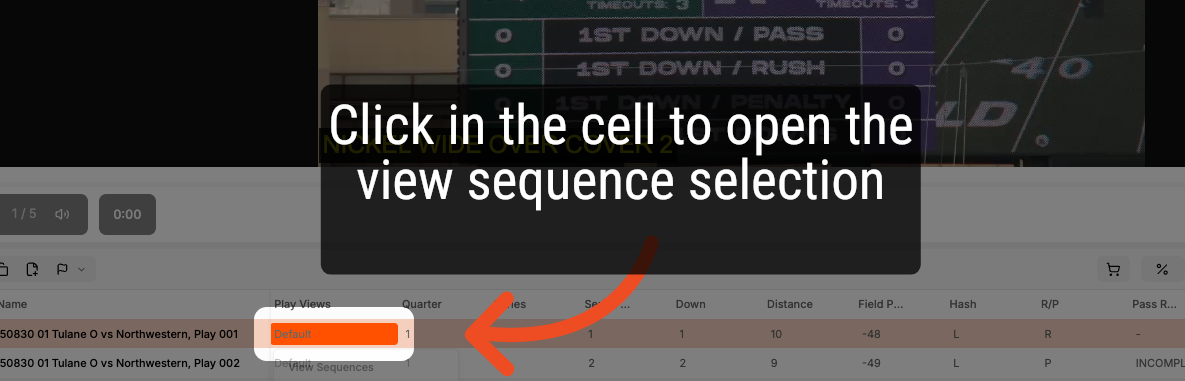
4. Open the Play Views dropdown
Click inside a Play Views cell to open the dropdown.
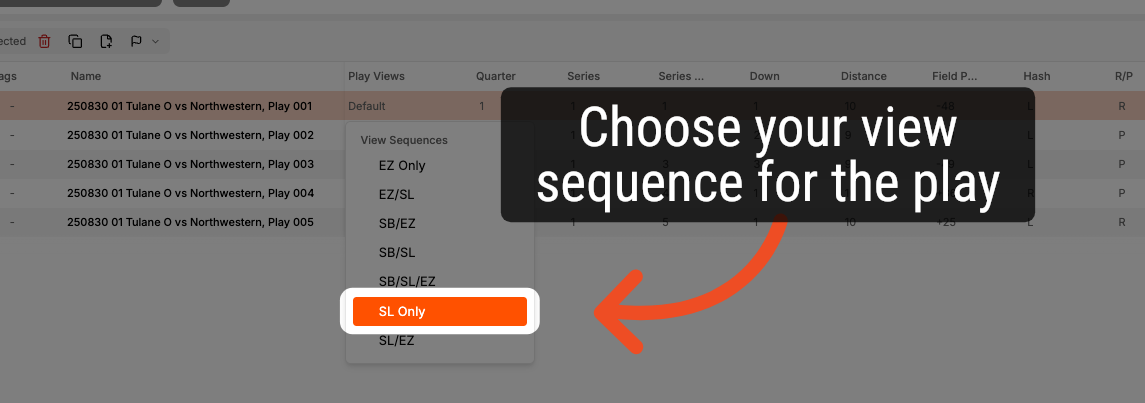
5. Pick your View Sequence
Pick the View Sequence to apply to the play. The available Play Views will match your View Sequence user settings.
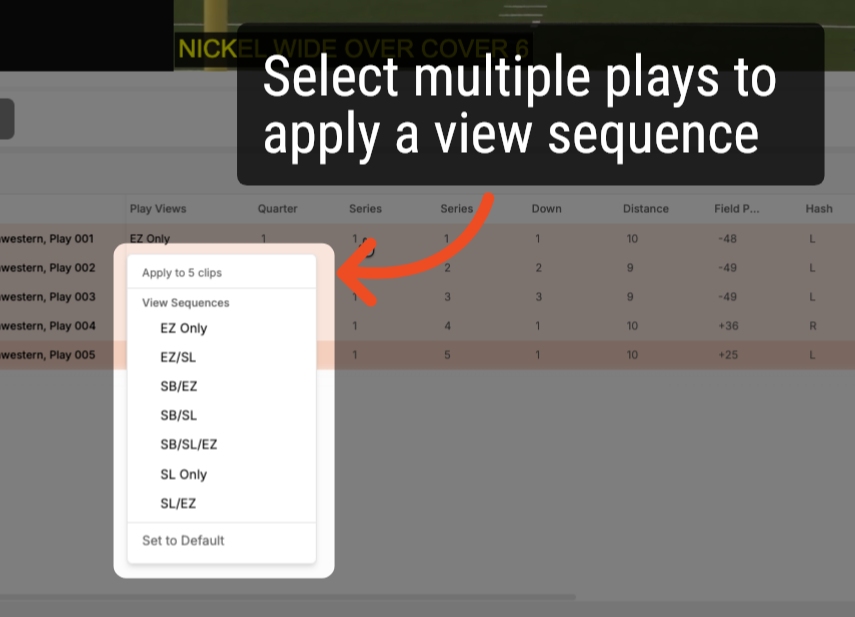
6. Apply a View Sequence to Multiple Plays
You can choose multiple plays and assign a view sequence to each.
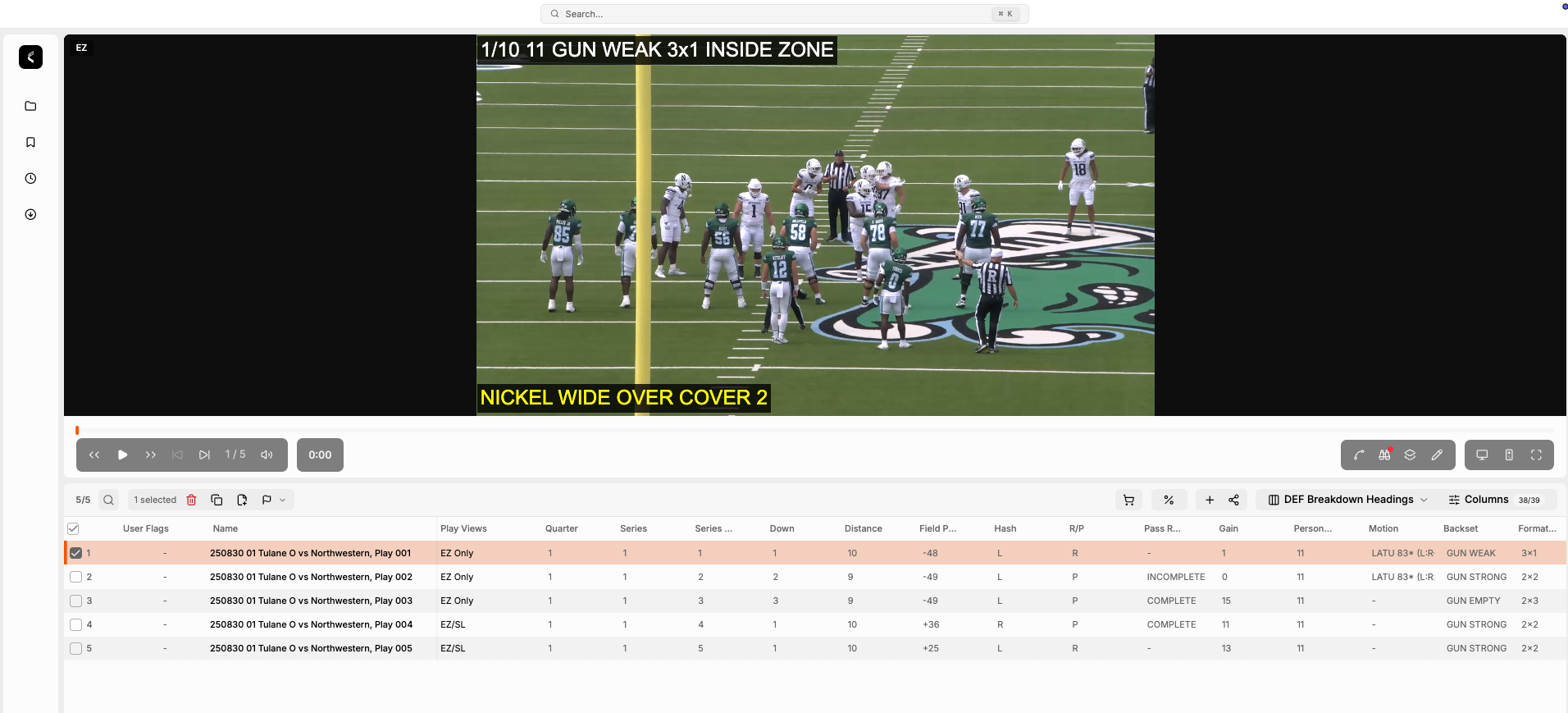
7. Playing back your selection
Once you have configured your Play Views, only the chosen View Sequence will be played back.
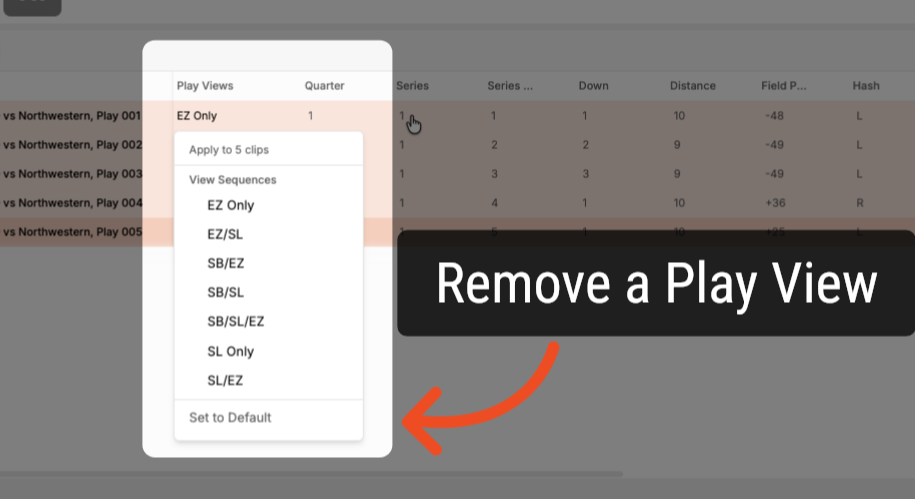
8. Removing a Play View
To remove a Play View sequence, select one or more plays, click in the Play Views cell, and choose Set to Default.
Comments
0 comments
Article is closed for comments.