
Using the Tab Menu
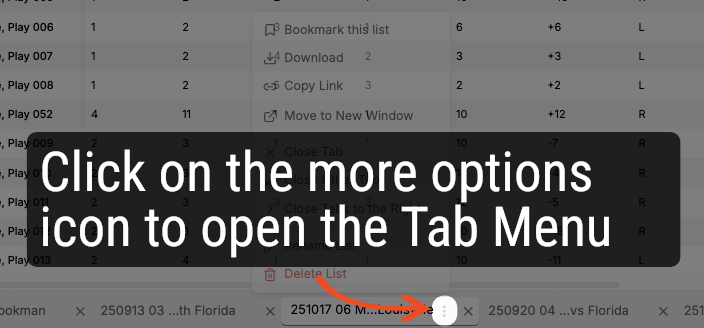
1. Open the Tab Menu
Open the tab menu by clicking on the more options icon (vertical ellipse).
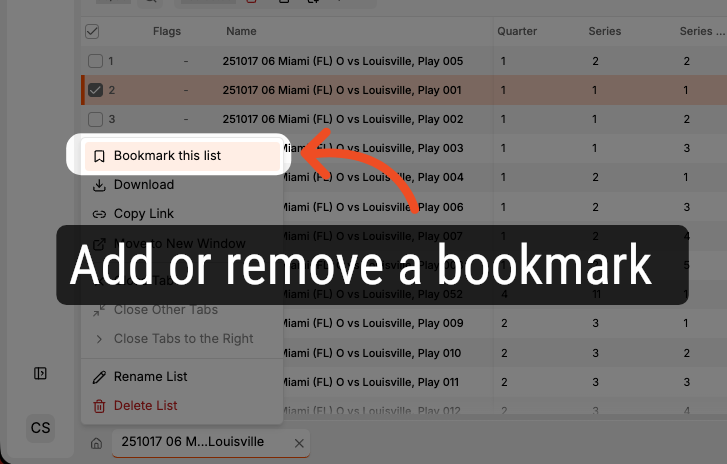
2. Add or Remove a Bookmark
Click here to add or remove a bookmark from the list.
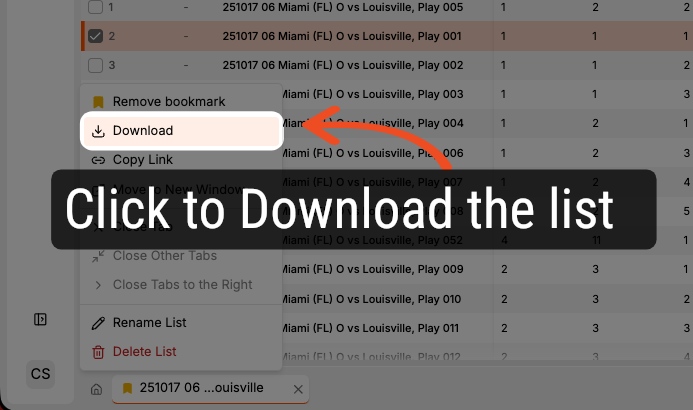
3. Download the List
Click here to open the download options menu.
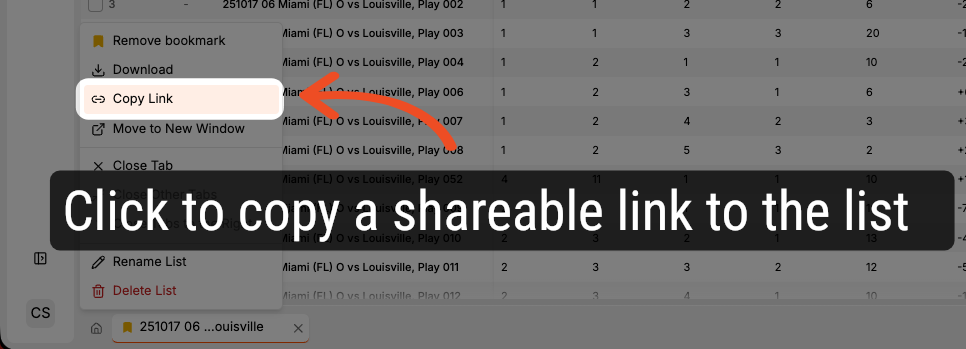
4. Copy a Link to the List
Click here to copy a URL to the list to your clipboard. The copied link can be shared to other users.
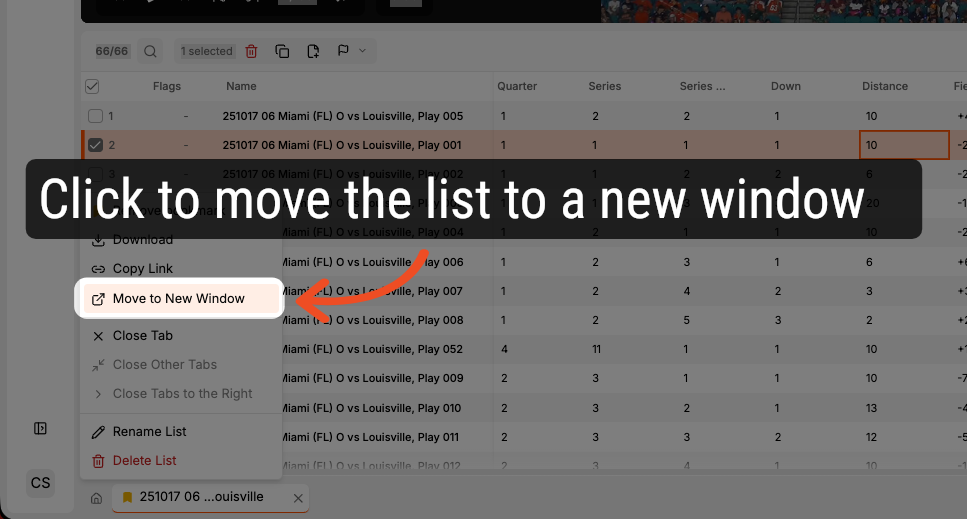
5. Move the List to a New Window
Click here to open the list in a new Hub Pro application window.
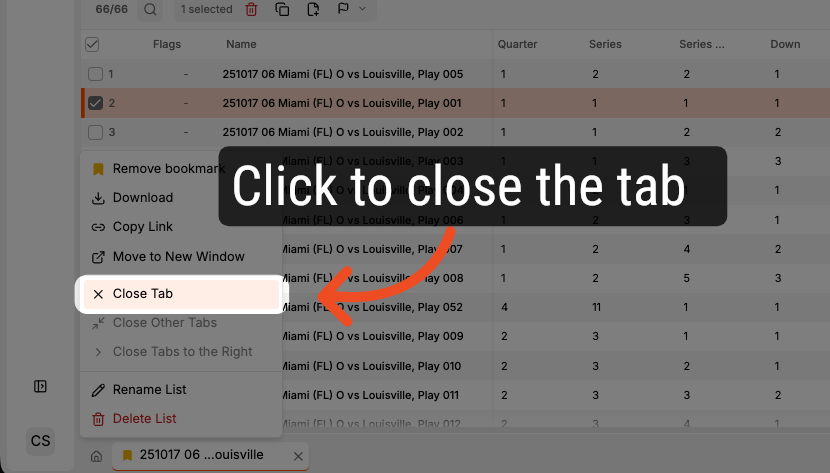
6. Close Current Tab
Click here to close the current tab.
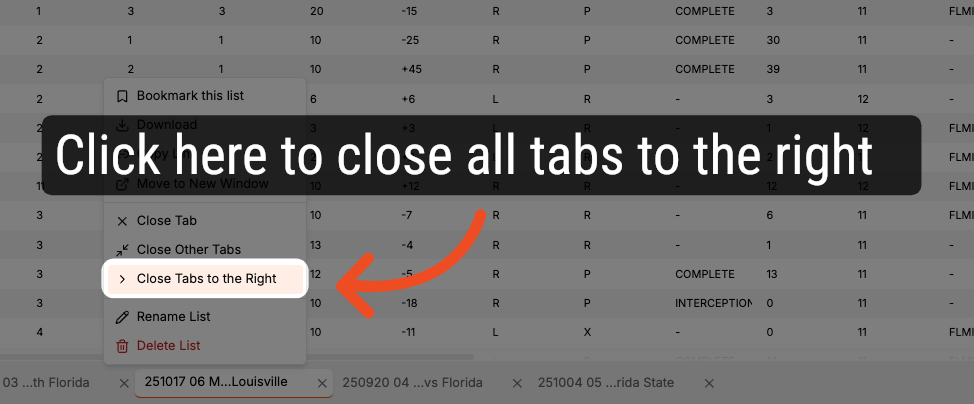
7. Close Tabs to the Right
Click here to close all of the tabs to the right of the selected list.
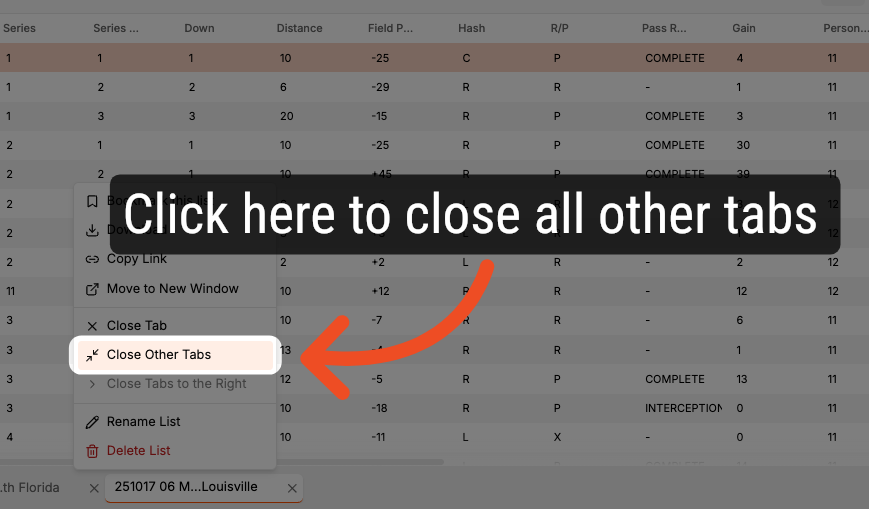
8. Close Other Tabs
Click here to close all other open tabs.
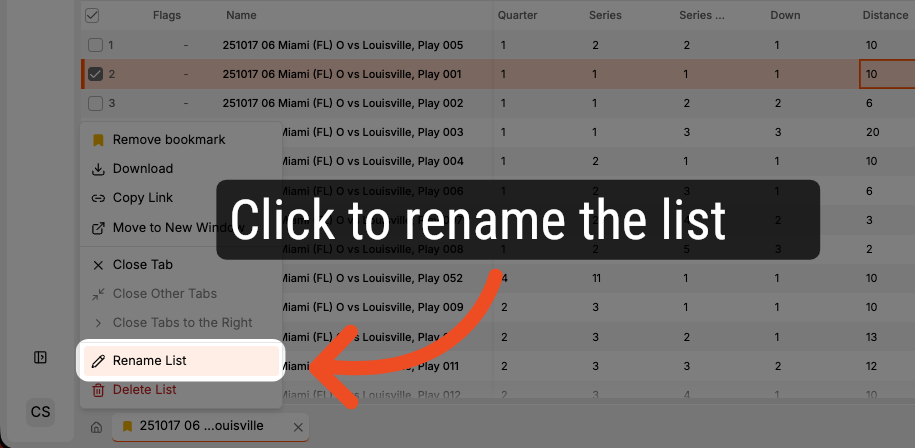
9. Rename a List
Click here to rename the selected list.
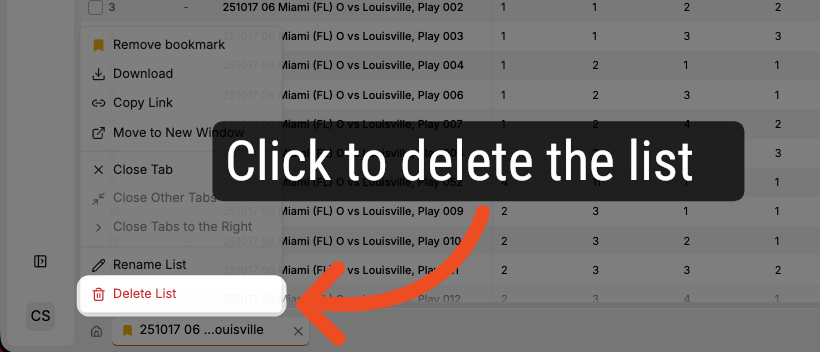
10. Delete a List
Click here to delete the selected list.
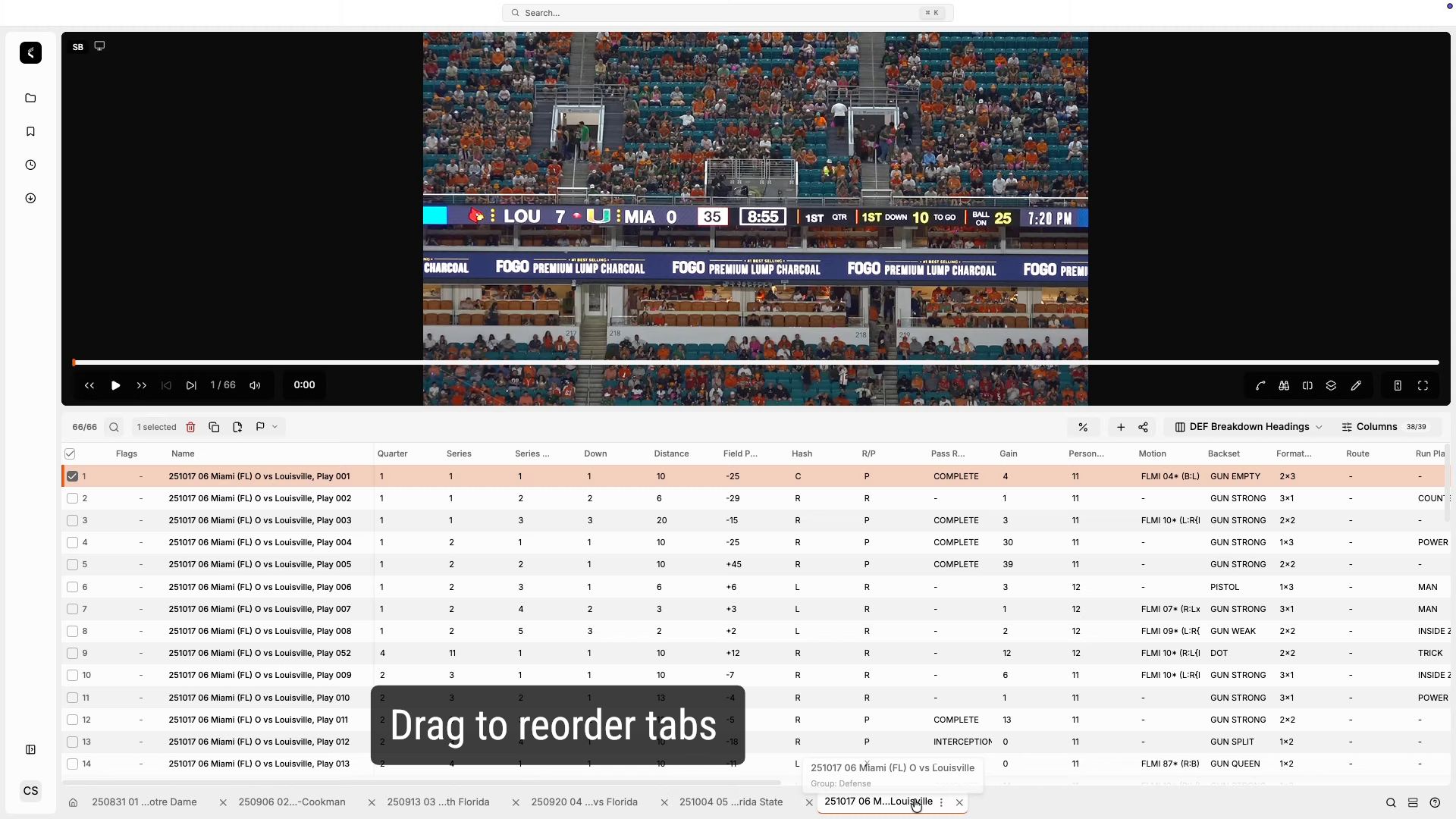
Reordering Tabs
1. Reorder Tabs
Comments
0 comments
Please sign in to leave a comment.