
Saving and Managing Quickie Stat Presets
1. Saving Presets
You can save your Quickie Stats for easy access when you need them again. Presets
are saved for only your user and a future update will add support to share them
to other users.

2. Saving a Preset
Click on the Save icon next to the preset dropdown menu.

3. Name the Preset
After clicking the icon, the Save Quickie Stats Preset window will appear.
This window enables you to name your Quickie Stat and includes a checkbox
to designate it as your default. Your default preset will automatically
open
the next time you access the Quickie Stat window.

4. Opening the Quickie Stat Preset Dropdown
The Quickie Stat Preset dropdown menu is positioned to the left of the save icon. Click the dropdown to view your available presets.

5. Preset Dropdown
The Preset dropdown will display all of your saved quickie stats, charts
or scatter plots.

6. Managing Presets
Managing your Quickie Stats Presets allows you to set a default, rename,
or delete a preset.
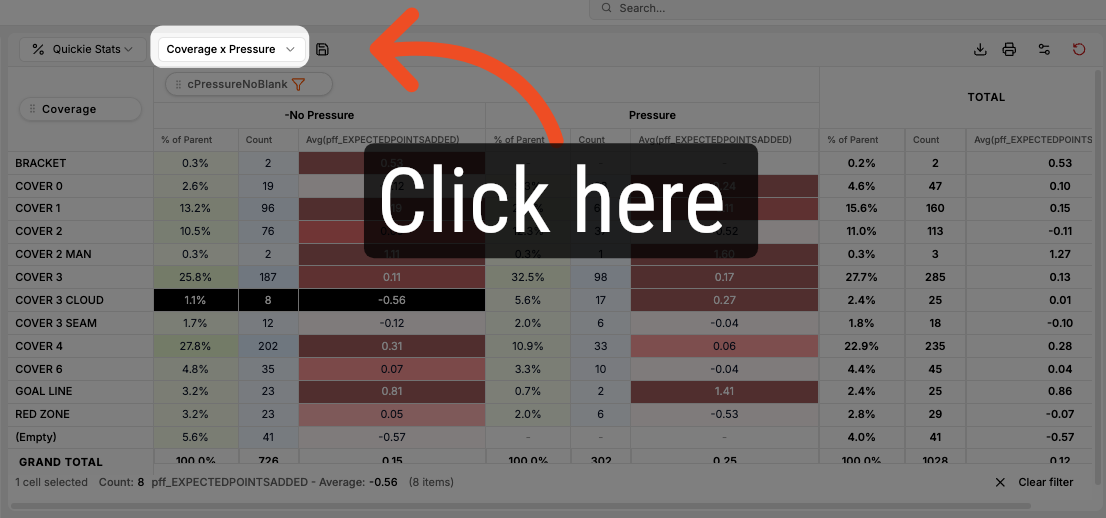
7. Accessing the Manage Preset Menu
To access the Manage Preset Menu, click on the preset dropdown.
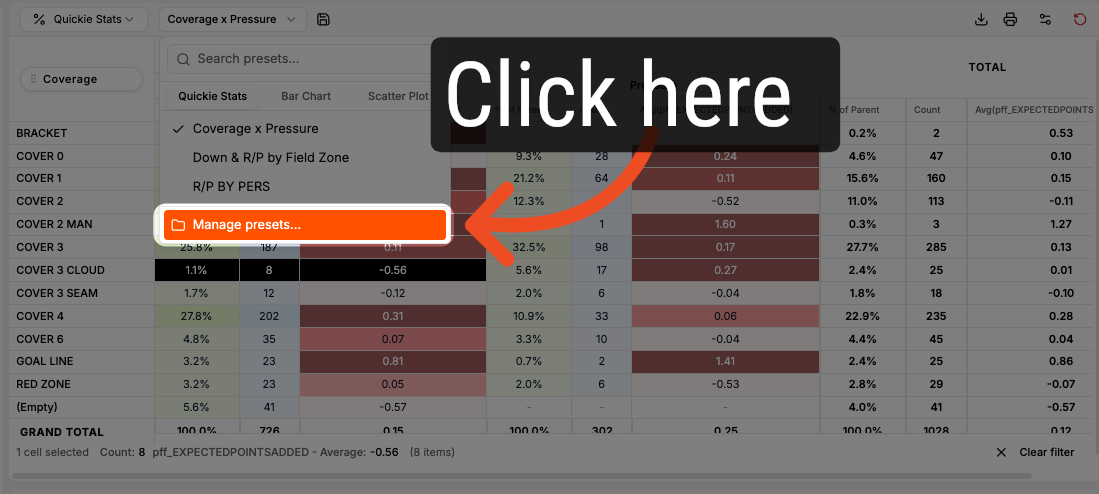
8. Open Manage Presets Menu
Next, select the Manage presets option at the bottom of the dropdown.
9. Manage Presets Menu
The Manage Presets menu will open.
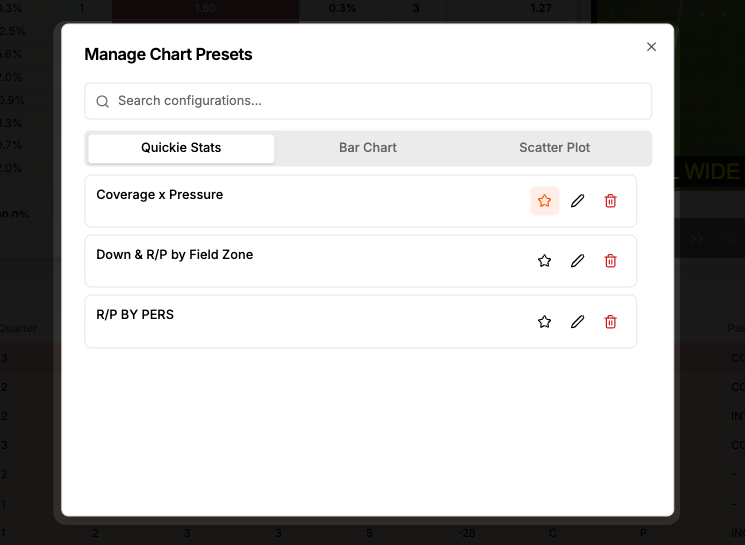
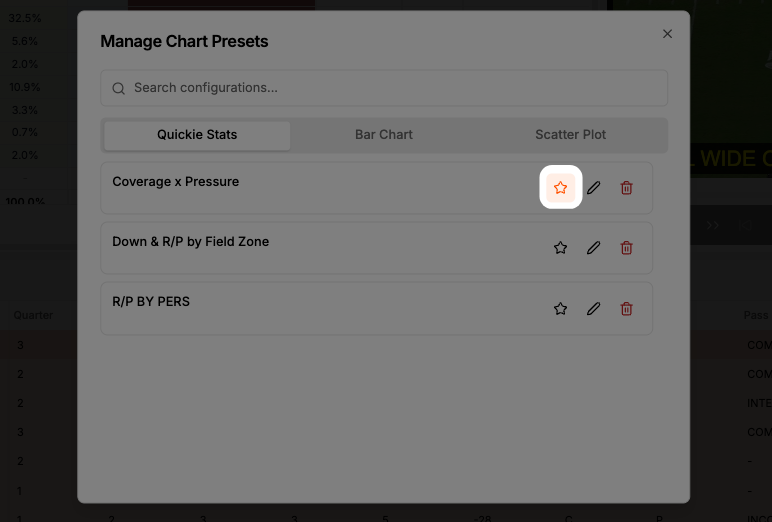
10. Set a Default
Click the star icon to select your default preset.
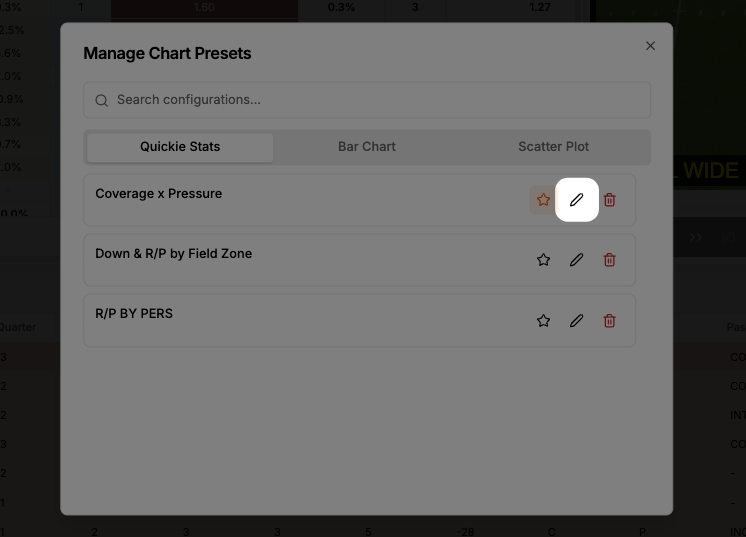
11. Rename a Preset
Click the pencil icon to rename the selected preset.
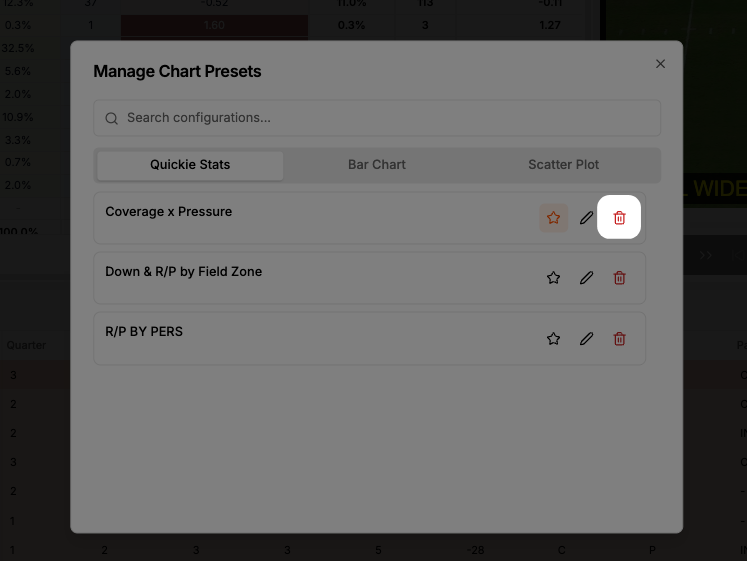
12. Delete a Preset
Click the trash can icon to remove the selected preset from your list.
Comments
0 comments
Please sign in to leave a comment.