
Quickie Stat Drill Downs
1. Drill Down Options
Users can customize their drill down behavior when single or double clicking on a value in their Quickie Stat.
2. Opening the Drill Down Menu
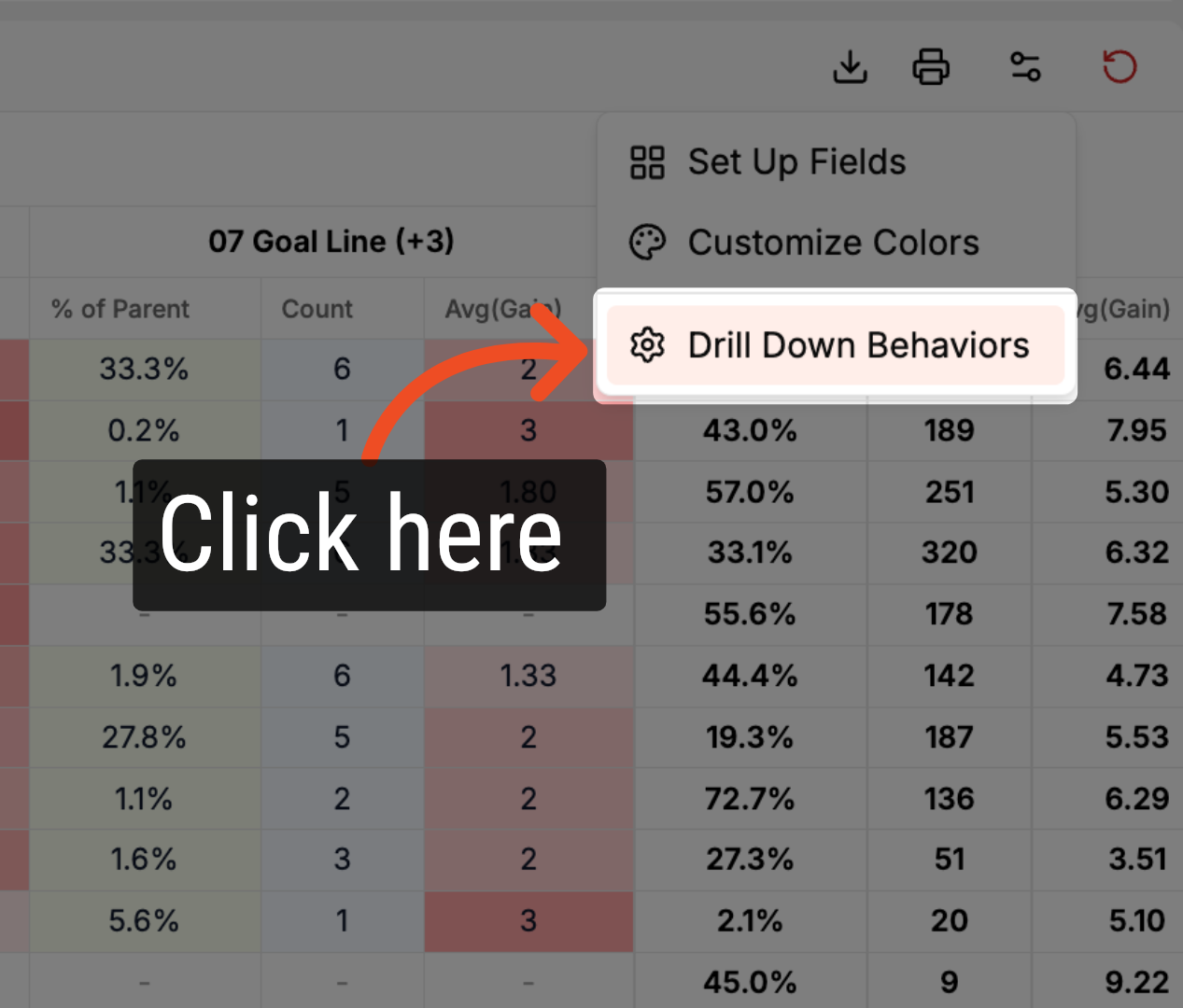
Adjust the actions triggered by single or double clicks by accessing the Quickie Stats settings menu and selecting Drill Down Behaviors.
3. Drill Down Menu Options
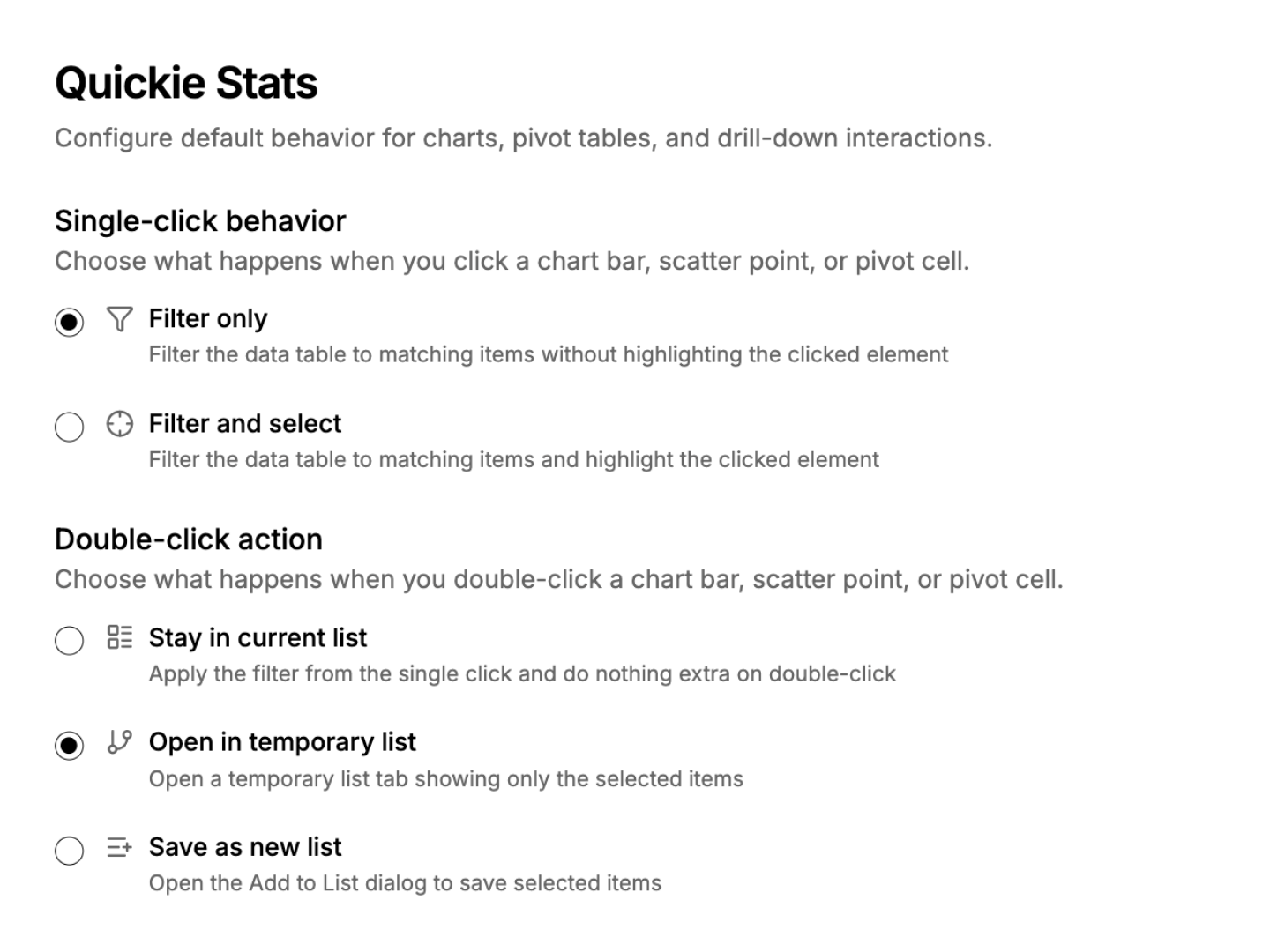
Adjust the behaviors for single-click and double-click actions through the menu. Users can choose from two single-click options and three double-click options.
4. Single-Click: Filter Only
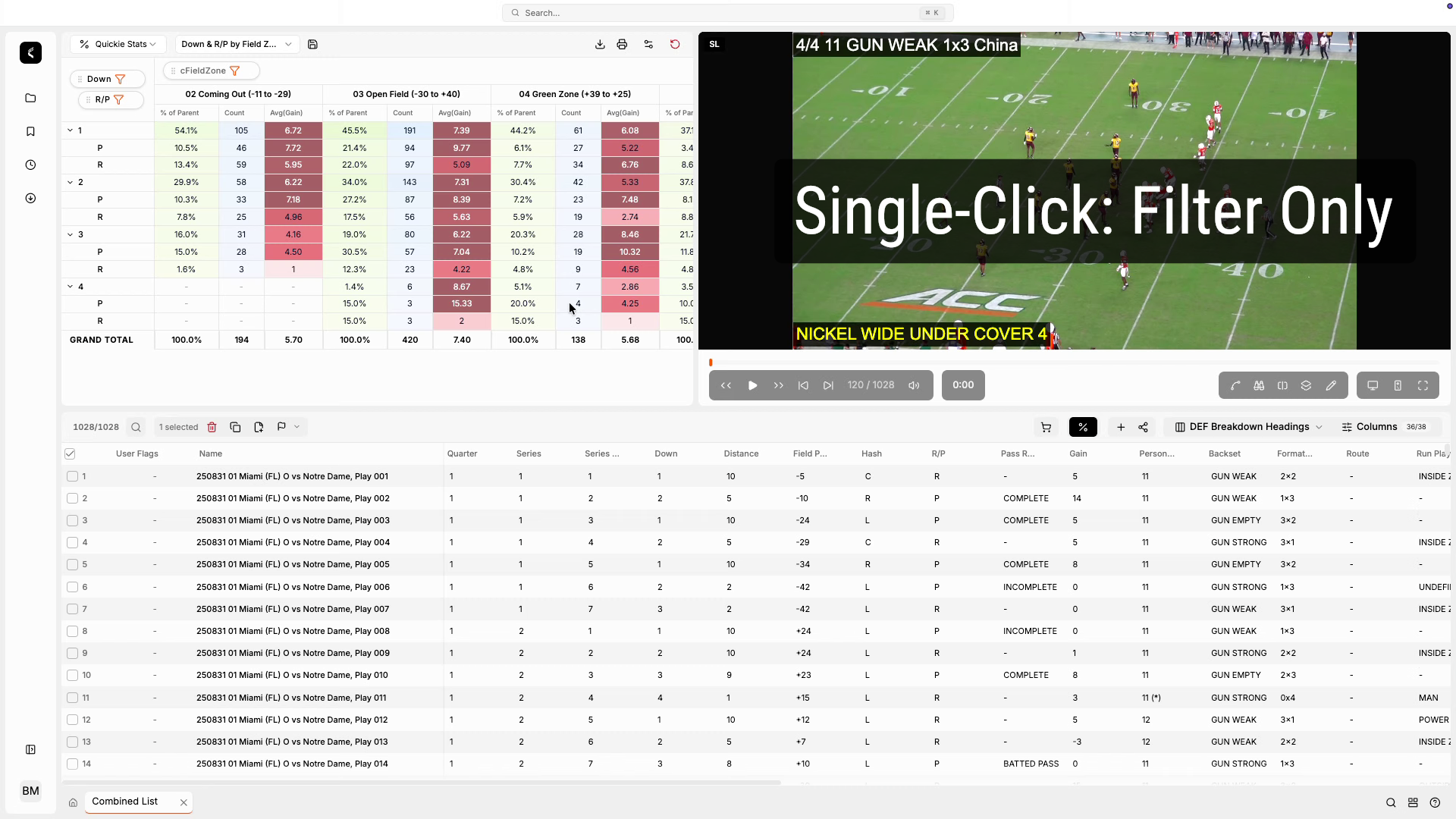
The single-click filter option will refine the current list to display only the selected plays.
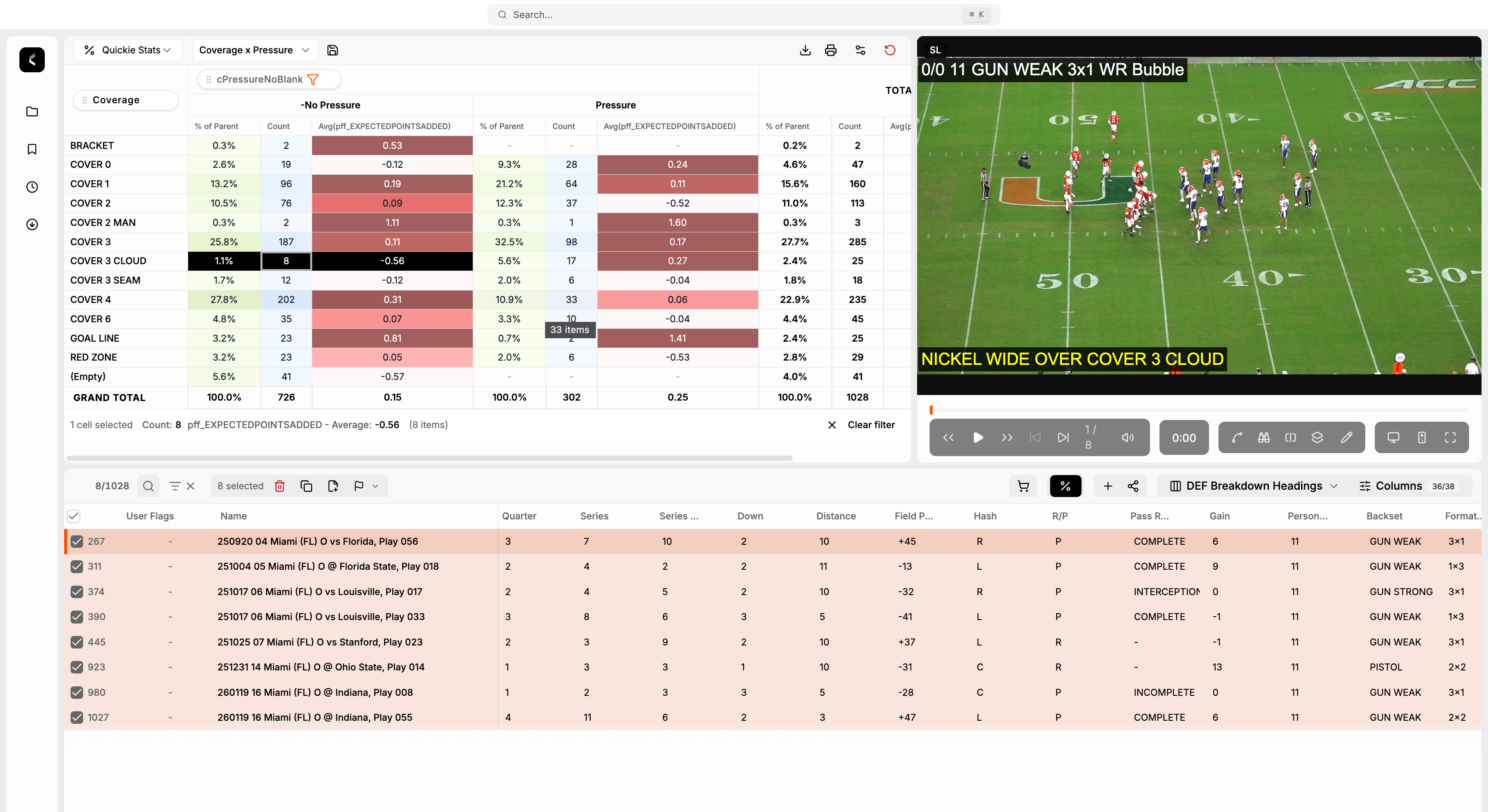
5. Single-Click: Filter and Select
The single-click filter and select option allows users to filter the current list and automatically select all plays. Once the plays are auto-selected, users can easily drag and drop them into a new or existing list.
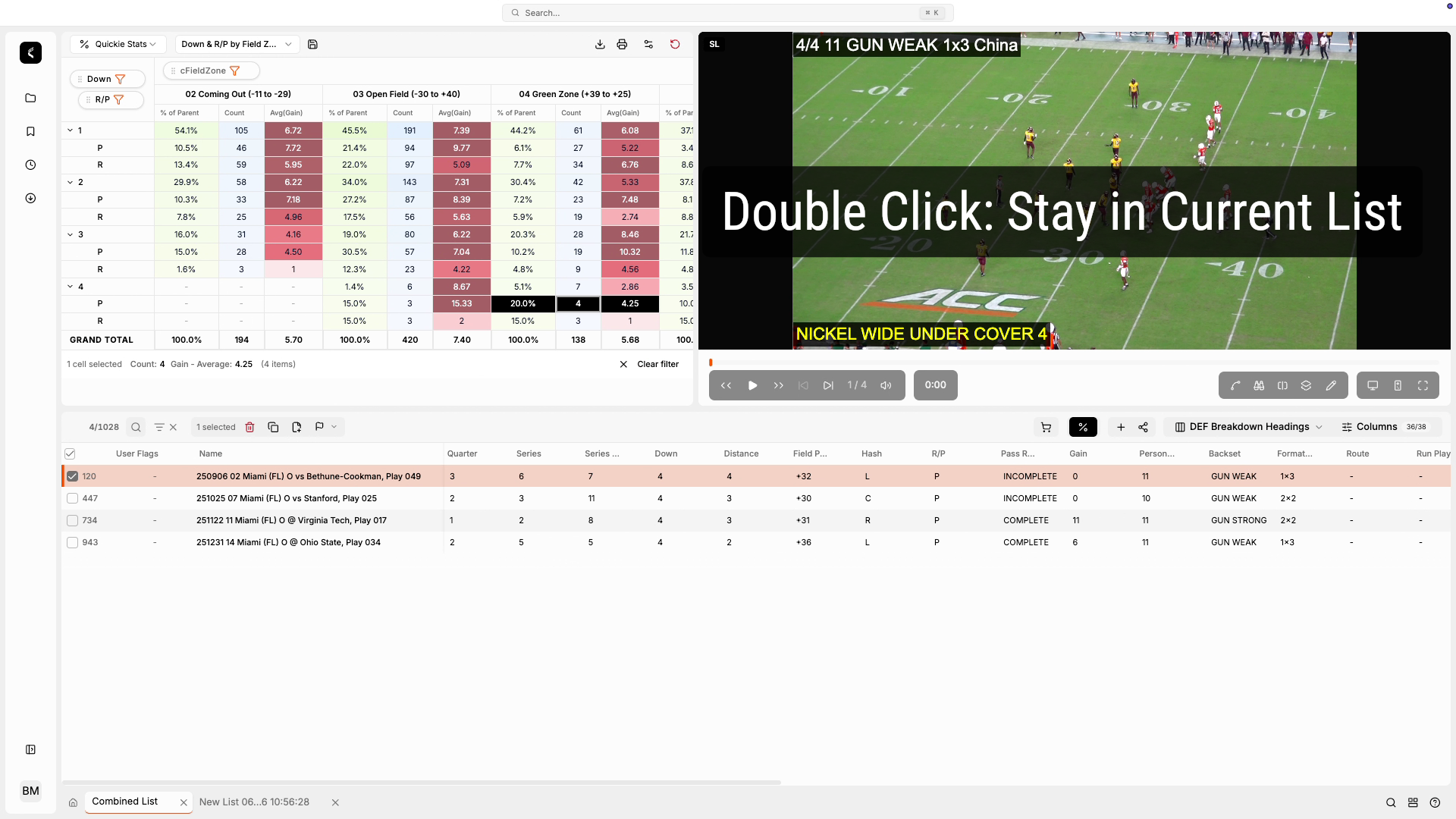
6. Double Click: Stay in Current List
The double-click stay in current list filter option will refine the current list to display only the selected plays.
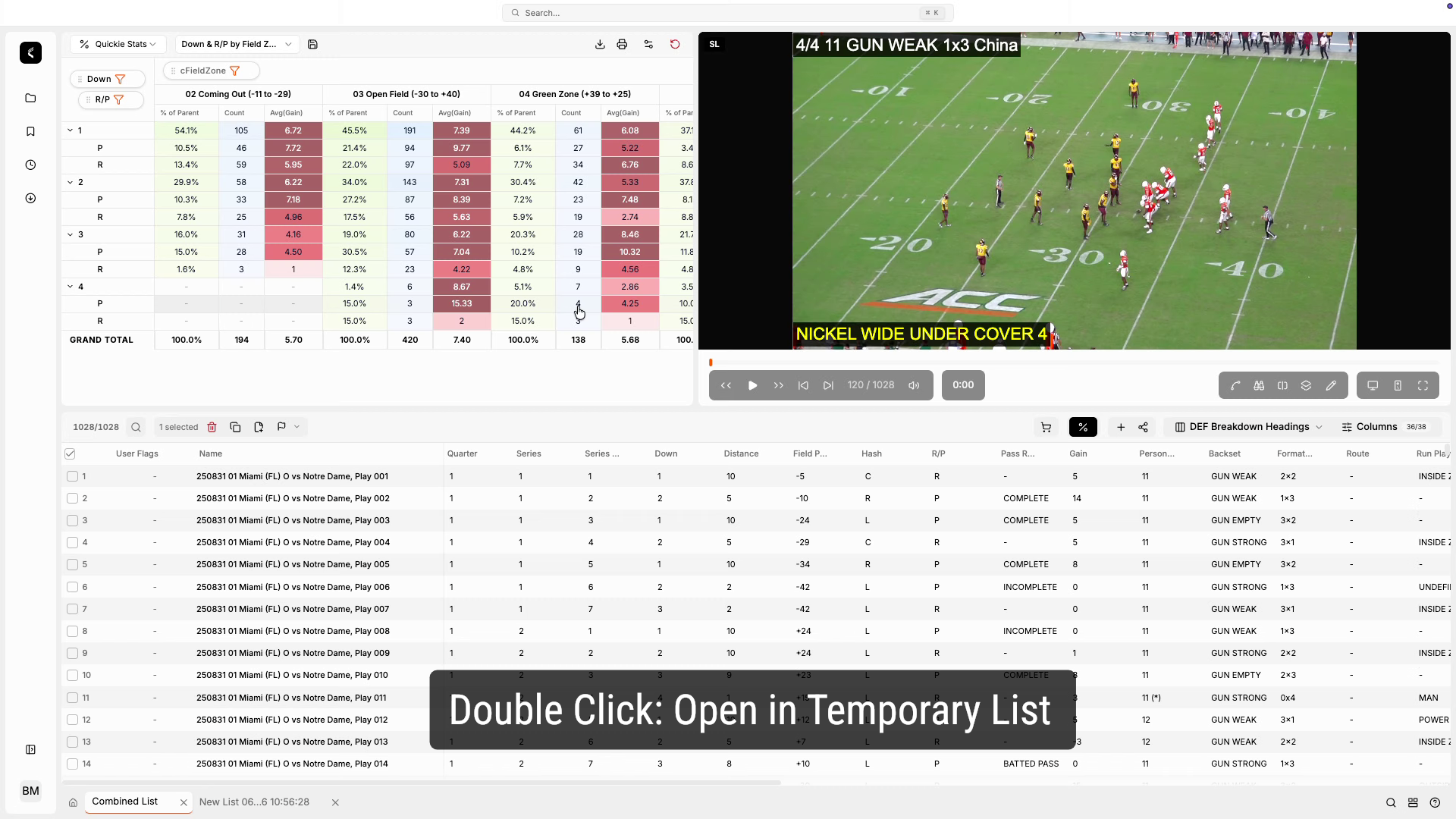
7. Double Click: Open In Temporary List
The double-click "Open In Temporary List" option will automatically generate a new temporary list based on your double-click selection. This new list will immediately open in a new tab in the tab bar.
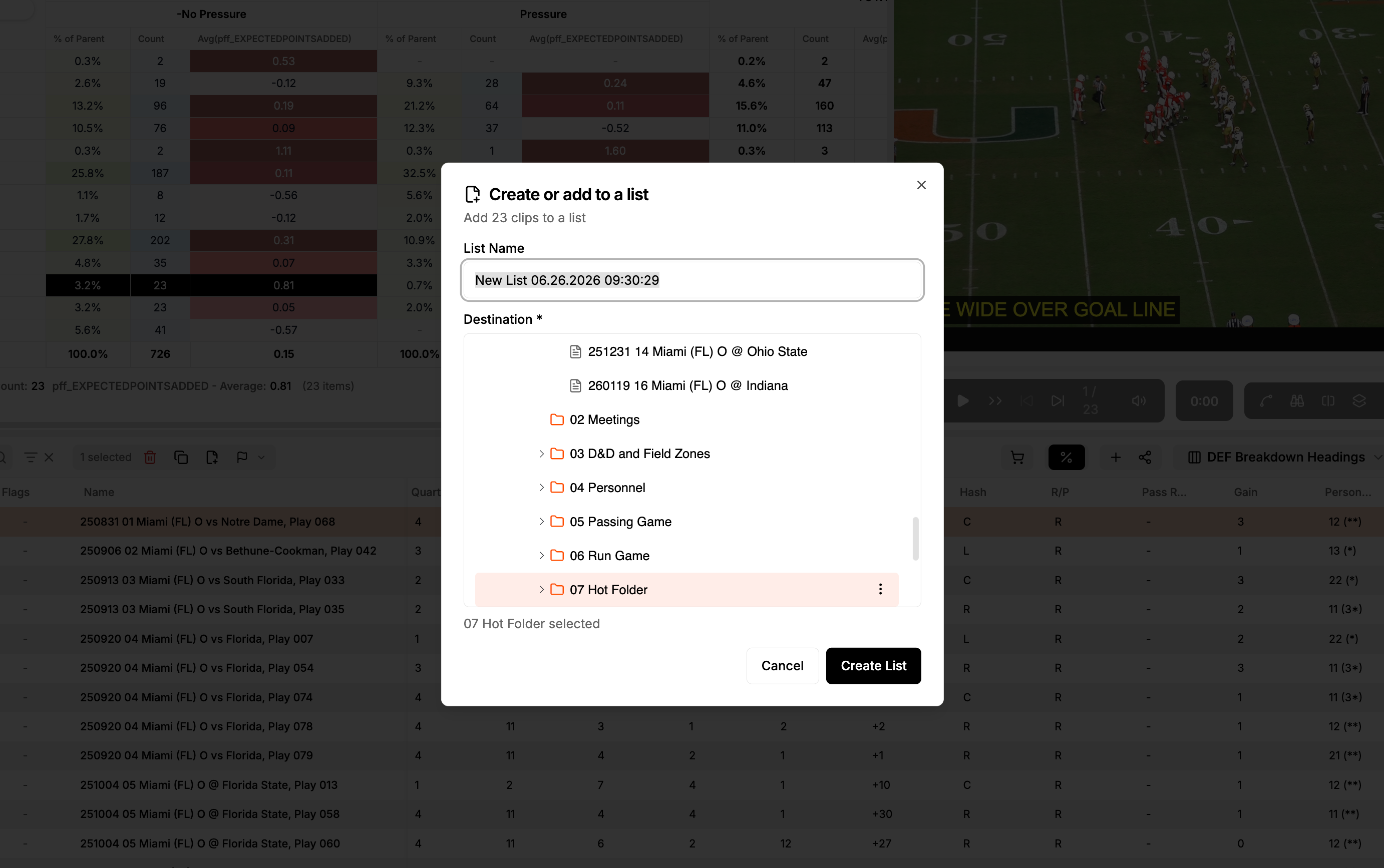
8. Double Click: Save As New List
The Double-Click Save As New List option enables you to create a new list based on your double-click selection. The save list window will appear, allowing you to select the location for saving the list. Once saved, the list will automatically open.
Comments
0 comments
Please sign in to leave a comment.