
Build from the Quickie Stat Menu
1. Build from the Configure Quickie Stat Menu
Another way to create a Quickie Stat is by using the Configure Quickie Stat Menu. This option offers tools for conducting a more in-depth data analysis based on the information in your list.

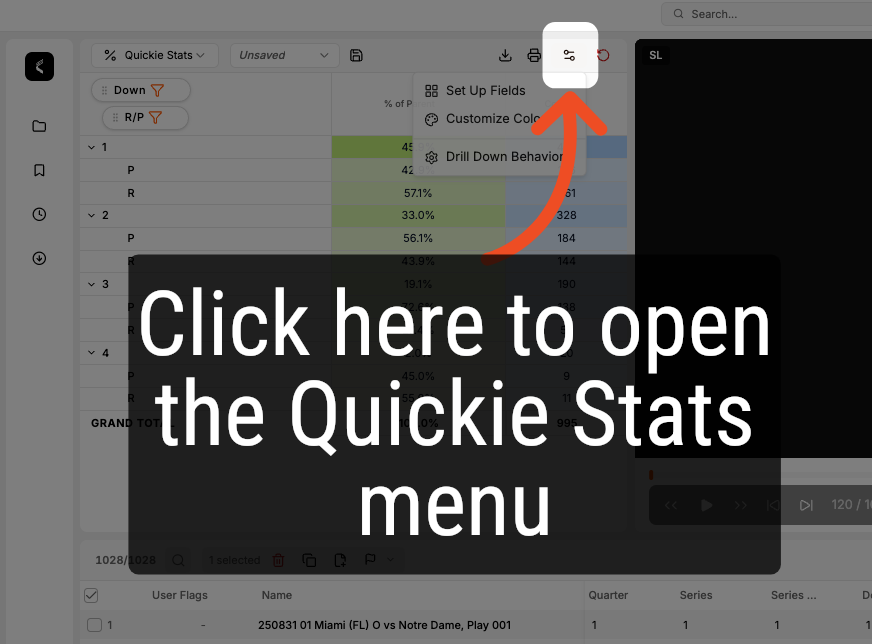
2. Open the Quickie Stat Menu
Click on the Settings icon to access the Quickie Stat settings menu.
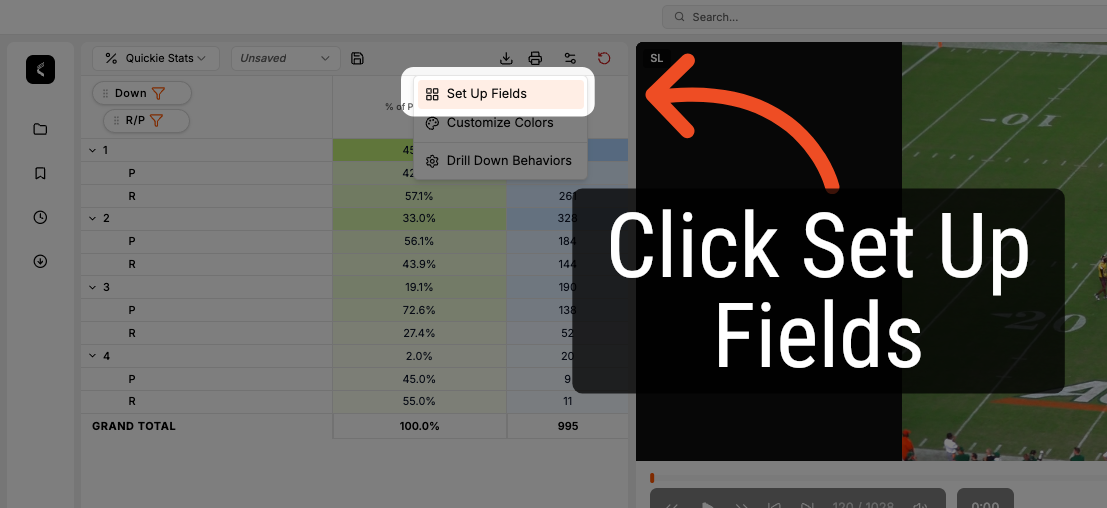
3. Access Field Setup
Click "Set Up Fields" to configure data fields for your report.
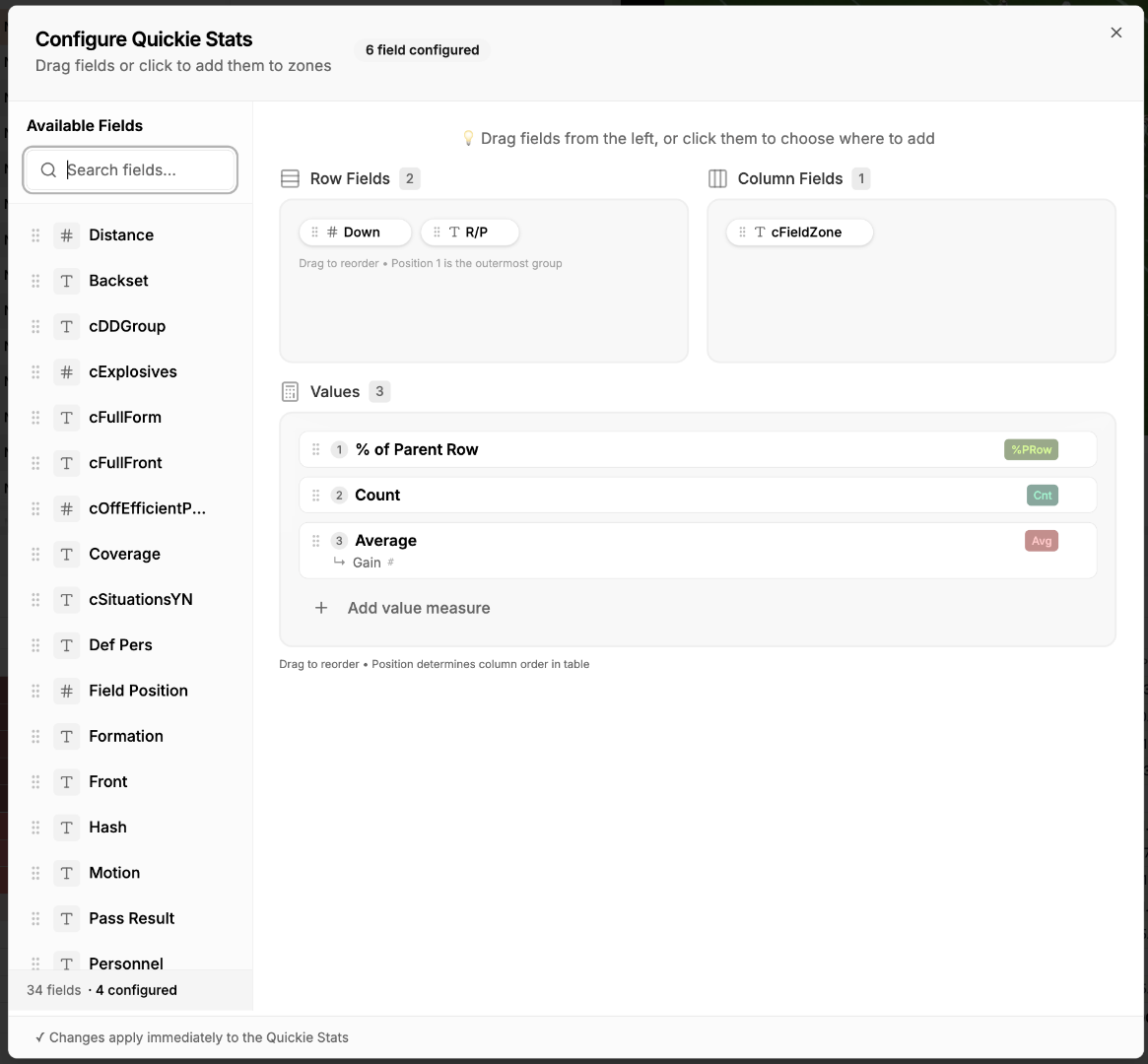
4. Configure Quickie Stats
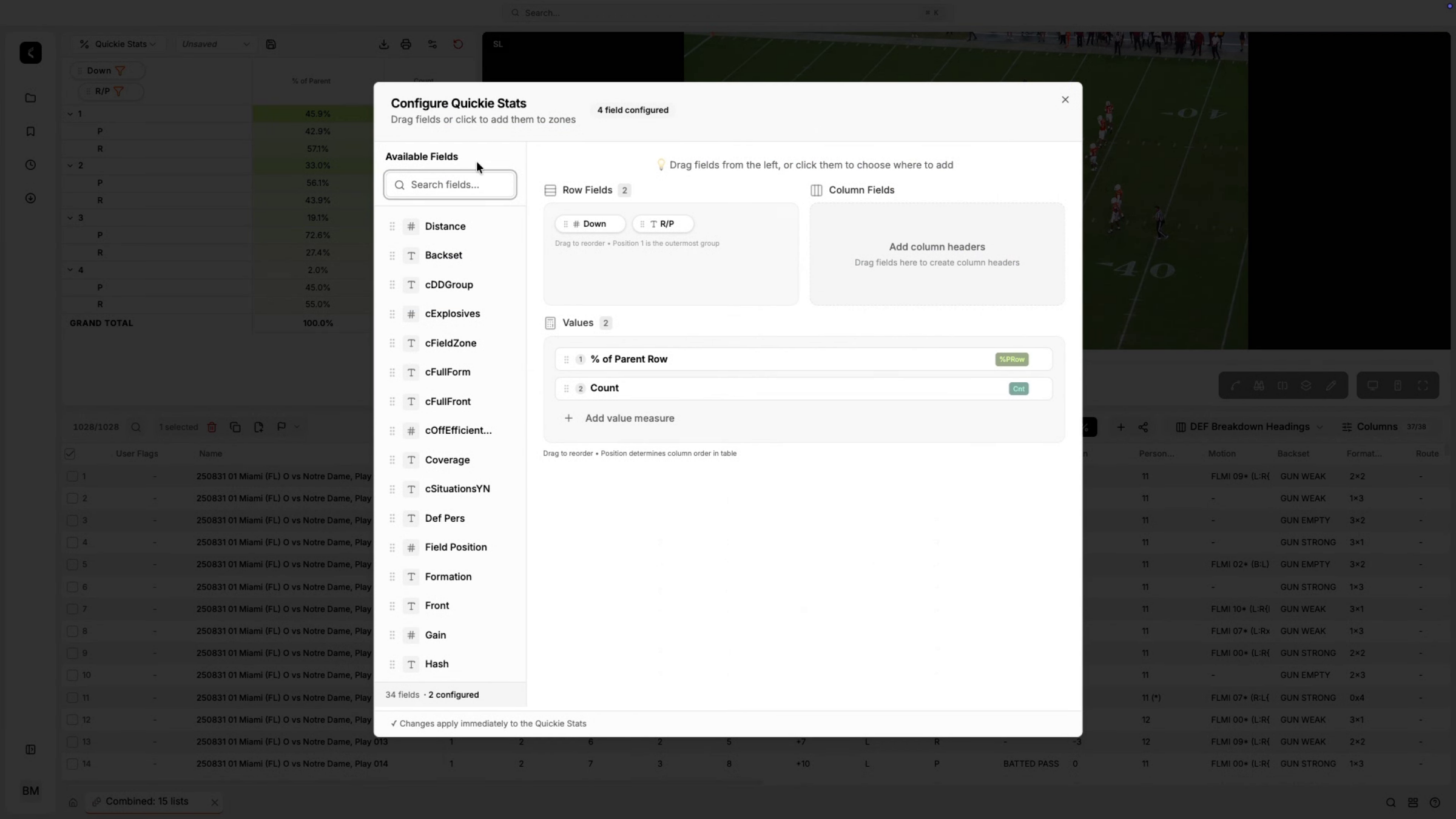
The Configure Quickie Stats window offers an alternative method for creating your Quickie Stat. You can search for and incorporate any fields from your headings group. These data points can be added as extra rows, columns, or value metrics.
5. Search Data Fields
Click "Search fields ..." to find specific data fields quickly.
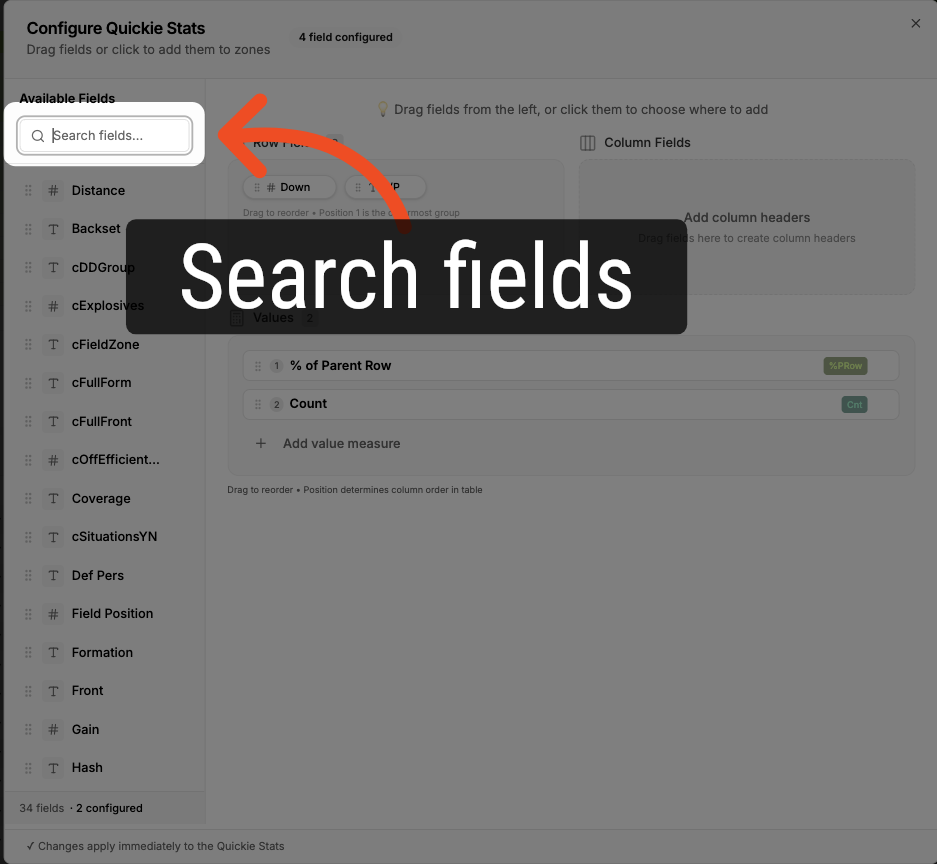
6. Search and Add Fields
You can search for a field by typing then drag and drop it to add it as a new row or column.
7. Add Value Measure
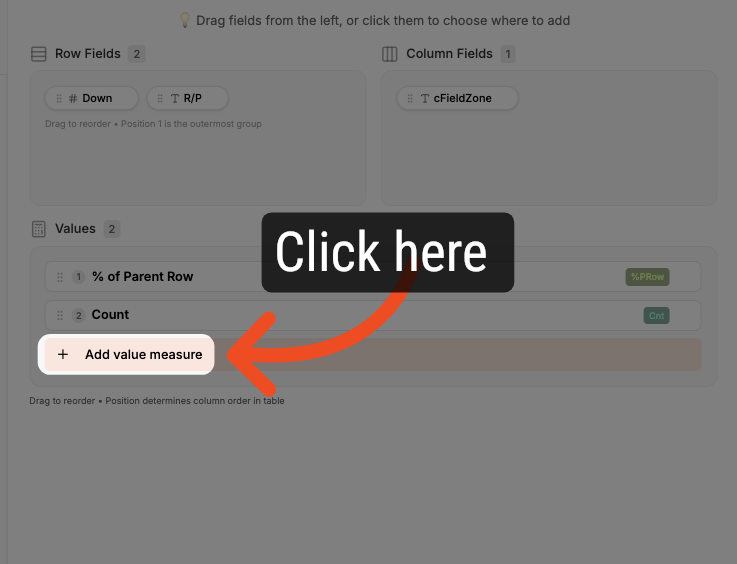
Click "Add value measure" to include a new measurement in your report.
8. Value Measures
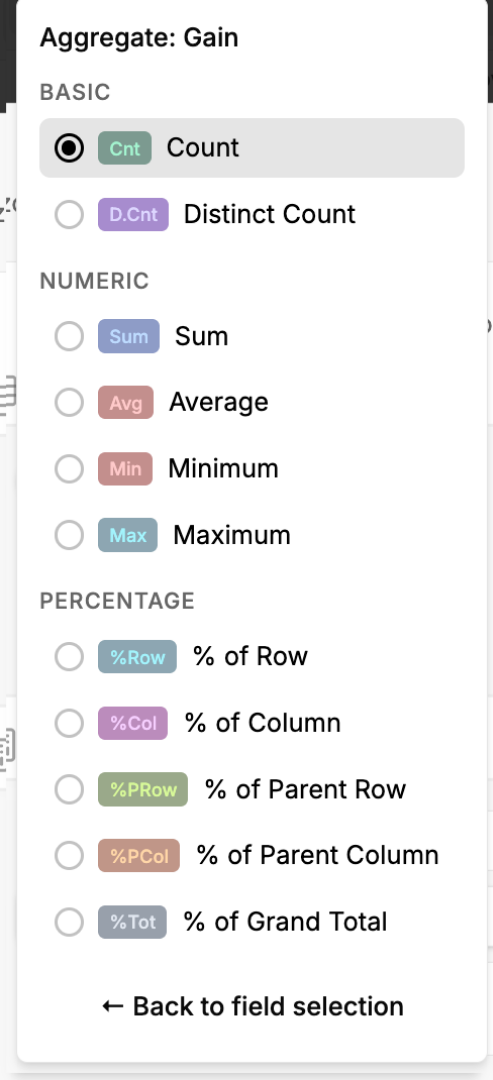
Value measures offer a method to enhance your Quickie Stat data review. They function exclusively with numeric fields. A variety of measure options are available to further enrich your Quickie Stat.
9. Close the Configure Quickie Stats Menu
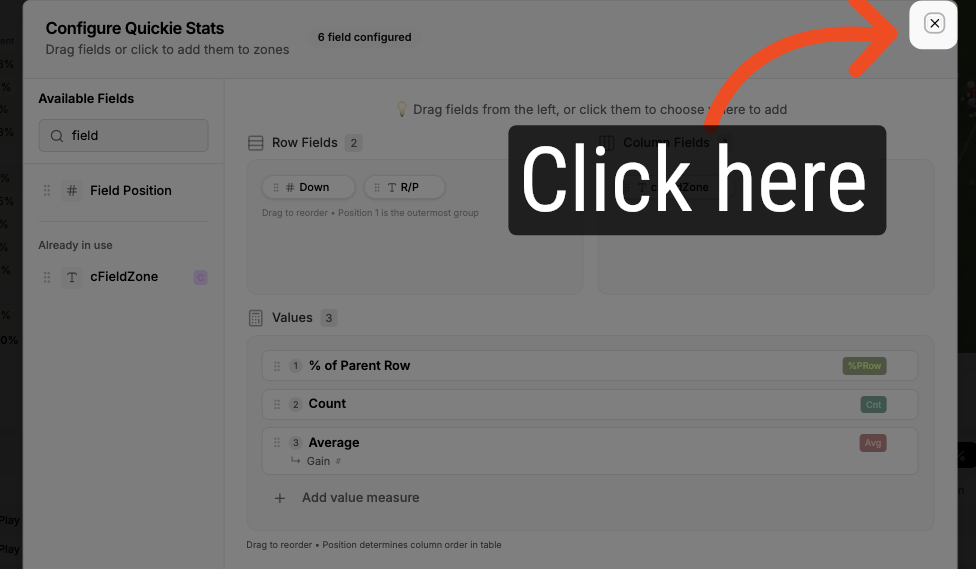
Click the close icon or click outside the Configure Quickie Stats menu to dismiss it.
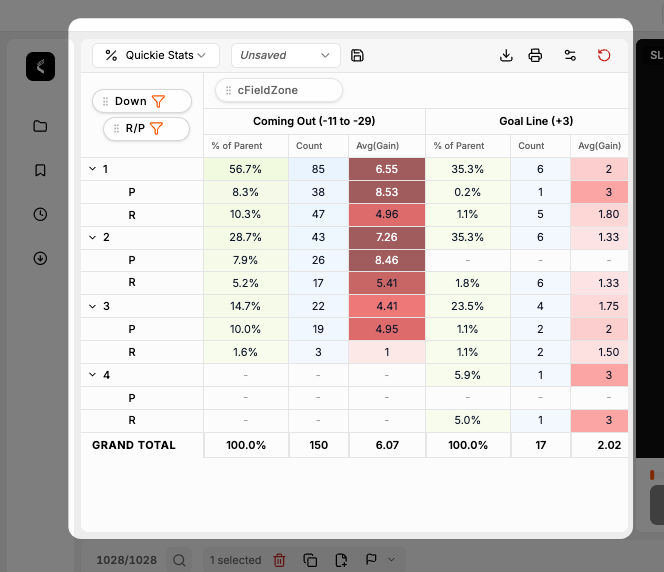
10. View Your Updated Quickie Stat
Once you close the menu, you will be able to view your updated Quickie Stat.
Comments
0 comments
Please sign in to leave a comment.