
Hub Pro is the next generation coaching workstation from Catapult. It is available on Windows, Mac, and iOS. Your full video library and analysis tools are available the moment you open the app - on any device, from any location.
Overview
- Accessing Your Account
- Navigating Hub Pro
- Using Tabs
- Data Table
- Creating and Managing Lists
- Search
- Video Player
- Multi-Angle Playback
- Quick Draw
- Annotations
- PowerPoints Presentations
- Title Slides
- Charting & Quickie Stats
- Downloads
- Link Sharing & Surge Linking
- Launching Plays from PFF
- Settings
- Updating Hub Pro
- Zendesk Integration
- Keyboard Shortcuts
Accessing Your Account
Logging In
To access Hub Pro, enter your Thundercloud username and password on the login screen.
1. Introduction
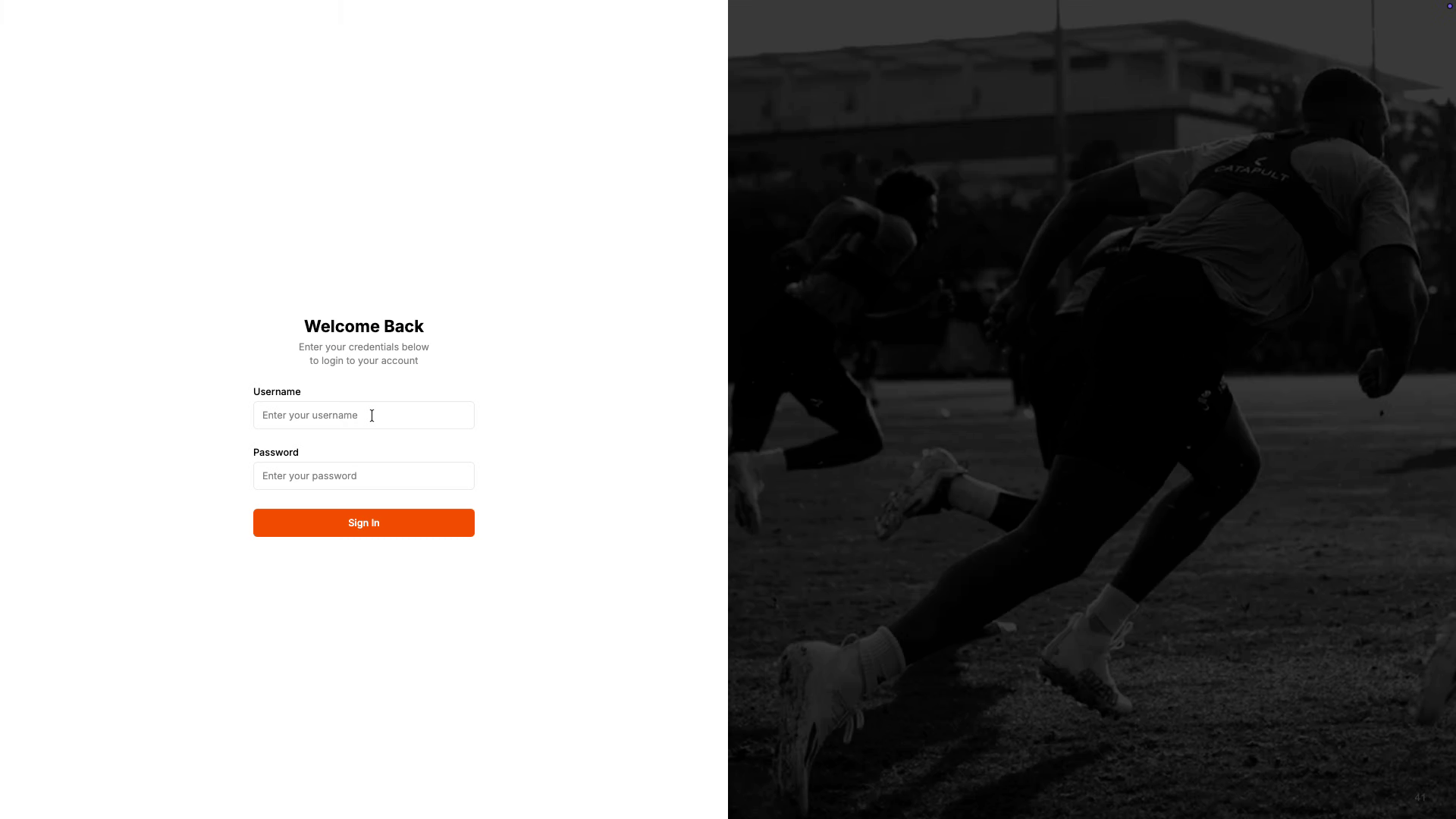
2. Enter your Thundercloud username
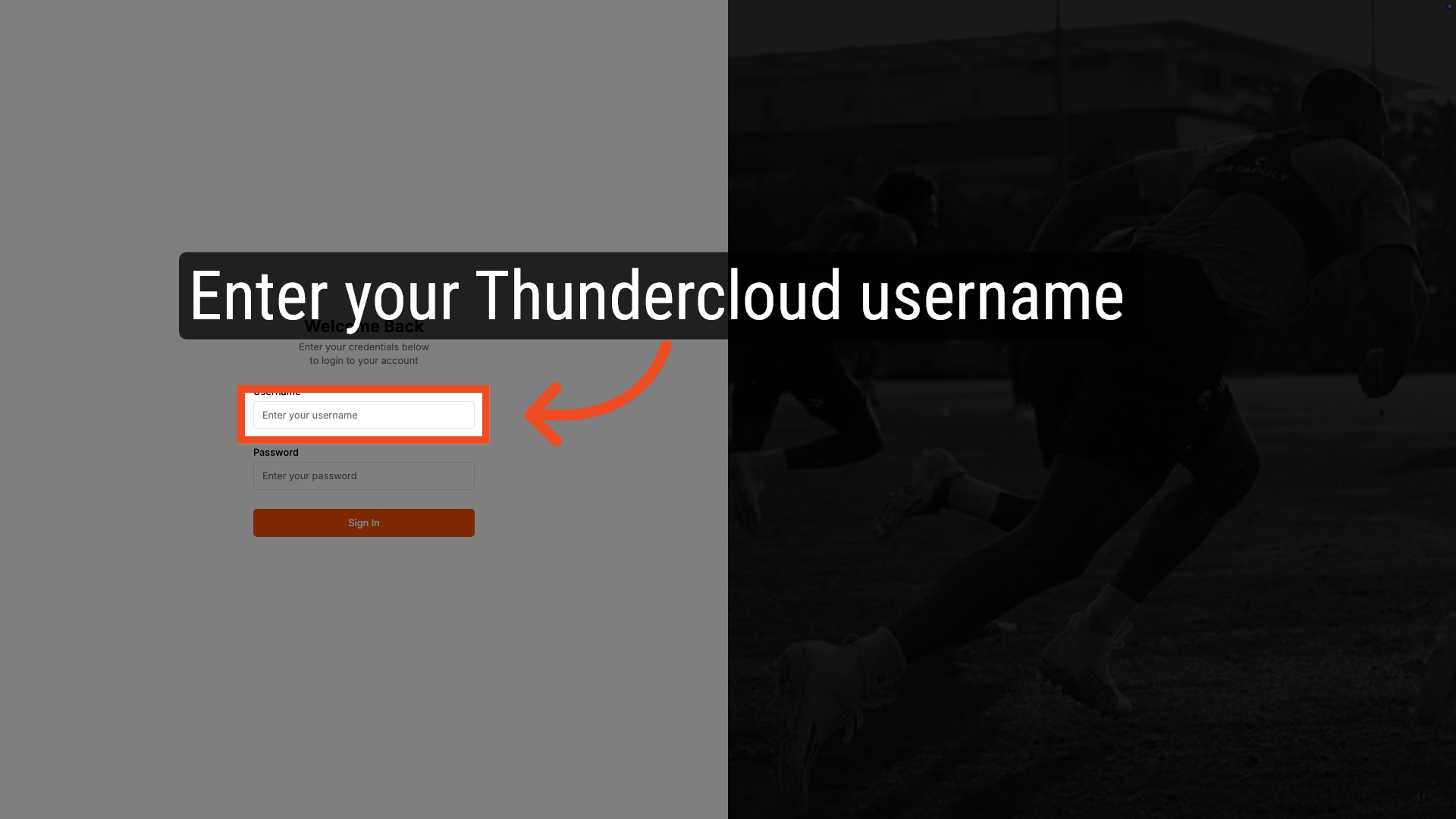
3. Enter your passwords
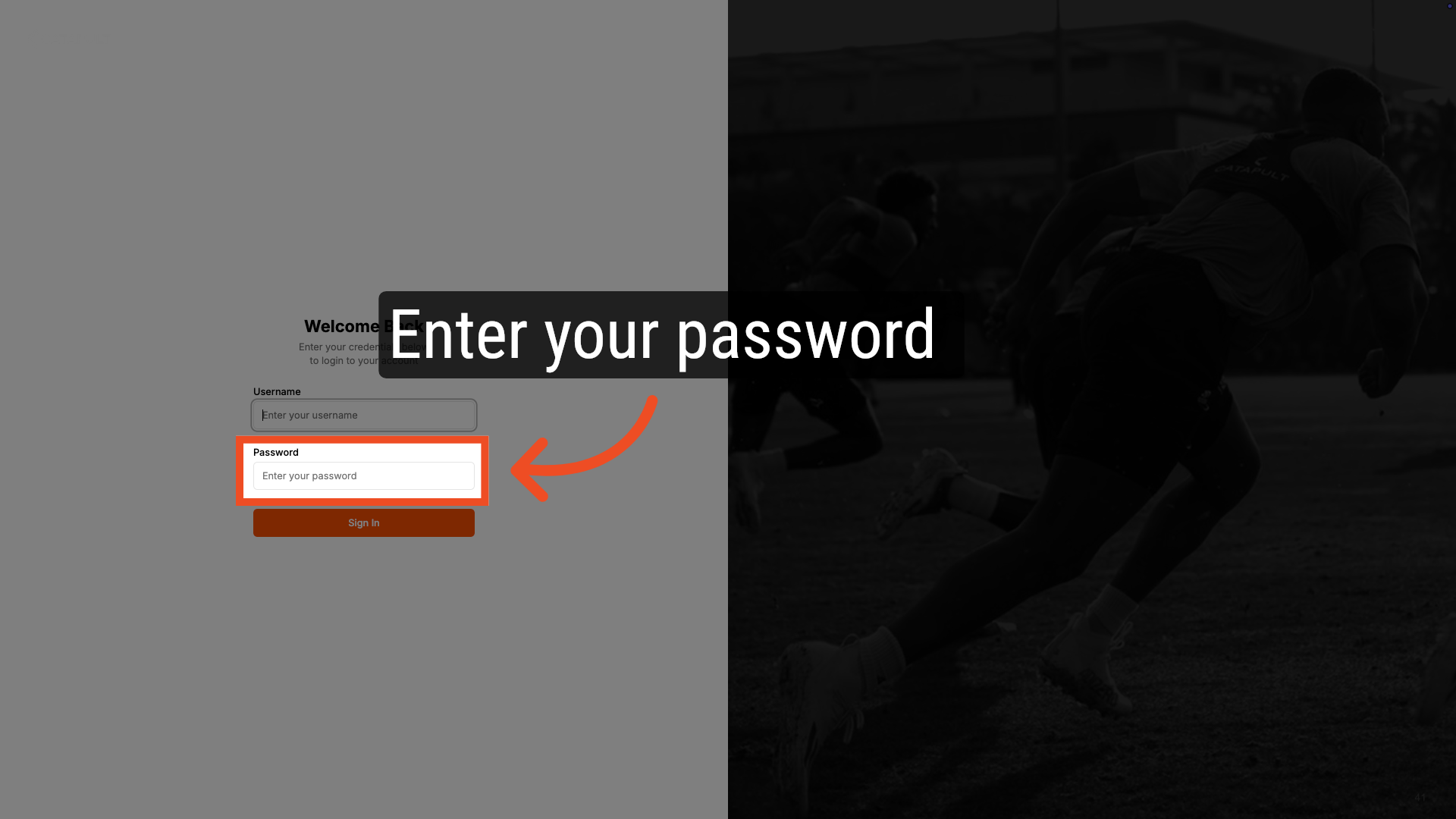
4. Click Sign In
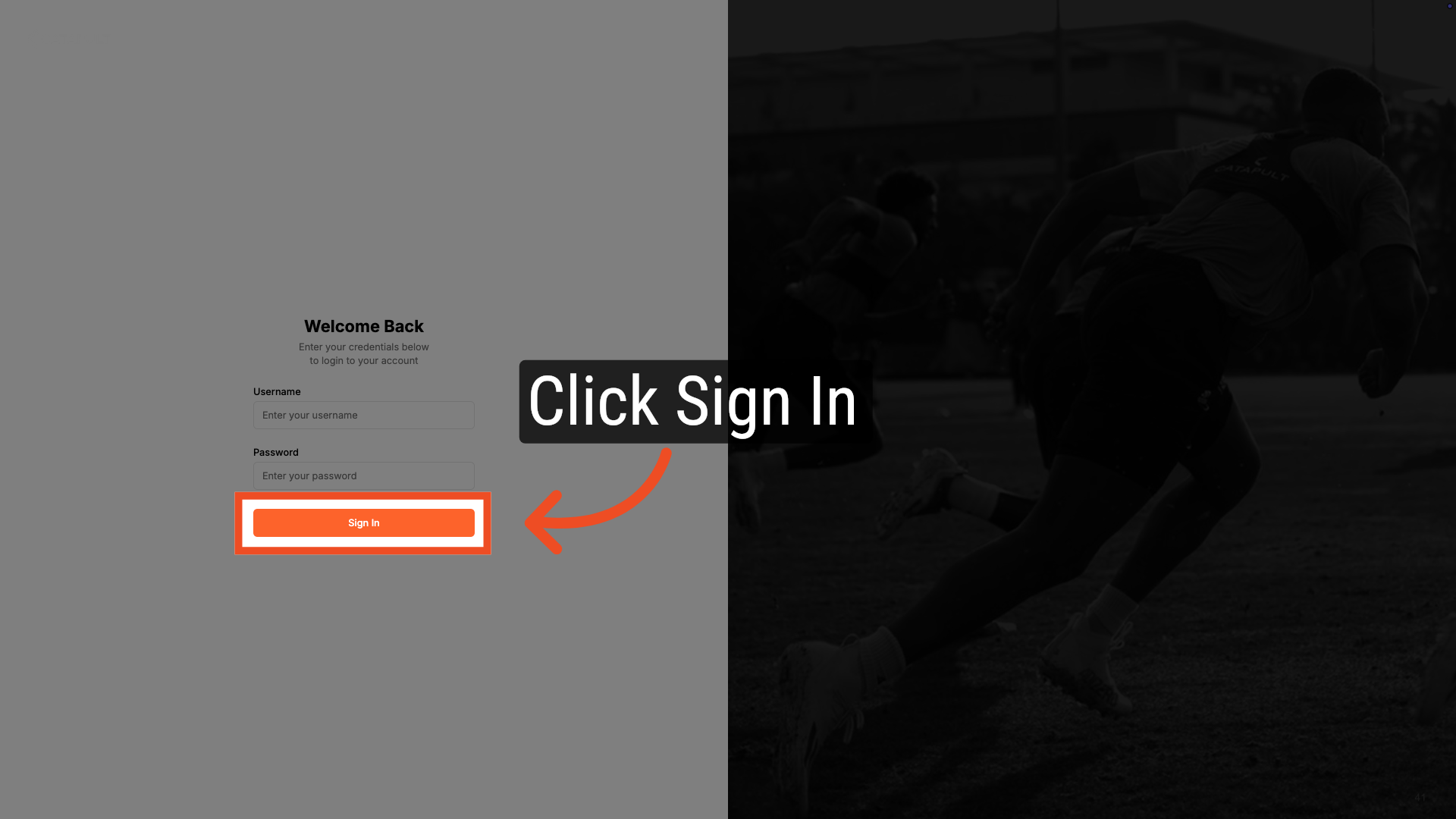
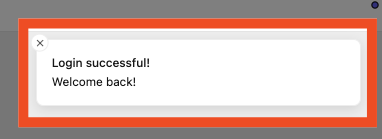
5. Login Successful
After logging in, you'll receive a success message.
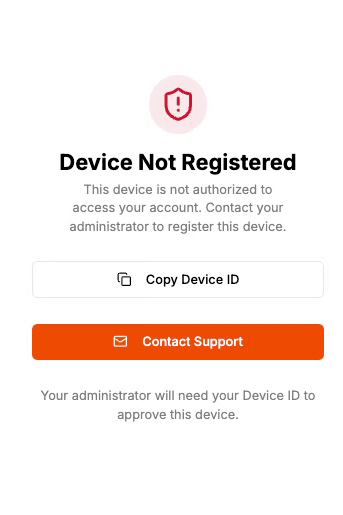
Mobile Device ID Check
If your account is configured for device registration, you will be prompted to register your device on first login. A Thundercloud administrator in your organization must approve the device before you can proceed. Your device ID is displayed on screen to share with your admin.
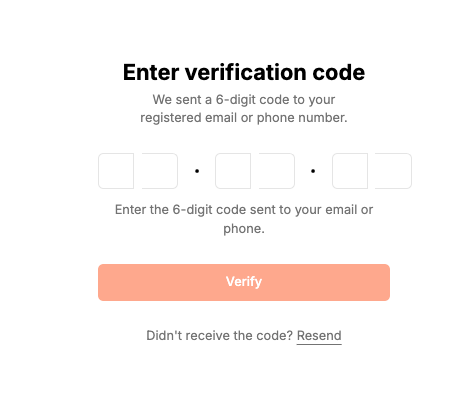
Multi-Factor Authentication
If your organization has enabled two-factor authentication, you will be prompted to enter a six-digit code sent to your email or phone. Enter the code to complete login. If 2FA is not enabled, you will be taken directly into the app.
Navigating Hub Pro
Home Screen
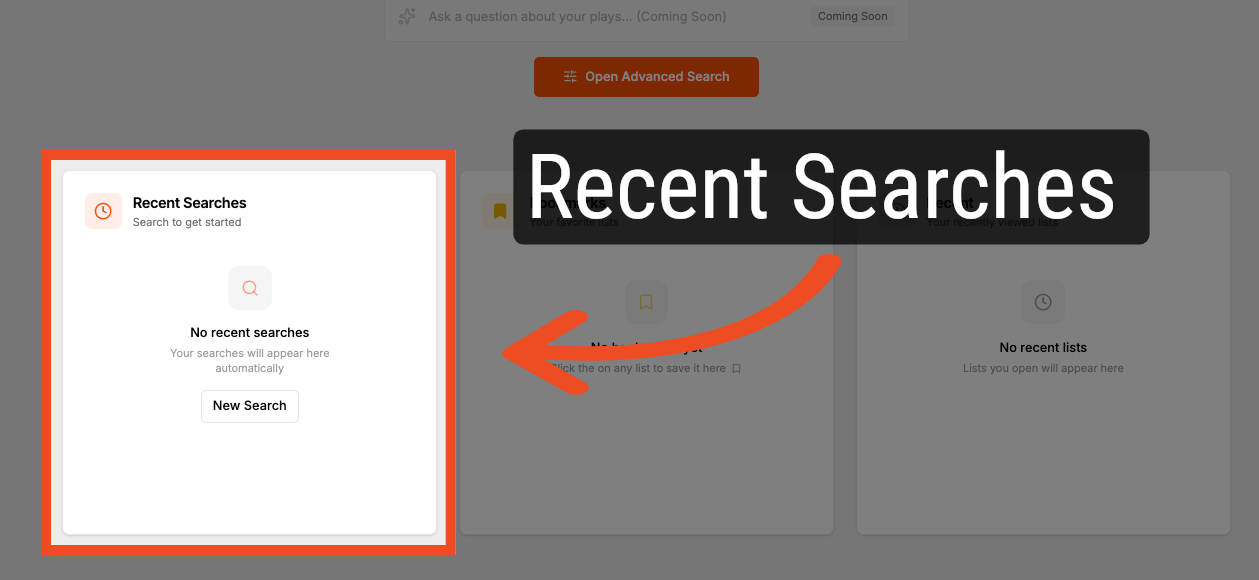
After logging in, Hub Pro displays your Home screen, which gives you fast access to your most important content:
Recent Searches
Quickly access recent searches you've created and run.
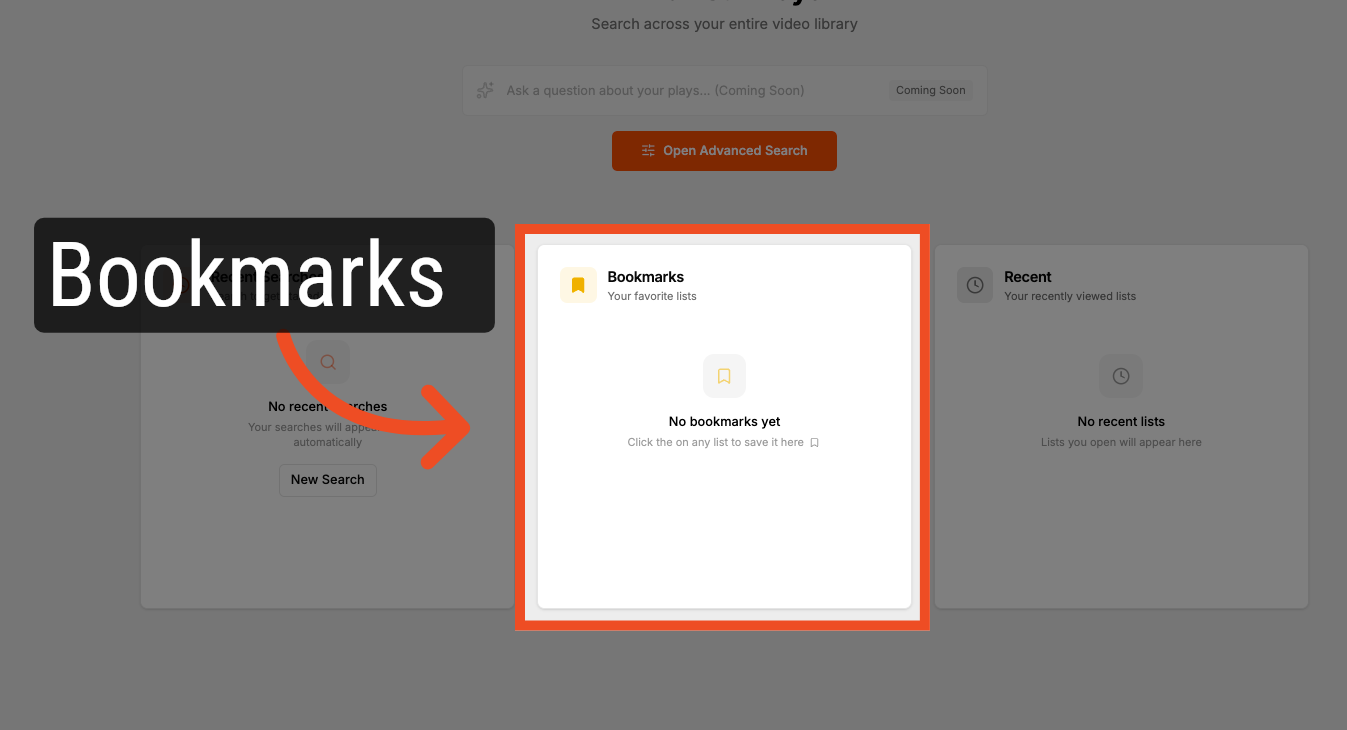
Bookmarks
Access lists you have bookmarked for quick access.
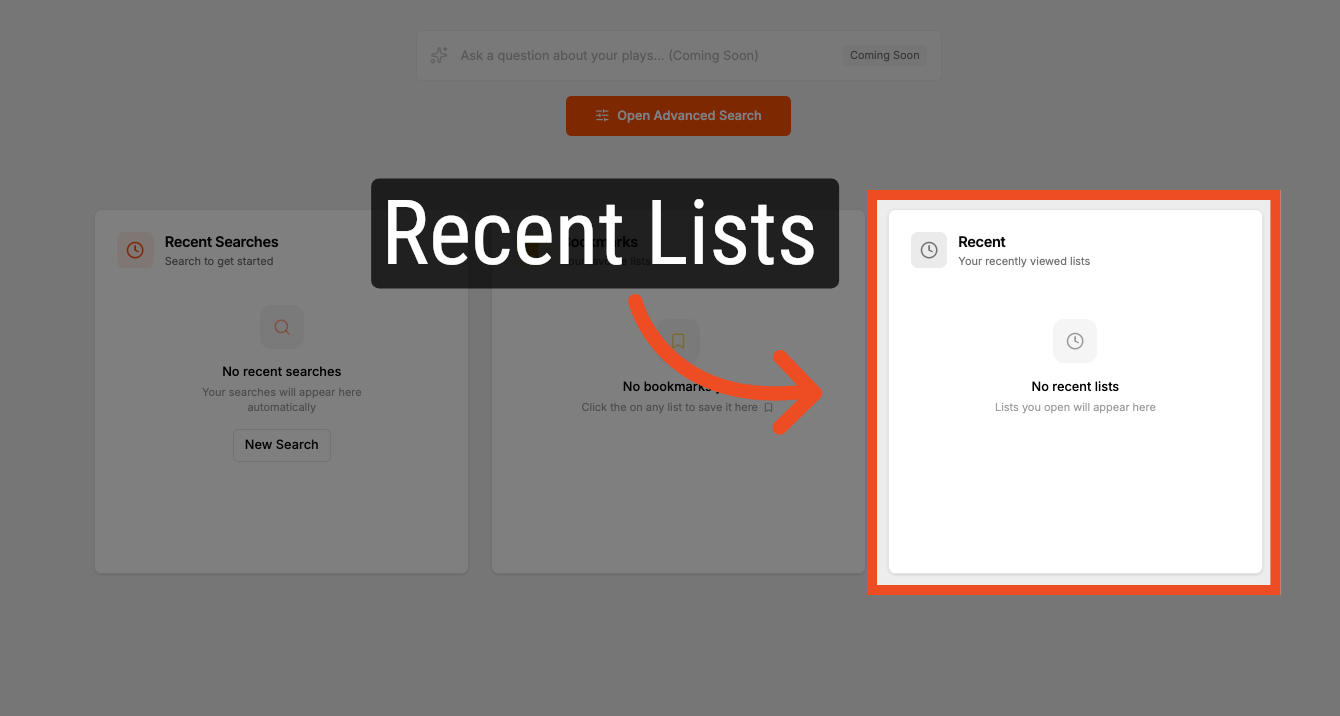
Recents
Access lists you have recently opened.
Using the Sidebar
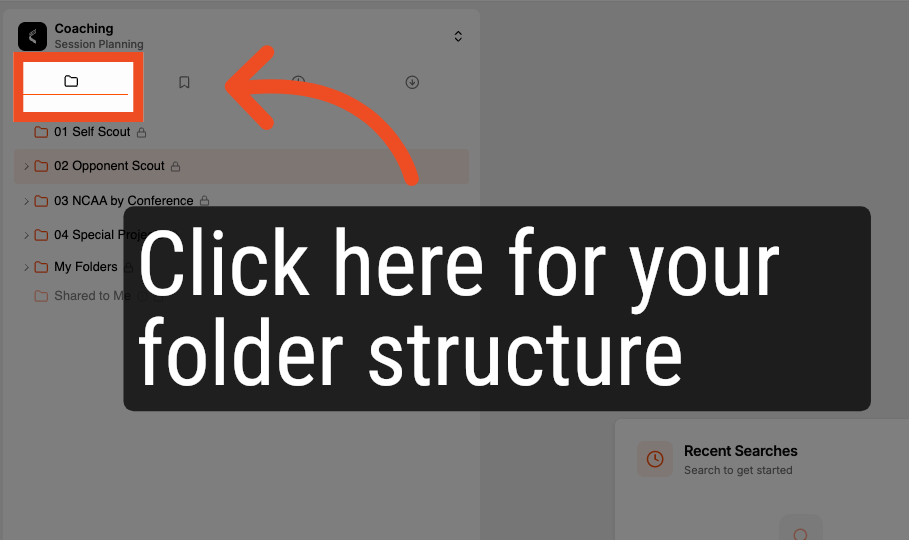
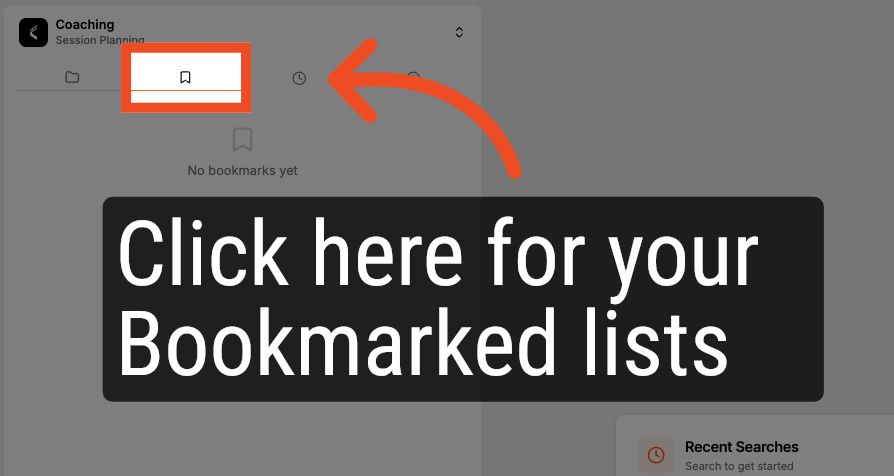
Use the sidebar on the left to navigate between Folders, Bookmarks, Recents, and Downloads.
1. Access Your Folders
2. Access Bookmarks
3. Access Recent Lists
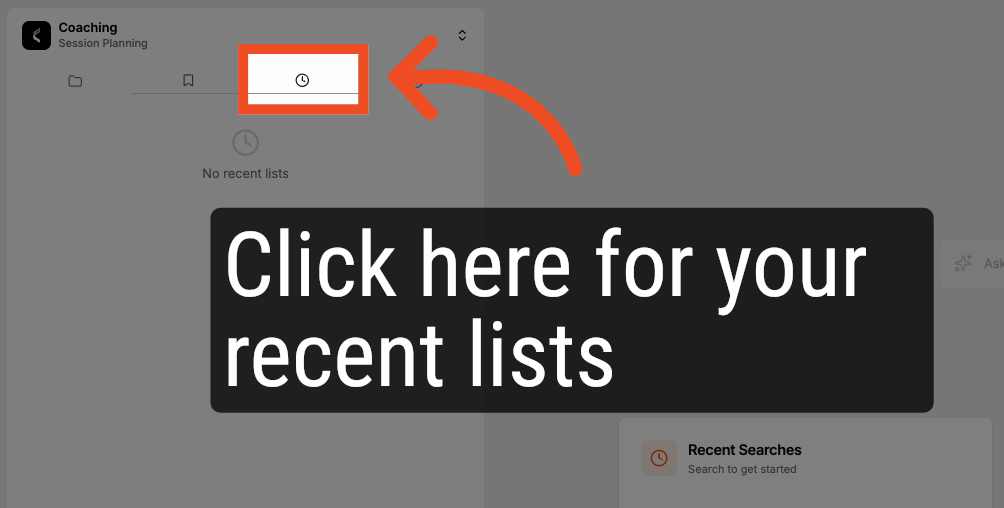
4. Access Downloads
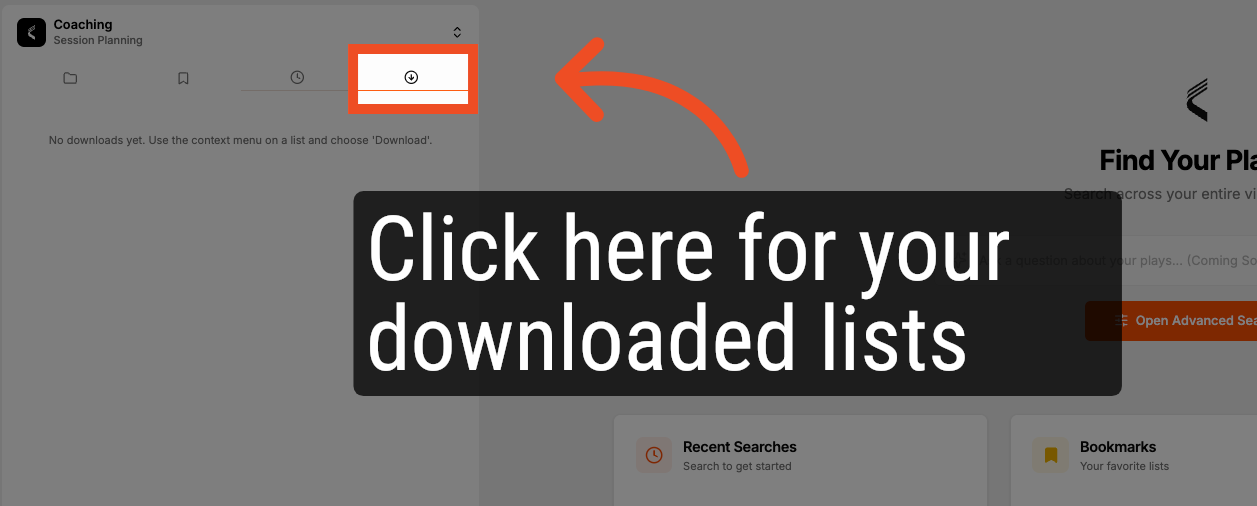
5. Collapse and expand the sidebar
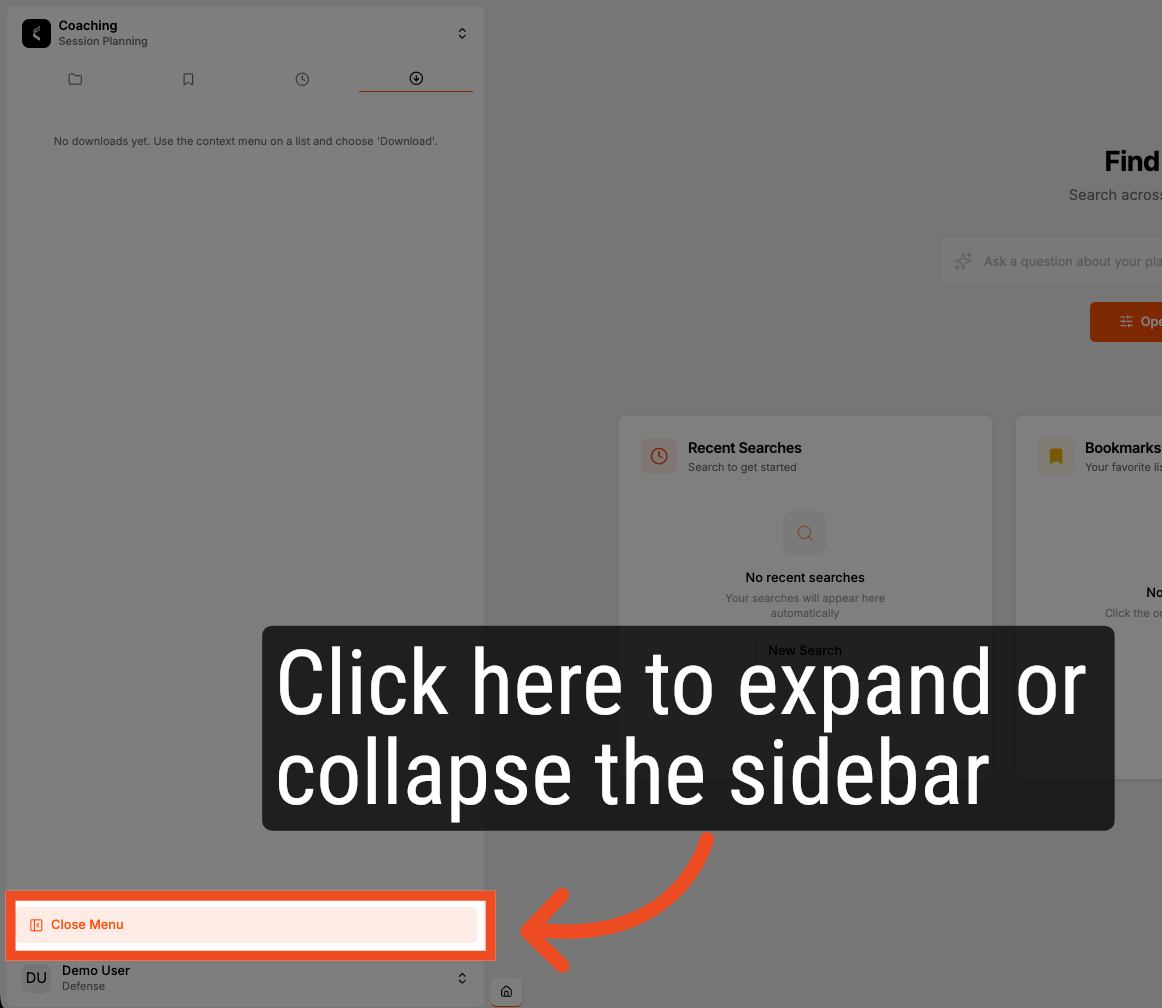
Navigating Folders and Opening Lists
Hub Pro displays your Thunder Gameplans, My Folders and Shared to me content in a folder view on the left. Expand any folder to access your Thunder playlists, including games, cutups, autocutups, and presentations.
1. Folder View
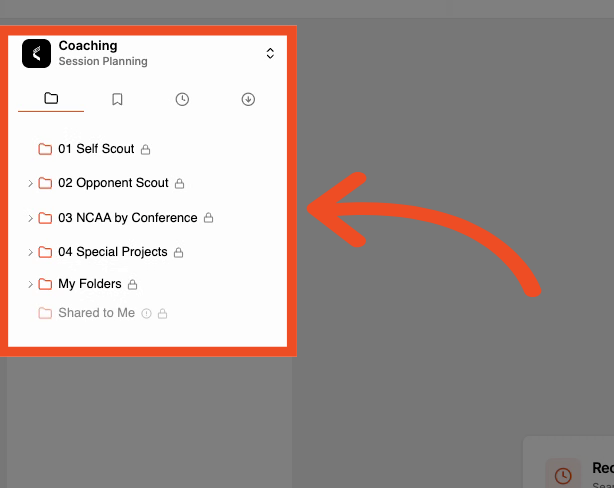
2. Double Click on a Folder to Open
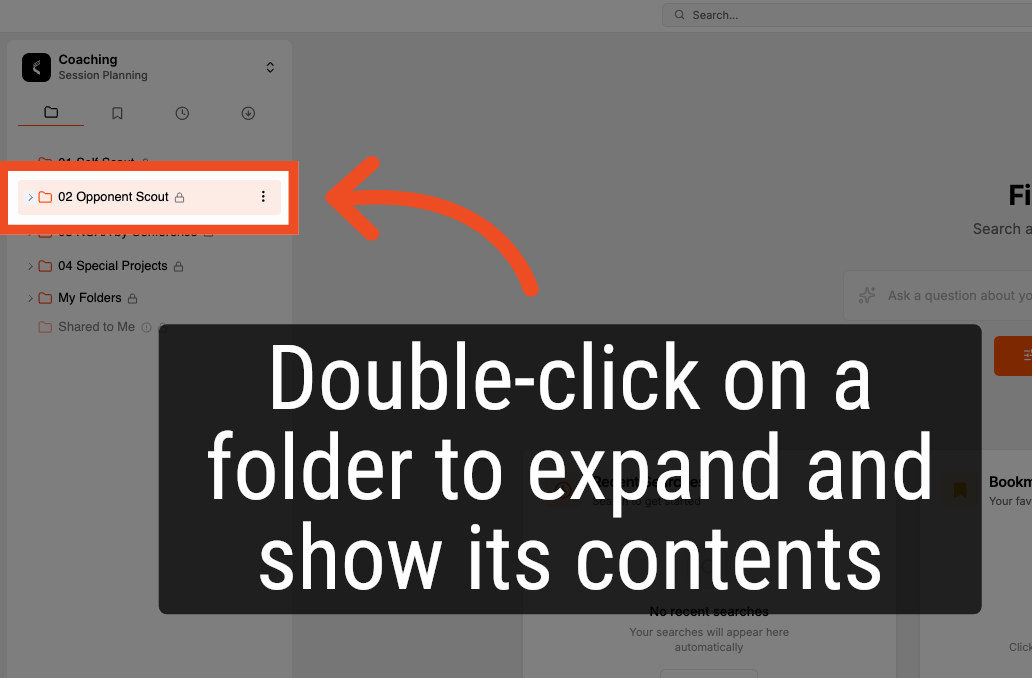
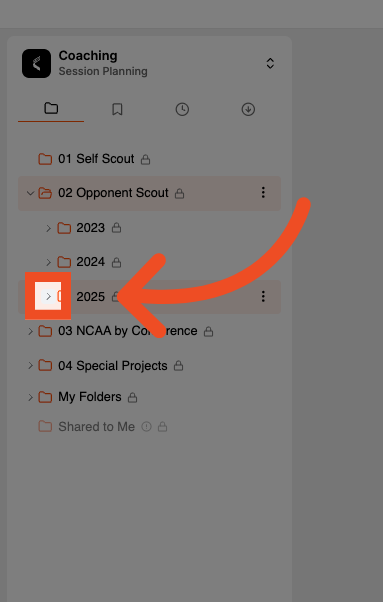
3. Expand/Collapse Folder Arrow
You can also open or close a folder by single-clicking on the folder arrow.
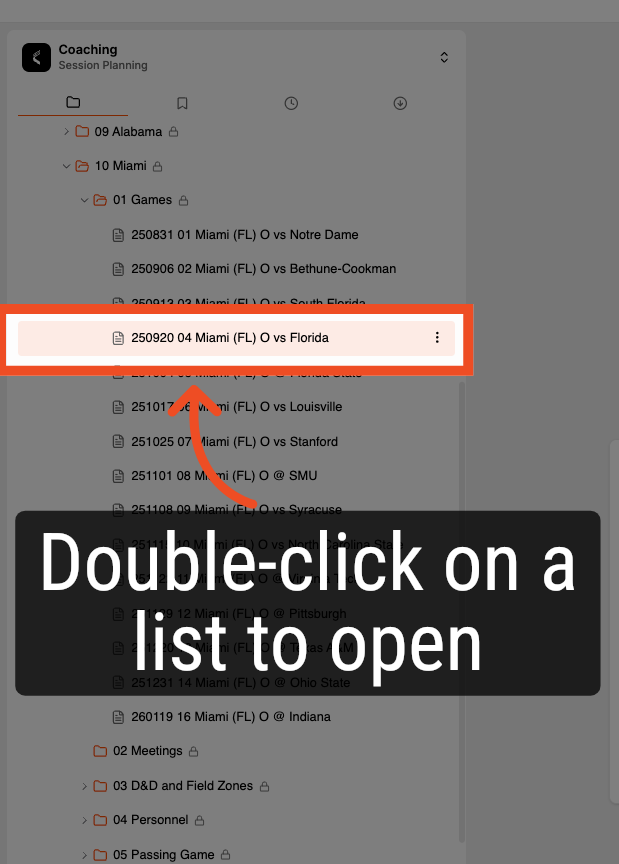
4. Double Click to Open a List
Using Tabs
Tabs allow you to work across multiple lists without losing your place.
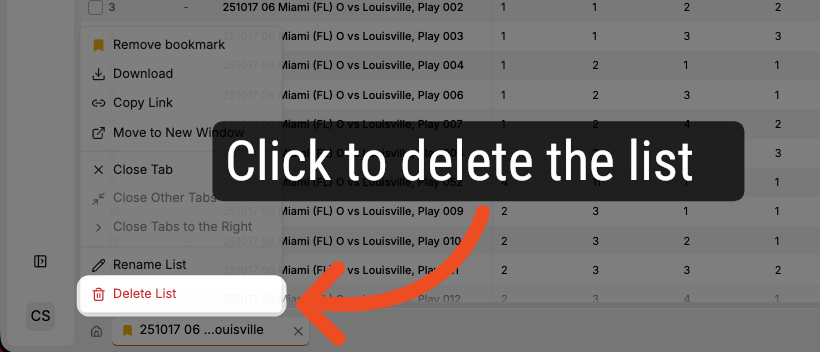
Using the Tab Menu
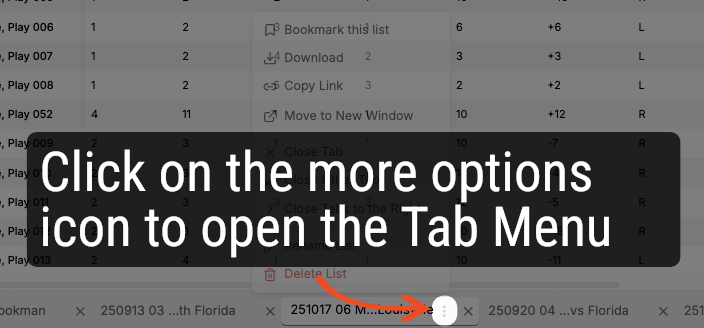
1. Open the Tab Menu
Open the tab menu by clicking on the more options icon (vertical ellipse).
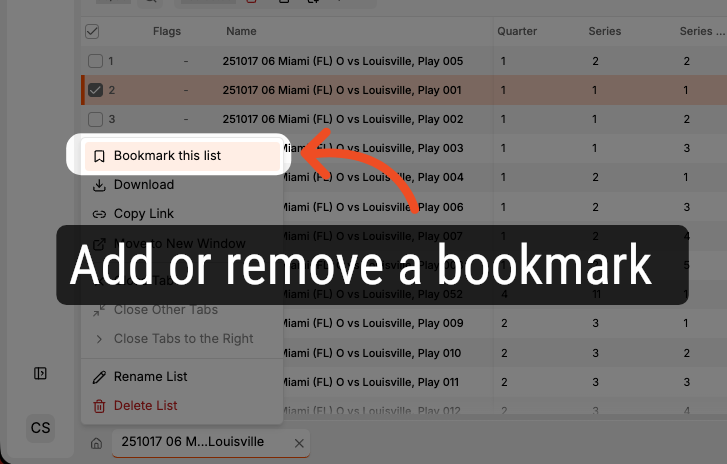
2. Add or Remove a Bookmark
Click here to add or remove a bookmark from the list.
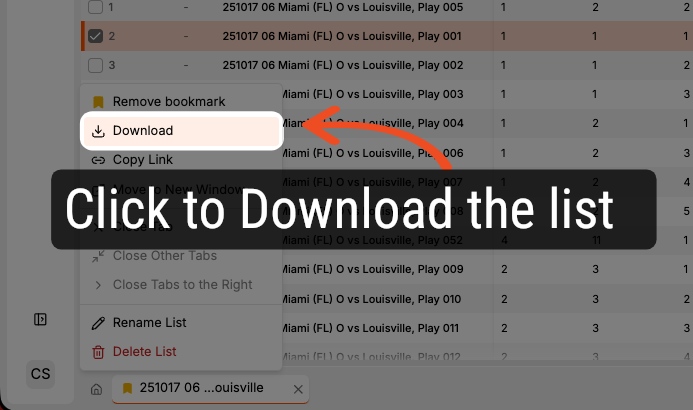
3. Download the List
Click here to open the download options menu.
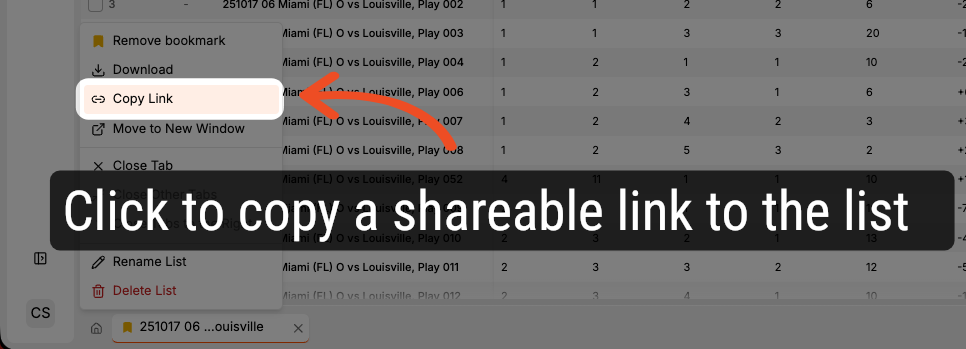
4. Copy a Link to the List
Click here to copy a URL to the list to your clipboard. The copied link can be shared to other users.
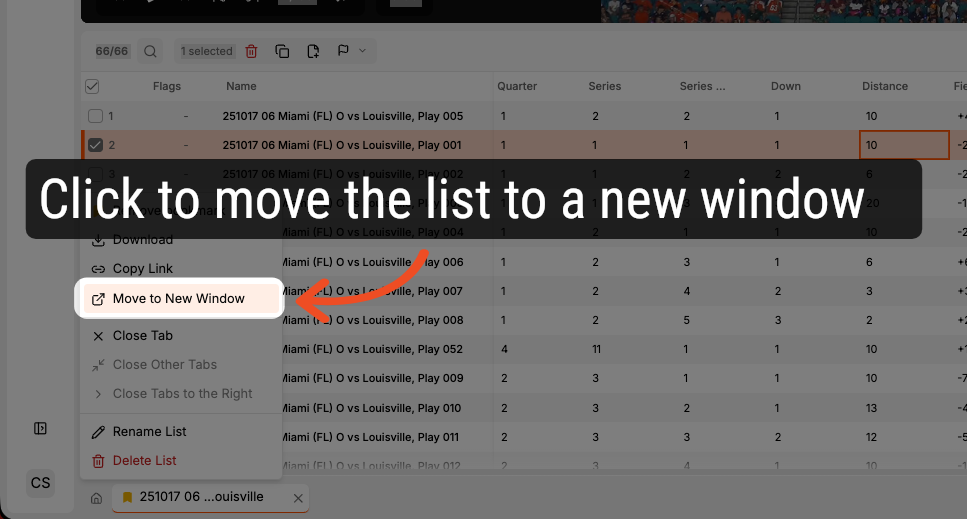
5. Move the List to a New Window
Click here to open the list in a new Hub Pro application window.
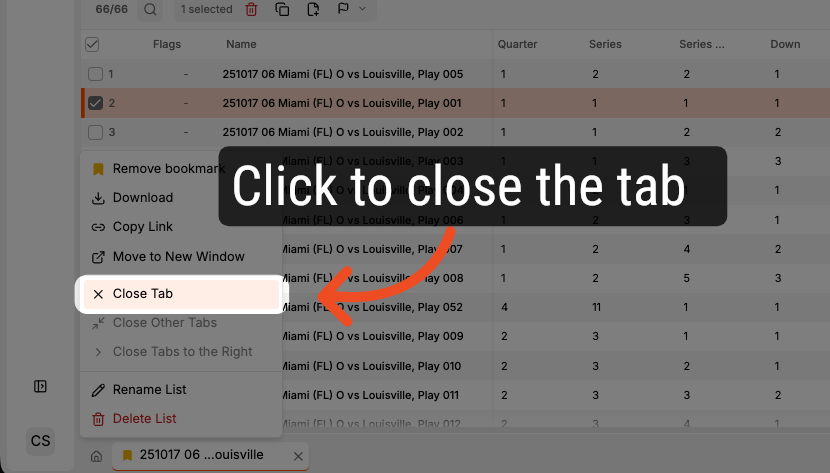
6. Close Current Tab
Click here to close the current tab.
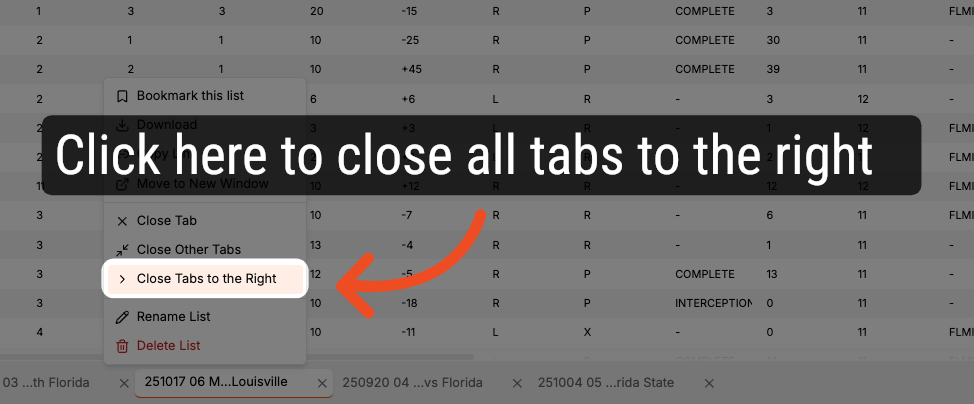
7. Close Tabs to the Right
Click here to close all of the tabs to the right of the selected list.
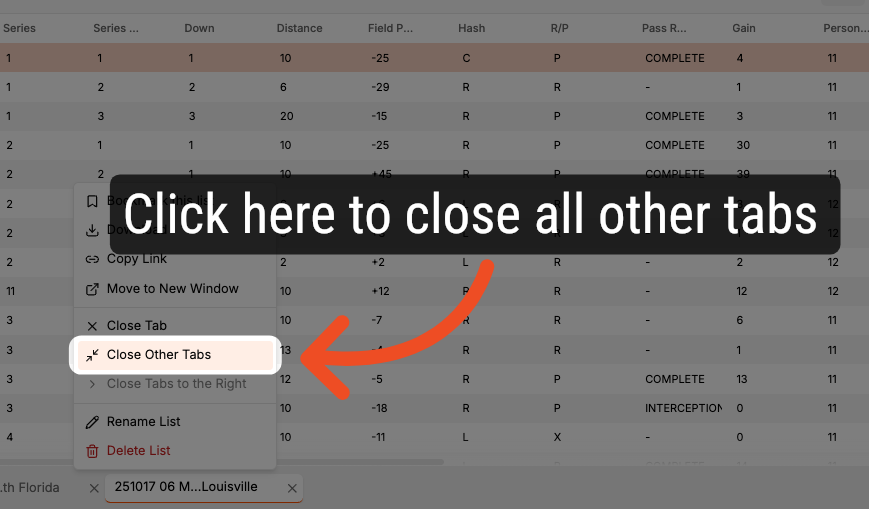
8. Close Other Tabs
Click here to close all other open tabs.
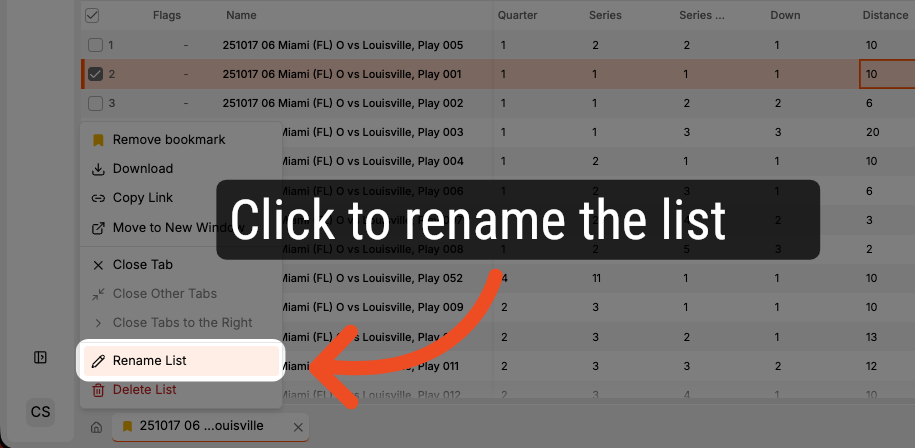
9. Rename a List
Click here to rename the selected list.
10. Delete a List
Click here to delete the selected list.
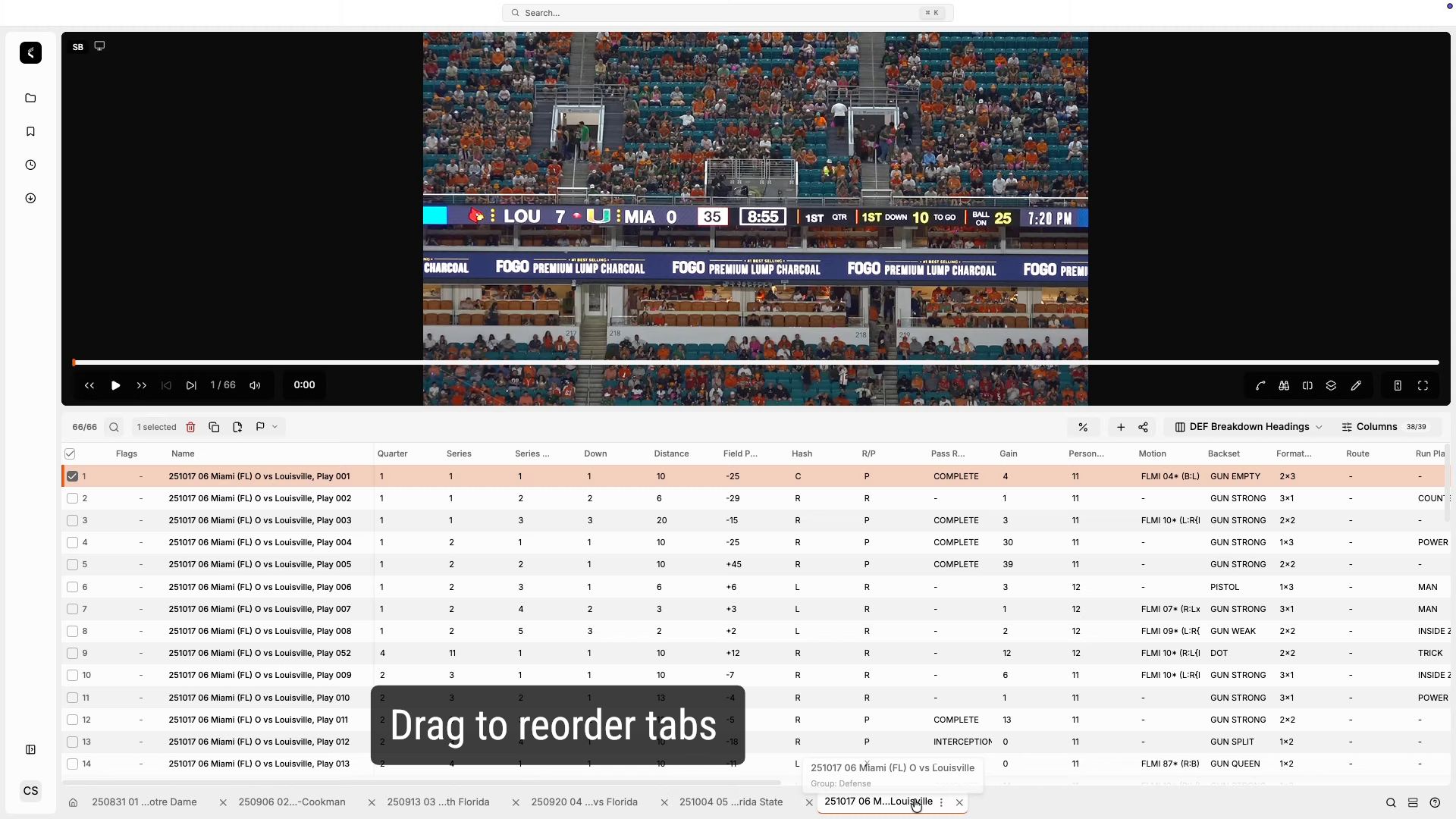
Reordering Tabs
1. Reorder Tabs
Using Tab Windows
- Tear off a tab by dragging it out of the window to open it in a new window.
- Merge tabs by dragging a tab from one window onto another.
Data Table
Each list displays its clips in a sortable, filterable data table. You can fully customize the table layout to match your workflow.
Heading Groups
To assign a different set of column headings:
- Select the Headings Groups icon and select or search for a different headings group.
- Manage your Groups in Settings --> Headings Groups.
Sorting Columns
Single-click a column header to cycle through sort orders:
- Alpha Ascending
- Alpha Descending
- Frequency Ascending
- Frequency Descending
Click through all sort options on any column to restore the original order.
Filtering
Use the filter controls in the header to narrow clips by any column value. Multi-select columns by using CTRL/CMD + Click. Filters can be combined across an unlimited number of columns.
Flagging Clips
Clips can be assigned color flags or standard flags. To update color flag settings, navigate to Settings --> Flags or click the Flags menu bar icon and select the gear icon next to Color Flagging.
Export to CSV
The full table can be exported to a CSV file by selecting the "Share" icon --> Export Table to CSV.
Copy & Paste
Data can be copy and pasted into or out of the table using CTRL/CMD C and CTRL/CMD V.
Data Entry
If you have edit permissions, double-click any cell to enter or modify data. Use the following keyboard shortcuts to navigate while editing:
| Tab | Move to the next column cell to the right |
| Shift + Tab | Move to the previous column cell to the left |
| Enter | Move to the next row cell in the same column |
| Shift + Enter | Move to the previous row cell in the same column |
| Esc | Cancel data entry in the current cell |
Creating and Managing Lists
Creating a New List
- Select one or more rows in the table and drag them to an open space in the tab bar.
- A save dialog will appear - save the new list to any folder where you have write access.
- You can also select multiple clips and choose Create or Add to List in the toolbar.
Adding Clips to an Existing List
- Select rows and drag them onto an existing tab to add them to that list.
- A notification confirms the number of clips added.
- You can also select multiple clips and choose Create or Add to List in the toolbar.
Reordering Clips
- Drag rows up or down within the list to reorder them.
Working Across Multiple Windows
Drag and drop clips between multiple open Hub Pro windows to build lists more efficiently. This is particularly useful on dual-monitor setups.
Search
Hub Pro includes a powerful search system to help you find content quickly.
- Quick Search - access recent searches and saved search presets from the Search section in the sidebar.
- Bookmarks and Recents - quickly return to any recently opened list or starred content from the Home screen.
- Advanced Search - build multi-filter queries across label groups, seasons, game properties, and custom fields. Filters support operators including equals, not equals, contains, between, and empty/not empty. Save frequently used searches as named presets for one-click access.
Video Player
The media player sits at the top of the workspace and plays back video for the selected clip. Use the playback controls to navigate through clips and adjust playback settings.
- Play / Pause, rewind and fast-forward 10 seconds, previous and next clip.
- Adjust playback speed (slow, normal, fast).
- Switch streaming quality (Full / High / Low) from the player settings.
- Click the full-screen icon to enter full-screen playback.
Overlays
Click the overlay icon in the media player to:
- Toggle text overlays on or off, and select from the available overlays menu based on side of ball.
- Use the search bar to find an overlay.
- Click the gear icon within the menu option to update which options show or hide.
Overlays can be managed in Settings → Overlays.
View Sequences
- Click the Binoculars icon to choose your view sequence.
- Default = All
- Use the search bar to find a sequence.
- Click the gear icon within the menu option to update which options show or hide.
Custom view sequences can be created, edited, and managed in Settings → View Sequences.
Presenter Mode
To present video to a secondary display:
- Click the "Present to Screen" icon in the upper right hand of the media player and select the presentation monitor.
Multi-Angle Playback
Hub Pro allows you to view multiple camera angles simultaneously.
- Choose from layout modes with the Multi-Angle icon in the media player: Single, Side by Side, or Grid.
- Send any angle to a monitor by selecting the "Present to Screen" icon for that angle.
Quick Draw
Quick Draw lets you telestrate plays directly over the video while it is playing or paused.
- Toggle Quick Draw on or off with the pencil icon in the player controls.
- Works in both full-screen and presenter mode - drawings appear on your secondary display automatically.
- Use the laser pointer tool to highlight areas without leaving a permanent mark.
- Tap and hold to display a spot shadow.
- Drawings are automatically cleared when playback resumes.
- Customize line color and thickness as needed.
Annotations
The Annotation Editor is a full-featured drawing environment that lets you create and save detailed annotations on any clip. Open it selecting the Annotation icon in the media player.
Annotations are saved automatically and are visible to anyone with access to the list.
Annotation Tools
| Tool | Description |
|---|---|
| Text | Adds a text box. Type your coaching note directly on the video frame. |
| Straight Arrow | Adds a straight directional arrow. |
| Curved Arrow | An arrow with an adjustable midpoint to create a curve. |
| Ellipse | A circle that can be reshaped into an oval to highlight an area. |
| Rectangle | A rectangular highlight zone. |
| Polygon | A fully adjustable shape - move each corner to define any highlighted zone. |
| Freehand | Draw freely in any shape. |
| Spotlight | Highlights a specific area of the screen, dimming the surroundings. |
| Magnify | Zooms in on the selected area. Adjust zoom level and shape (circle or rectangle). |
| Line of Sight | A triangular view showing what a player can see from their position. |
| Player Icon | A customizable icon that hovers around a player with a text label. |
| Player Trail | Visualizes a player's movement path with configurable past and future trail colors. |
| Player Link | Inserts multiple connected player icons linked by lines — ideal for showing routes and assignments. |
| Stopwatch | Displays a clock to show time elapsed between two points in the clip. |
| Image | Insert an image overlay onto the video frame. |
Annotation Properties
Each annotation has a properties panel where you can adjust position, size, timing (start and end time within the clip), fill color, border color, opacity, and rotation. Text annotations support font, size, bold, italic, underline, and alignment.
Keyframe Animation
Annotations can be animated over time using keyframes. Add keyframes at different points in the clip timeline to move or transform annotations as the video plays. Use tracking mode to place keyframes rapidly by clicking through the timeline.
PowerPoint Presentations
Hub Pro supports inserting PowerPoint presentations directly into your lists. Files must be saved with a .pptx extension.
Inserting a Presentation
To insert a PowerPoint into a list, click the "+" icon in the toolbar and select PowerPoint, then choose your file. You can insert it as:
- Single slideshow — the full presentation appears as one row; navigate through all slides before moving to the next clip.
- Individual slides — each slide is added as its own separate row in the list.
Title Slides
Hub Pro supports inserting a Title Slide directly into lists as well. Thunder templates will not be available to edit, but will be rendered.
Click the "+" icon in the toolbar and select Title Slide and either choose a template created in Hub Pro or create a new one.
- Single slideshow — the full presentation appears as one row; navigate through all slides before moving to the next clip.
- Individual slides — each slide is added as its own separate row in the list.
To manage existing templates and set Display Duration, navigate to Settings --> Title Slides.
Charting & Quickie Stats
Hub Pro includes a full suite of data visualization tools built directly into the coaching workspace.
Quickie Stats (Pivot Table)
Build instant pivot tables to break down your data any way you need:
- Drag and drop fields into rows, columns, and values.
- Aggregations include count, count %, sum, average, minimum, and maximum.
- Apply heatmap coloring to quickly identify trends across cells.
- Apply Drill Down Configuration defaults by selecting the menu --> Drill Down Behaviors. You an select to drill down in current list, create a temporary list, or save a new list.
- Save configurations as named presets and set a default for each chart type.
Charts
- Scatter Plot - configurable X/Y axes, color-by, and size-by fields.
- Bar Chart - configurable X axis, Y axis, stack-by, and color-by fields.
- Selecting a chart area by selecting or lasso-ing filters the list to matching clips. Results can be saved as a new list.
Downloads
Hub Pro is designed to work fully offline. Your library is available whether you have internet access or not.
- Download any list for offline use from the list options menu. Downloads can be downloaded in two ways:
- Playback - Clip Based
- Download Clips Only. Smaller files, optimized for offline viewing.
- Editing - Full Source
- Download full source files. Larger files, suitable for offline clipping.
- Playback - Clip Based
- Select Quality before download occurs.
- Full, High, or Low.
- Track download progress in the Downloads section of the sidebar: Preparing, Downloading, Paused, Available, or Failed.
- On the desktop app, choose a custom download directory - including an external drive.
- Hub Pro will warn you if a connected download drive is disconnected.
- When back online, changes sync to the cloud automatically - no manual sync required.
- An offline banner is displayed when the network is unavailable, with a pending changes counter.
Link Sharing & Surge Linking
Any list can be shared by clicking the kebab menu on the list or tab or selecting the "Share" icon in the toolbar and select Copy Link to List.
Surge allows you to push lists to another device instantly by generating a shareable link or QR code.
- Select one or more lists, then choose Create Surge Link from the options menu.
- Choose the video quality (High / Medium / Low) and add an optional label.
- Share the URL with the recipient via any messaging application and once they launch the link, it will begin automatic download.
Launching Plays from PFF
Similar to Thunder and ThunderCloud, lists from PFF can be launched into Hub Pro. Ensure "ThunderCloud" is selected in PFF and it will launch into Hub Pro if that is installed.
Settings
Access Settings from the user menu in the bottom left. Available sections include:
- Appearance - toggle between Dark, Light, and System theme. No restart required.
- Flags - configure the number and colors of clip flag categories.
- Headings Groups - show or hide column sets per user group.
- Overlays - show or hide individual overlay templates per user group.
- Playback - set default speed, streaming quality, arrow key navigation, overlay duration, loop playlist, and hold-to-seek speed.
- Quickie Stats - select drill down behavior preferences.
- Storage - view storage usage, clear cache, choose download directory, and manage local data.
- Title Slides - manage title slide templates and default duration.
- View Sequences - create, edit, and manage custom camera angle sequences.
- Updates (desktop) - check for and install app updates. Auto-check on startup can be toggled on or off.
Updating Hub Pro
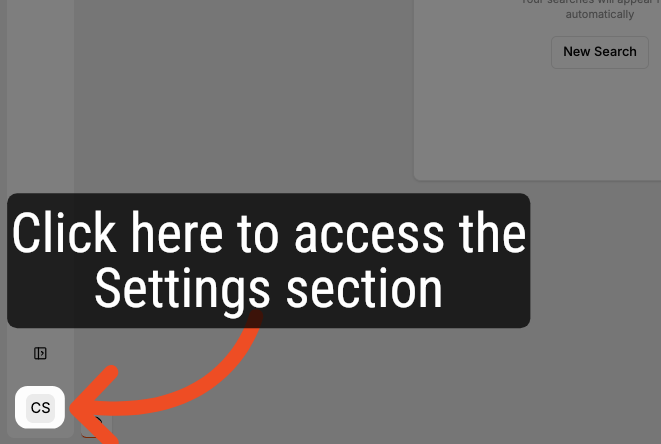
1. Click on your user avatar
Click on your user avatar to access the Settings section.
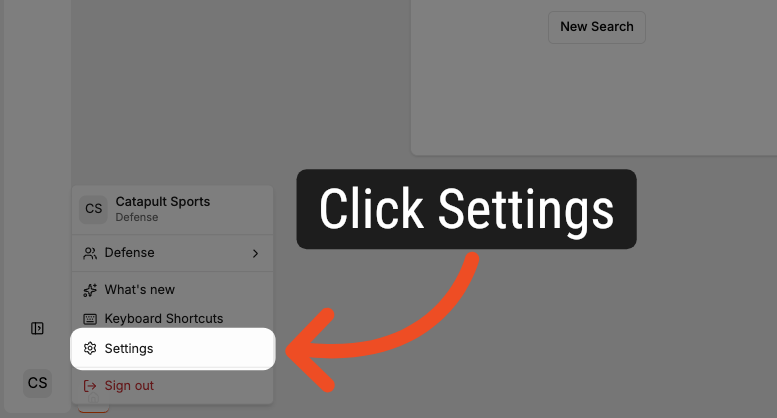
2. Access Settings Section
Click the gear icon to access the Sections menu.
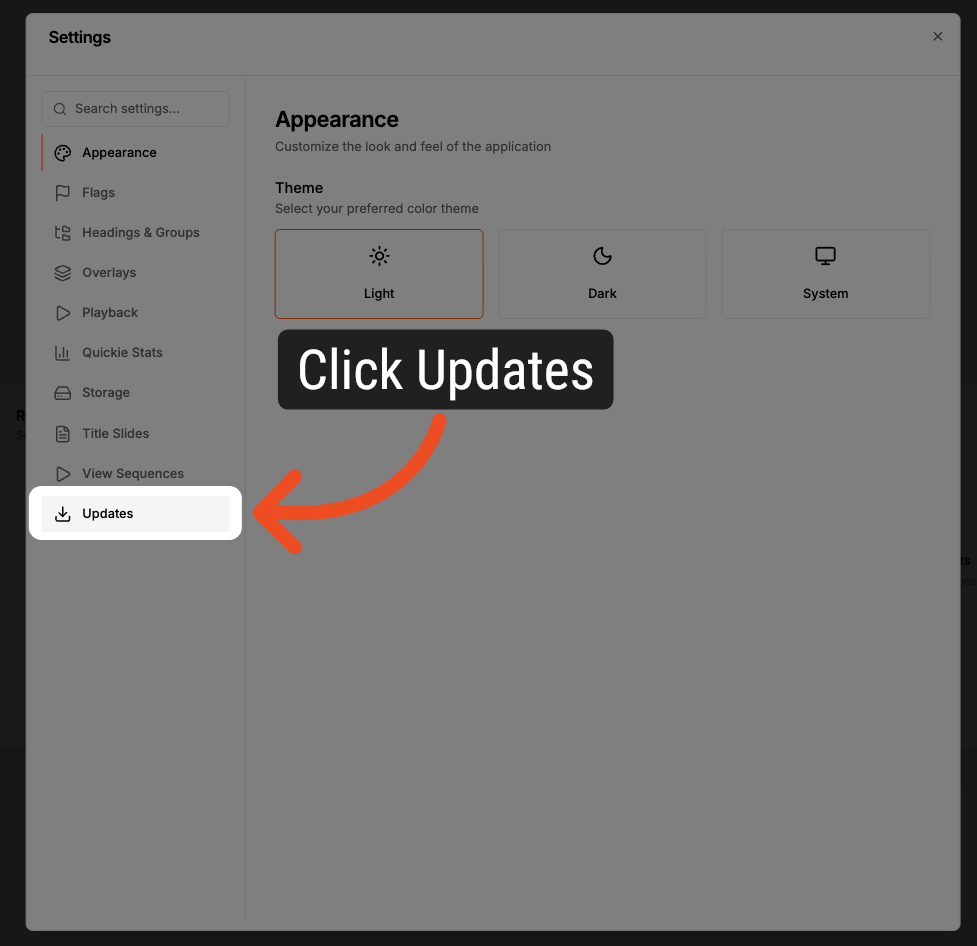
3. Open Update Options
Click the Updates option at the bottom of the menu.
4. Current Version & Update Options
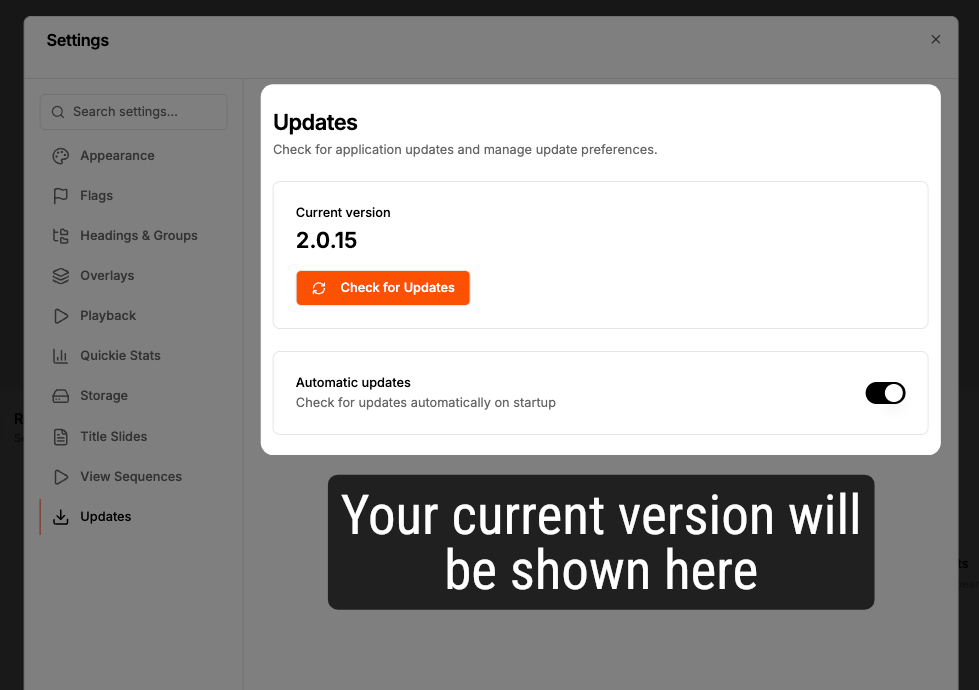
Updates will show you your current Hub Pro version, allow you to check for updates and manage automatic updates.
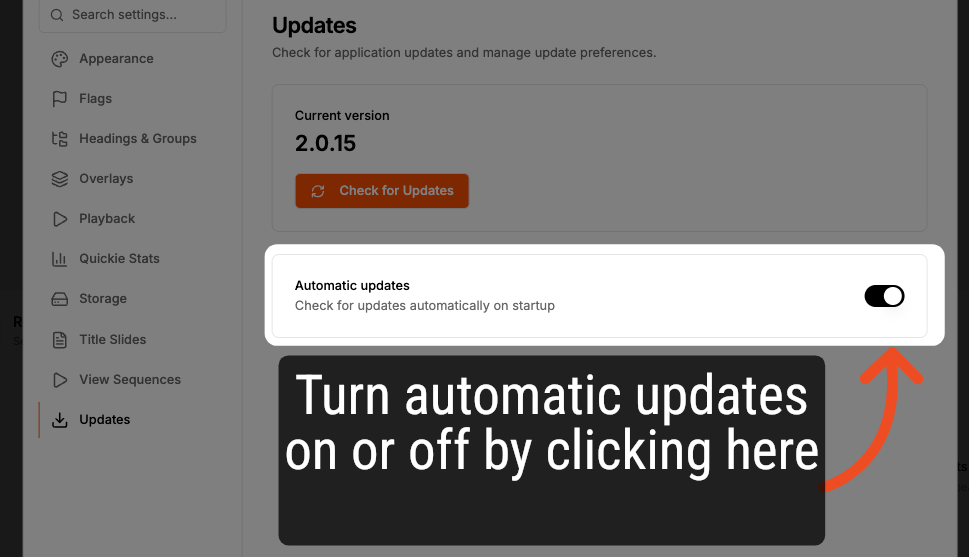
5. Enable Automatic Updates
Click "Check for Updates" to see if there are any new versions available for Hub Pro.
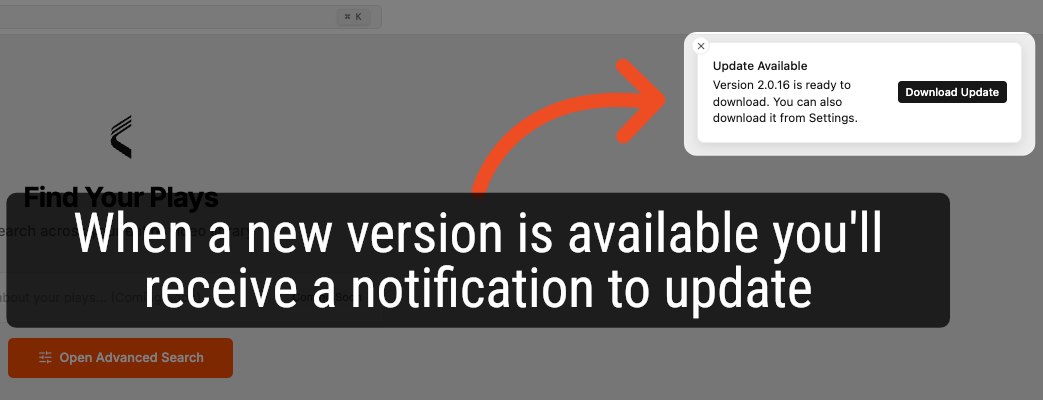
6. Automatic Update Prompt
When automatic updates are enabled, you will receive a notification when a new version becomes available.
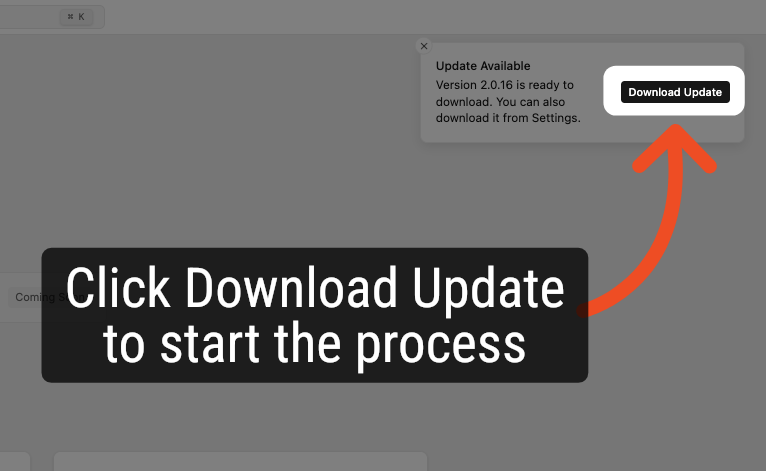
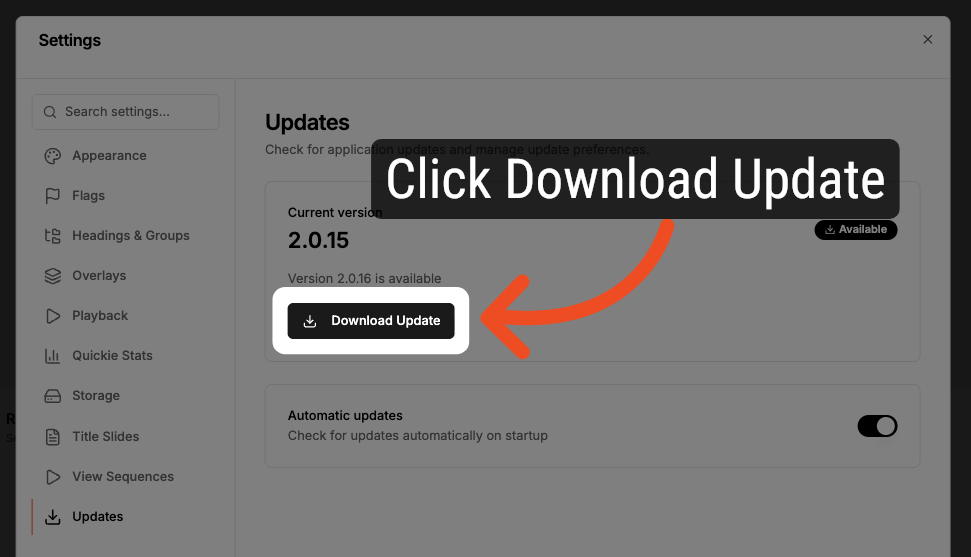
7. Download Automatic Update
Click Download Update to start the process
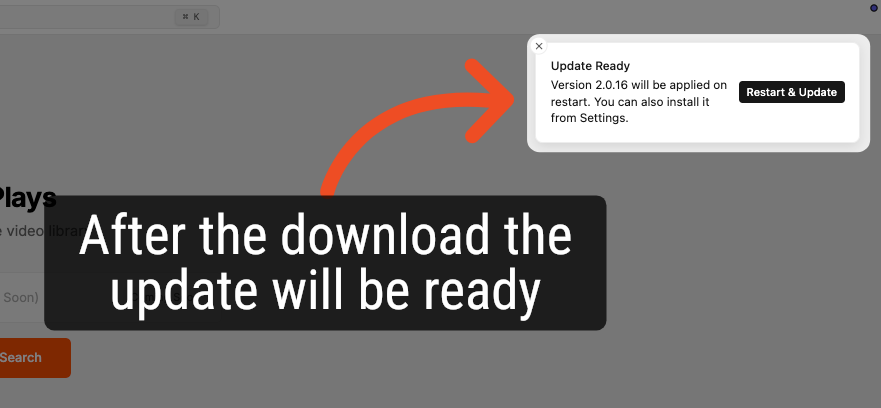
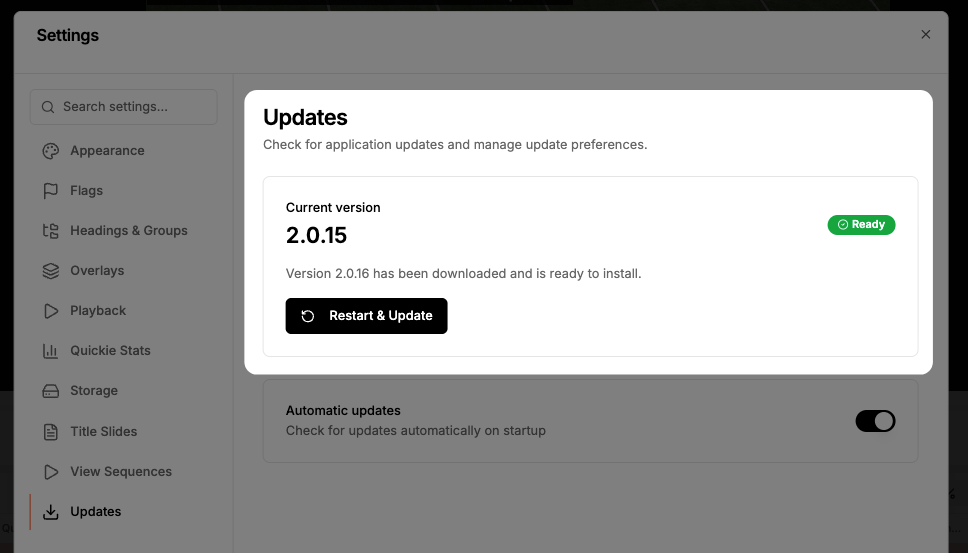
8. Restart And Apply Update Prompt
When the download is ready, you'll receive a prompt.
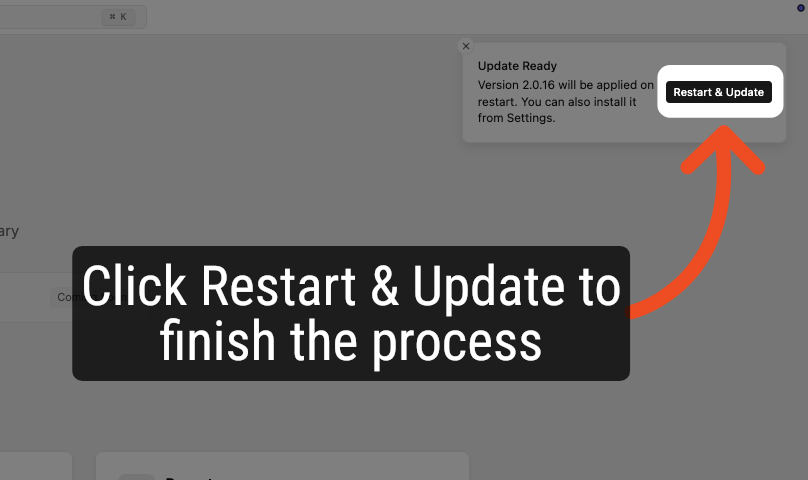
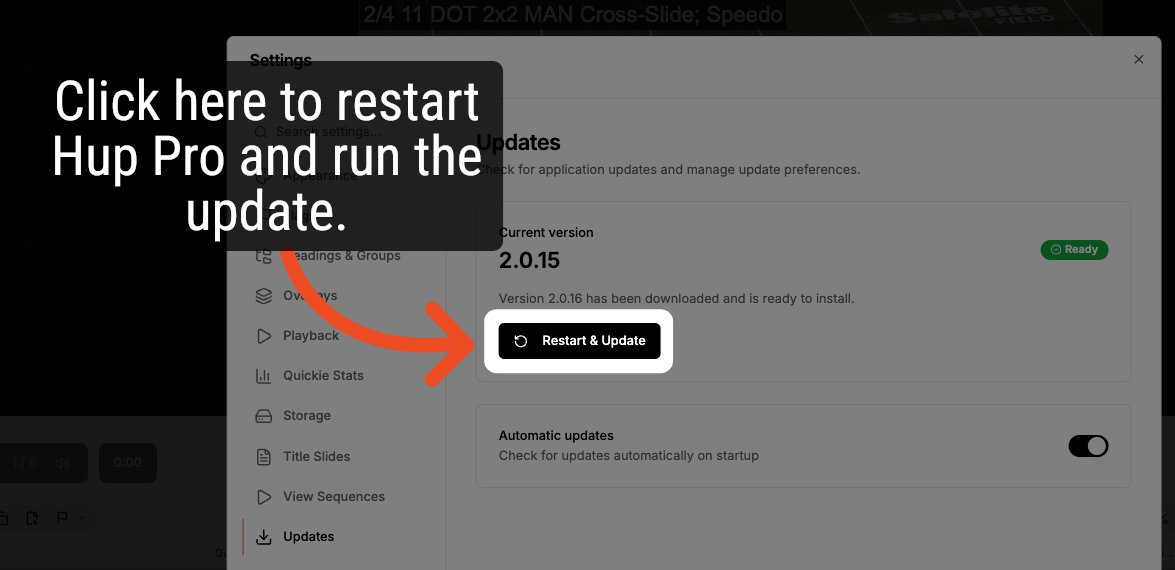
9. Restart And Apply Update
Click "Restart & Update" to restart Hub Pro and finish the process.
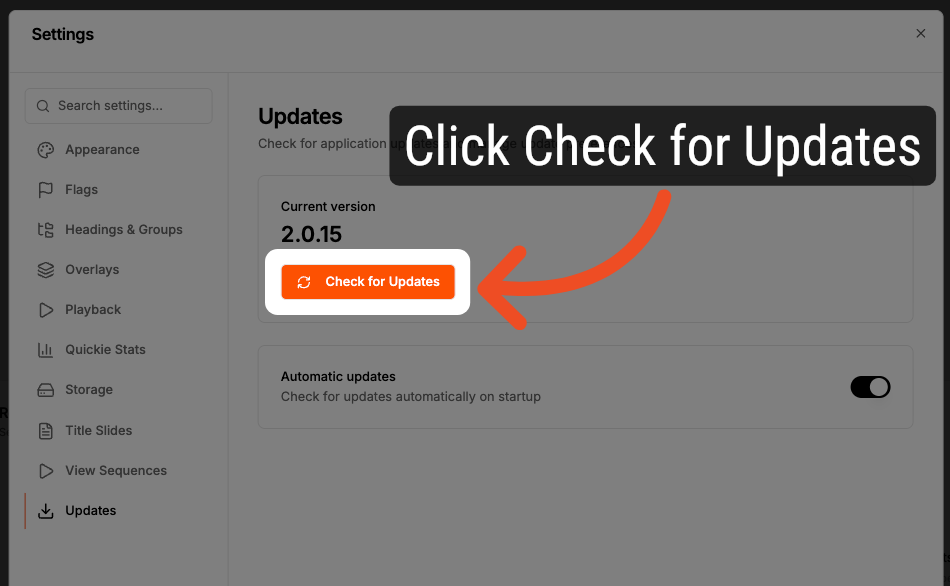
10. Check for Application Updates
Navigate to the Updates menu of the Settings section. Click "Check for Updates" to see if there are any new versions available for Hub Pro.
11. New Update Available
When a new update is available, the menu will refresh to indicate that a download is ready.
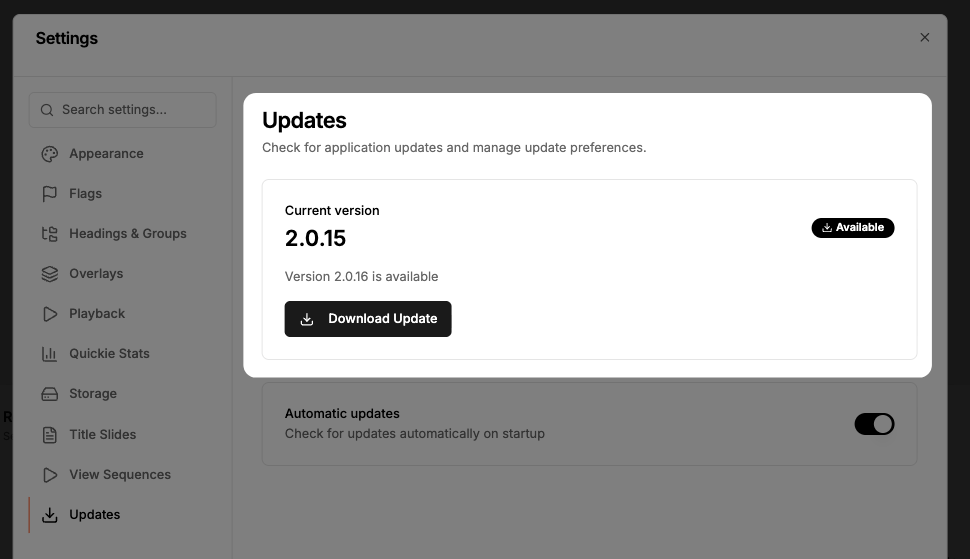
12. Download First Update
Click "Download Update" to start downloading the new version.
13. Update Ready
Once the download is complete, the menu will refresh to prompt you to restart Hub Pro in order to apply the update.
14. Restart to Run the Update
Click the Restart & Update button to restart the app and run the update.
15. See What's New
After updating, a What's New window will open to show you what was included in the update.
Zendesk Integration
Search for Zendesk articles within the app or reach out to Support by clicking the "?" in the lower righthand corner of the application.
Keyboard Shortcuts
Hub Pro includes a full set of keyboard shortcuts. Access the shortcut reference at any time by pressing "?" within the app or selecting "Keyboard Shortcuts" from the Menu.
Comments
0 comments
Please sign in to leave a comment.