
Hub Pro Usage Reporting is available starting in Hub Pro 2.6.2 and beyond. The Admin Panel and Usage Reports will appear for everyone in the organization, but only Admins and Super Admins can view the organization's usage reports. Users, Guests, Intermediate Users, and Power Users can only see their own usage activity.
1. Introduction
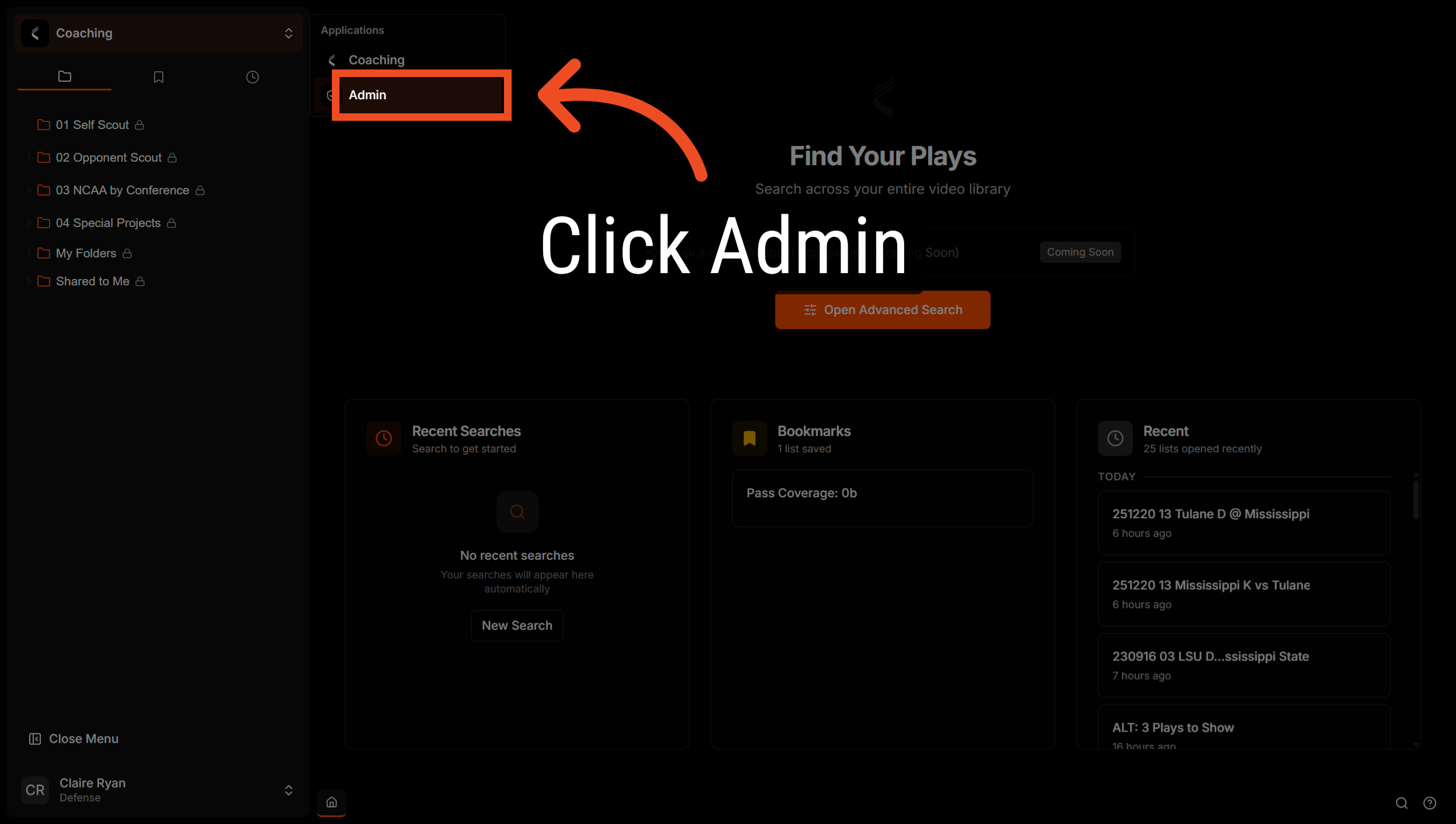
Log into Hub Pro and navigate to the "Coaching" menu in the upper righthand to open the app switcher.
2. Access Admin Panel
Click "Admin" to open the administration panel where you can navigate to usage reports.
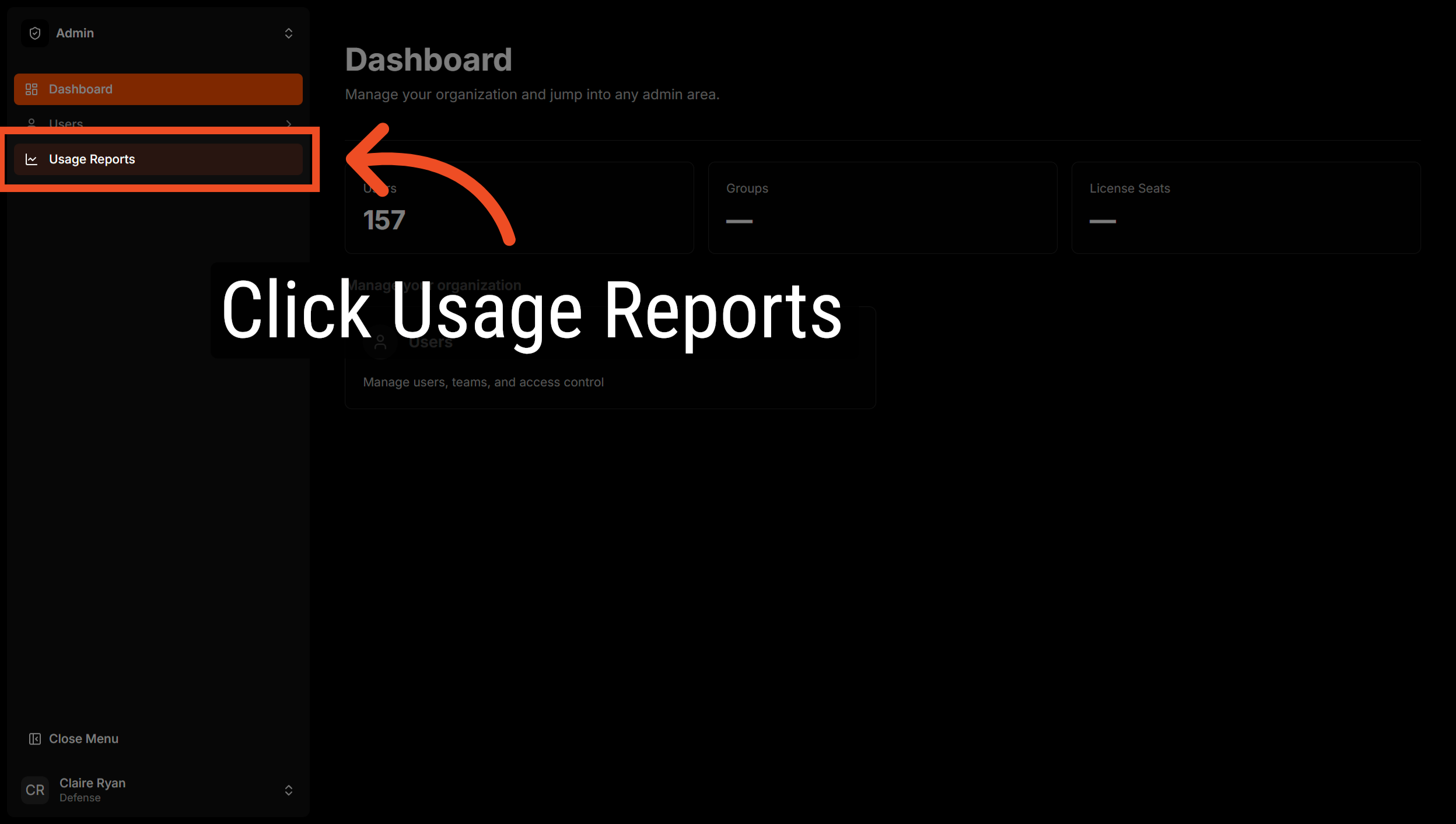
3. Open Usage Reports Section
Click "Usage Reports" to view detailed analytics about user activity including video playback.
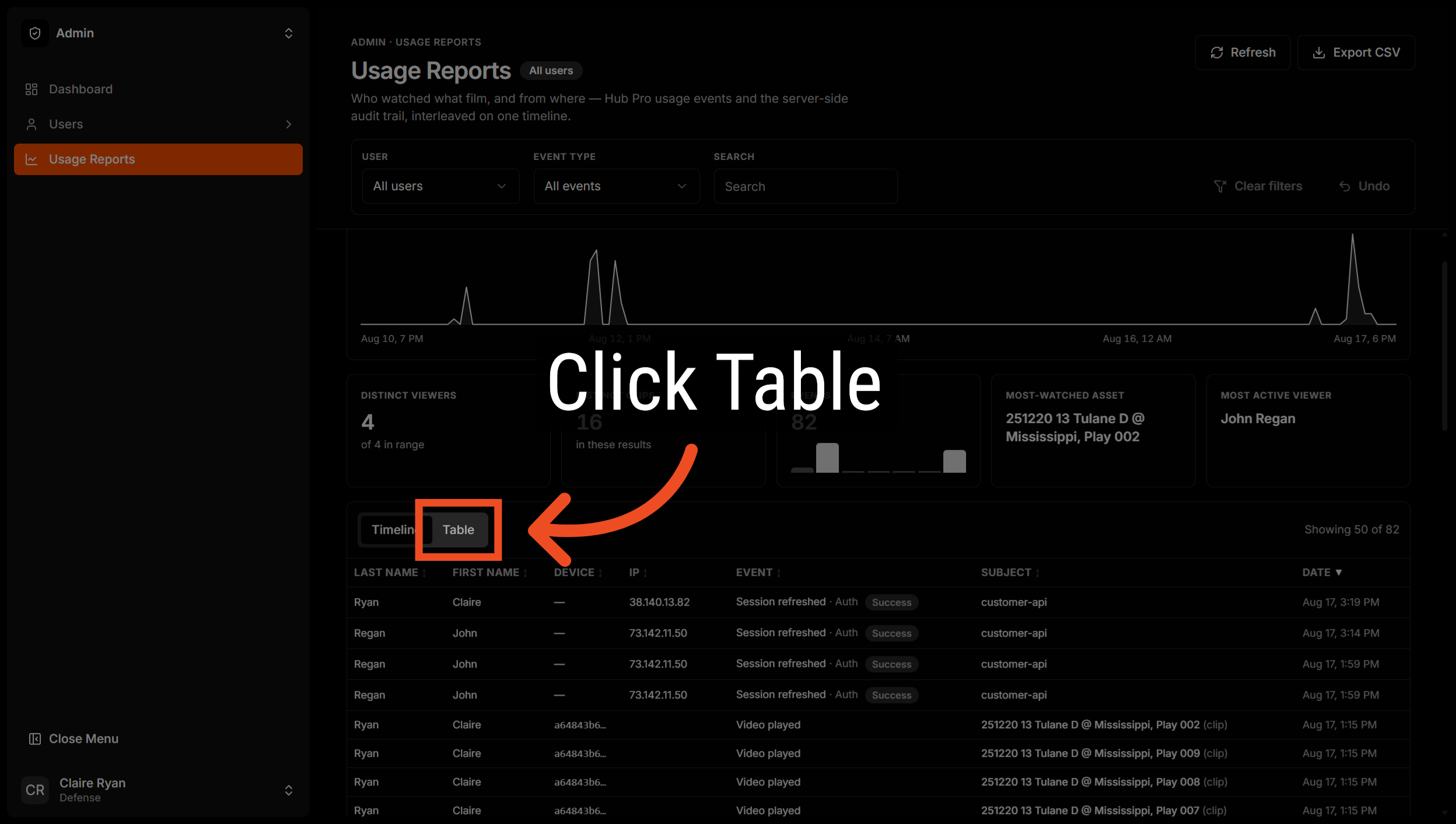
4. View Reports Table
Click "Table" to display the usage data in a tabular format.
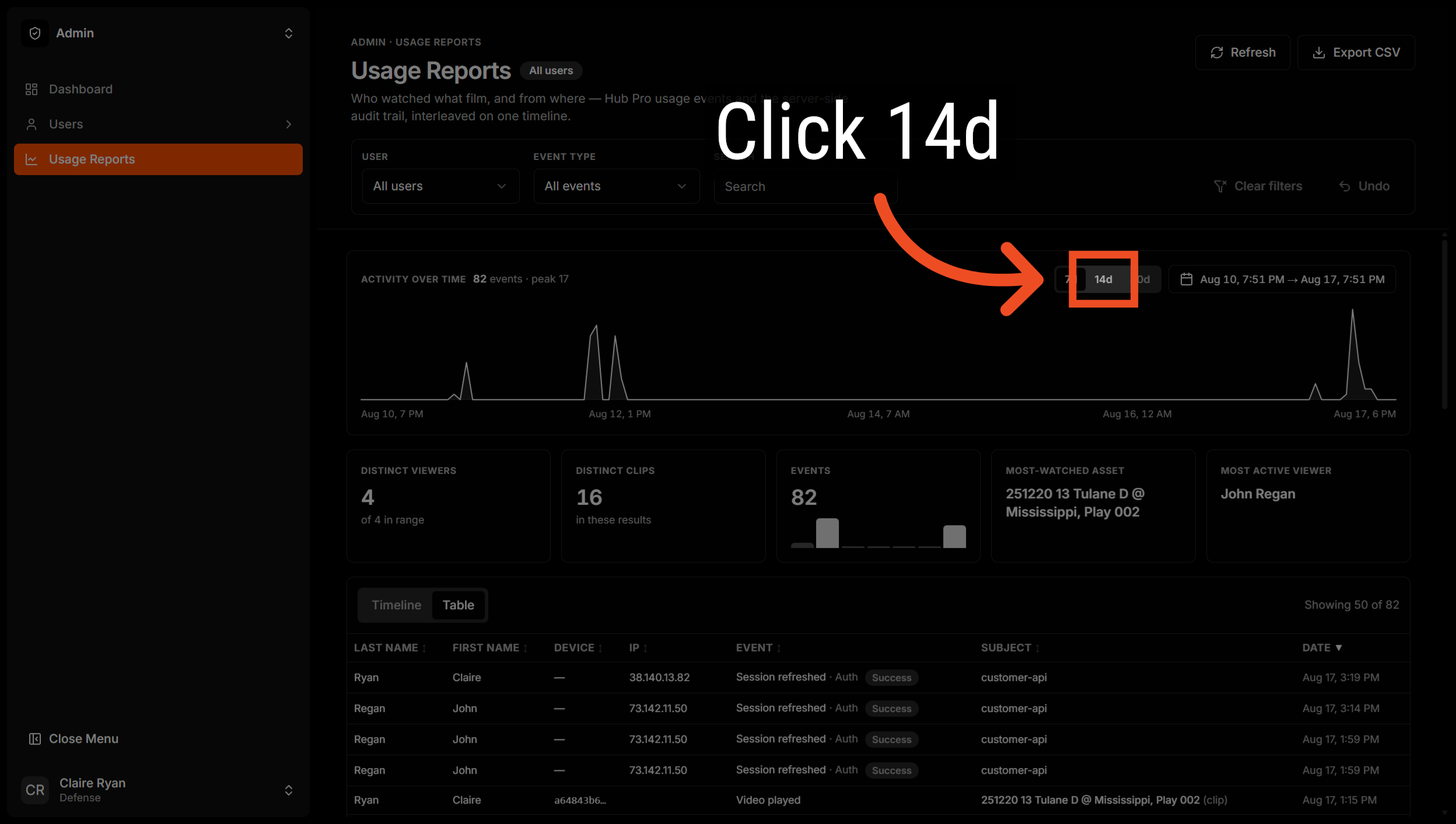
5. Filter Reports By Date
Click on a time frame to filter the usage reports to show data from a set date range.
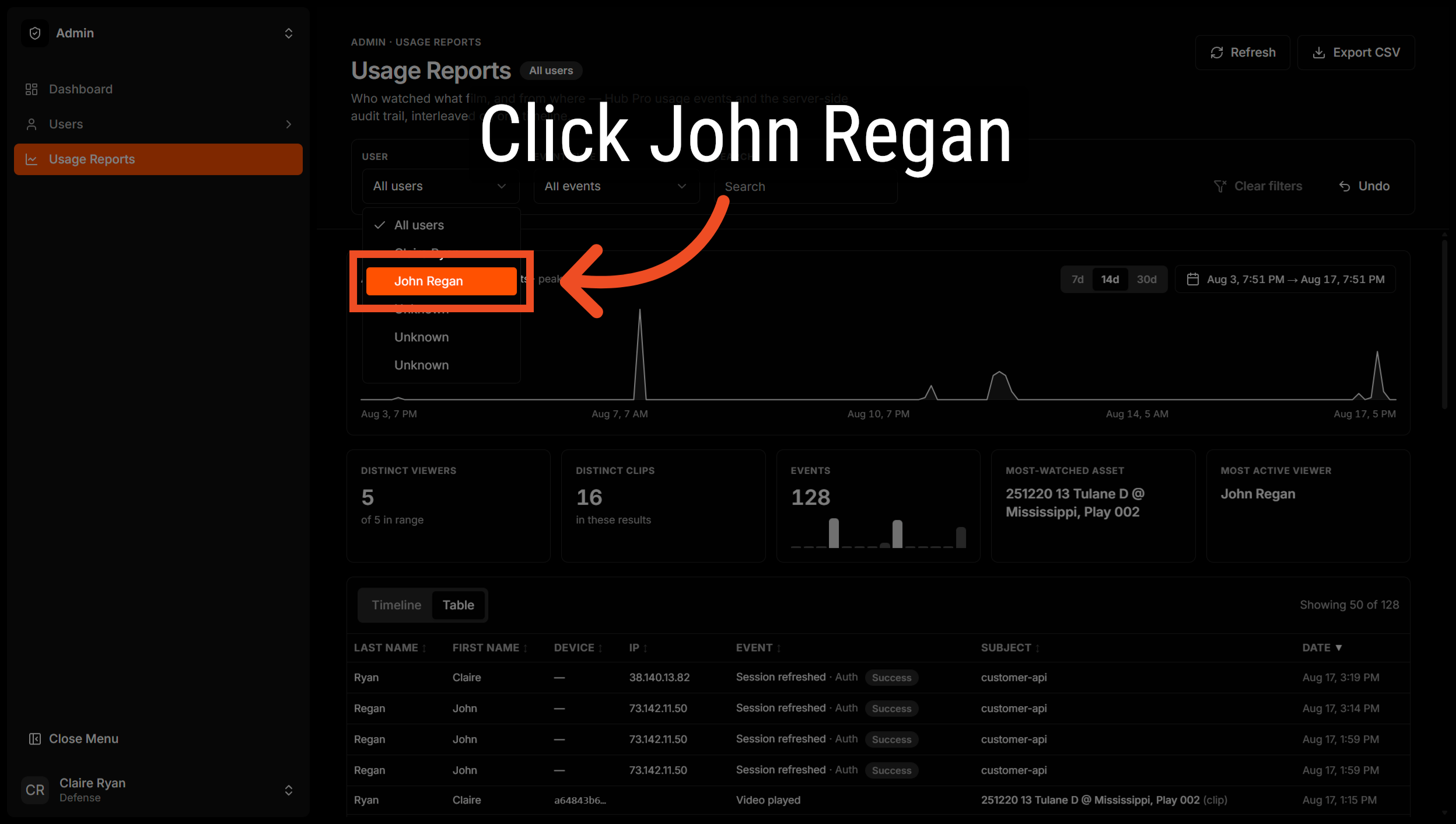
6. Select User For Report
Click on a user to focus the report on this specific user's activity.
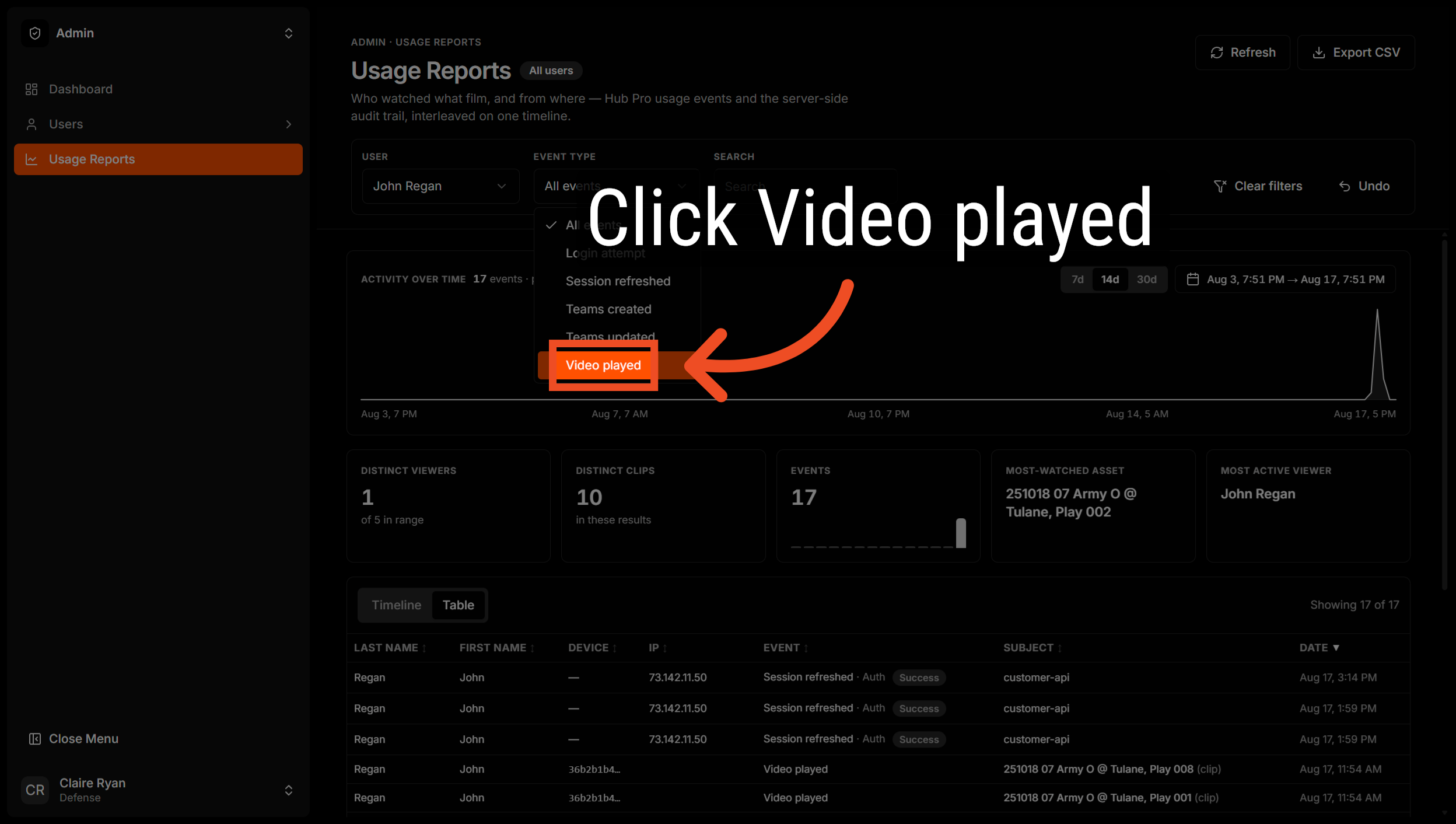
7. Filter on Specific Events
Click "Video played" or another event to filter the report by specific events.
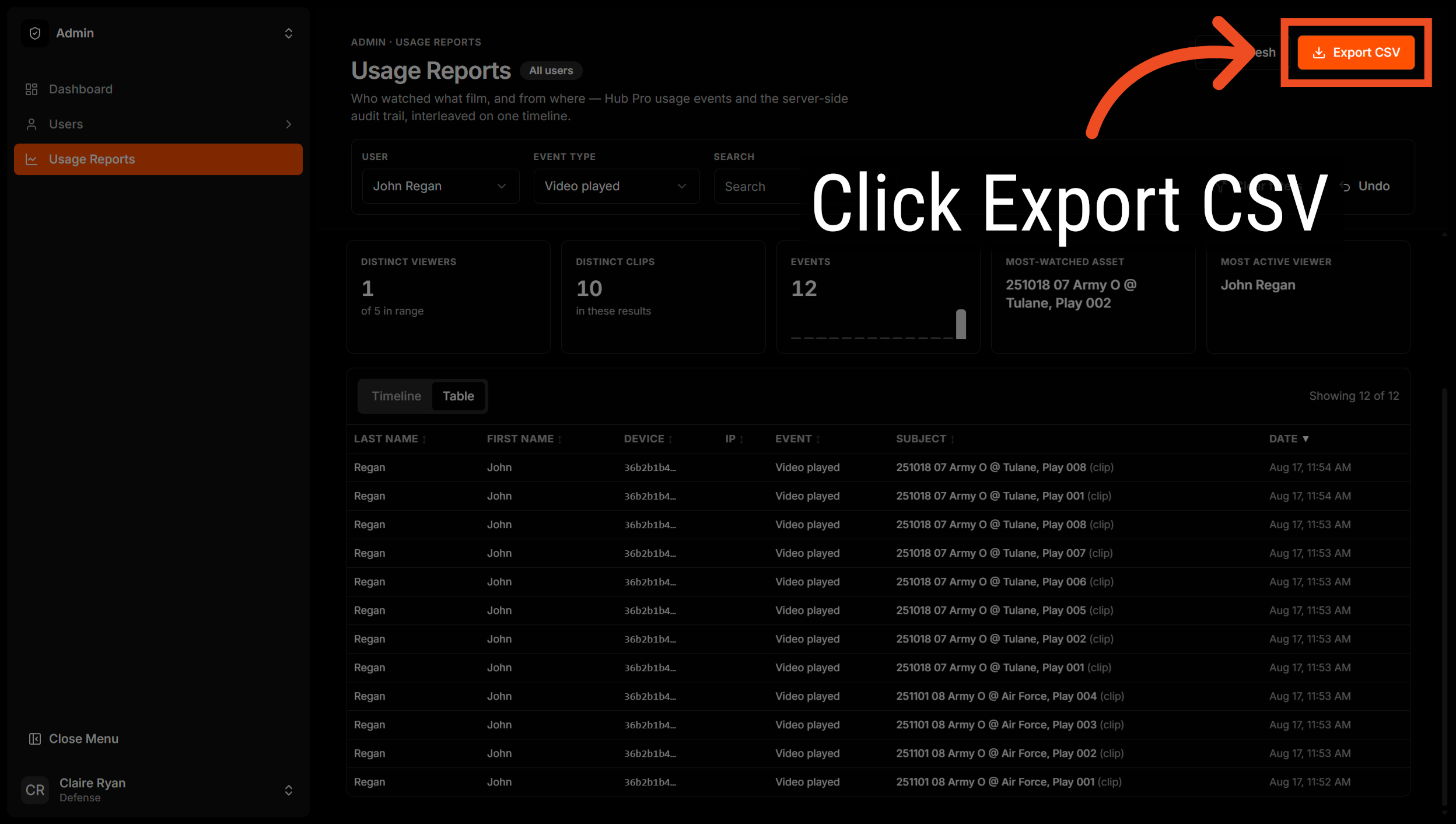
8. Export Report Data
Click "Export CSV" to download the filtered usage report as a CSV file for further analysis.
Comments
0 comments
Please sign in to leave a comment.