
Hub Pro provides improved visual layouts, allowing you to create various views of your video, data and charts.
1. Layout Types
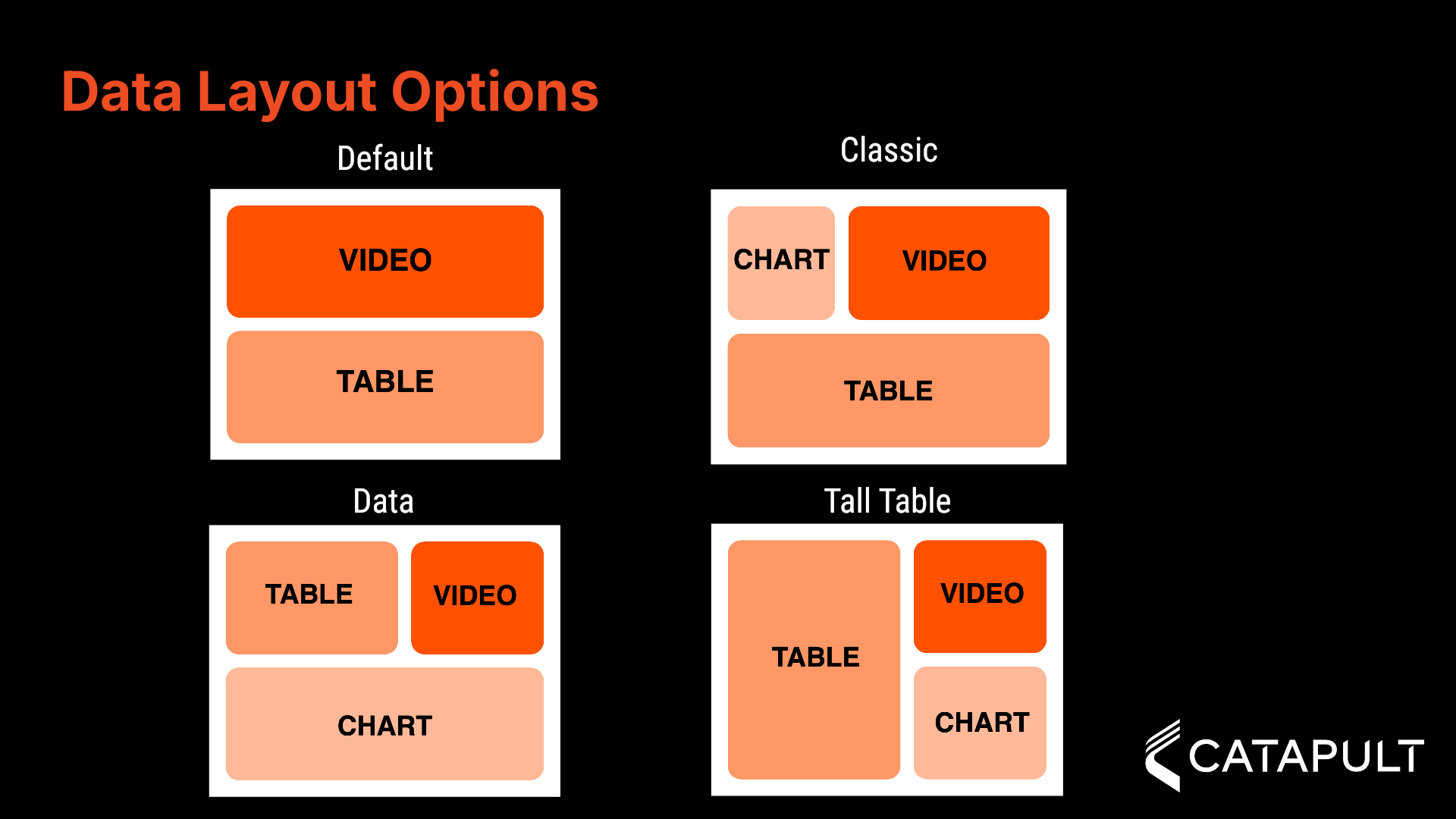
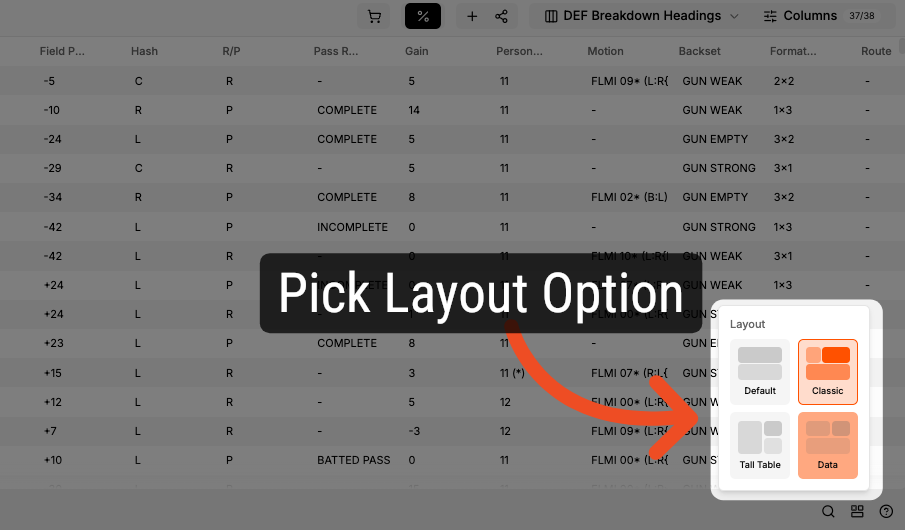
Users have access to four layout options. By selecting a layout, it will be applied to the current list. The available layout options are Default , Classic , Data , and Tall Table .
2. Default Layout
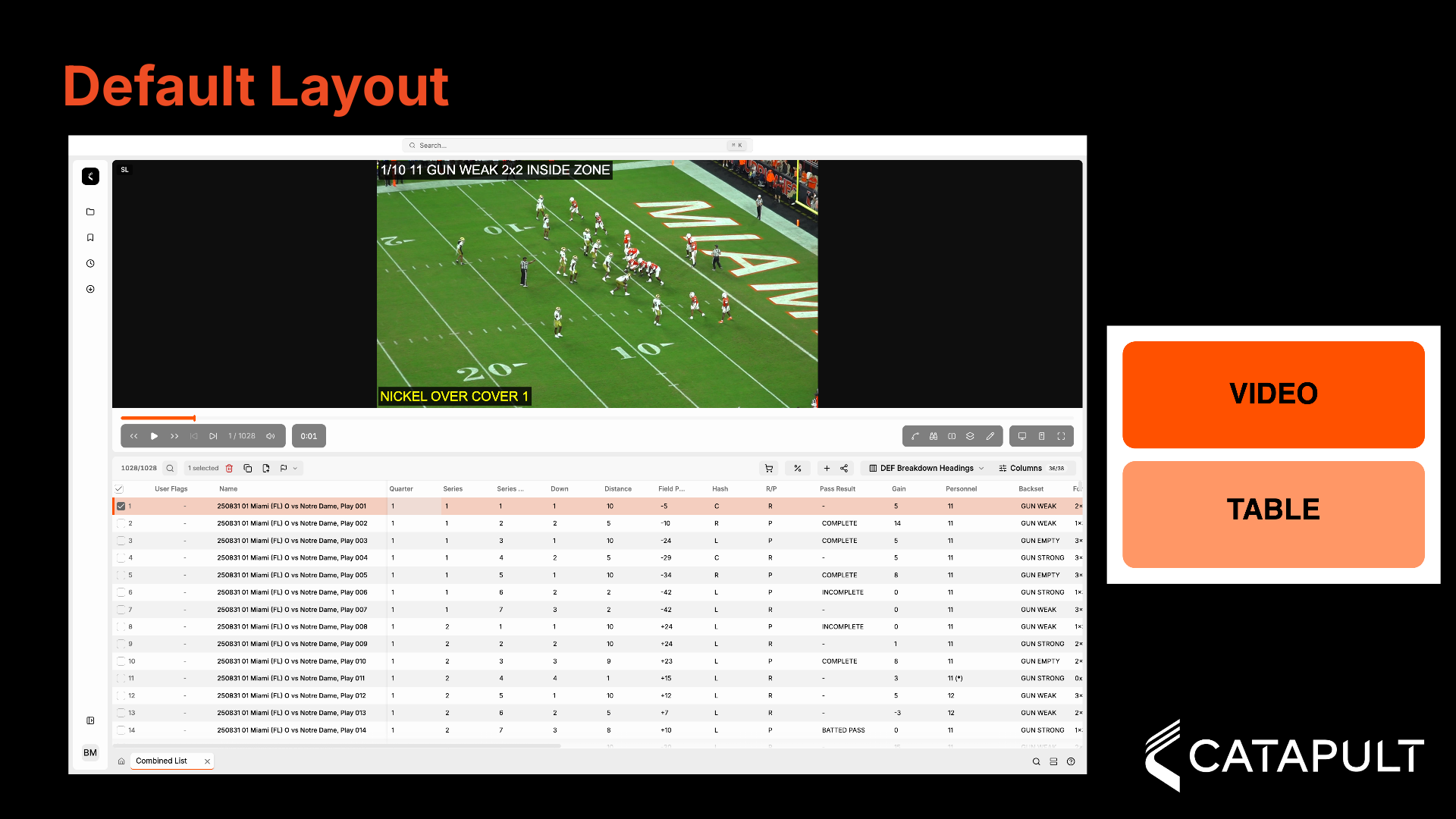
The Default layout offers a traditional view for reviewing video and data. The video is shown in the upper half of Hub Pro, while the data table is presented in the lower half.
3. Classic Layout
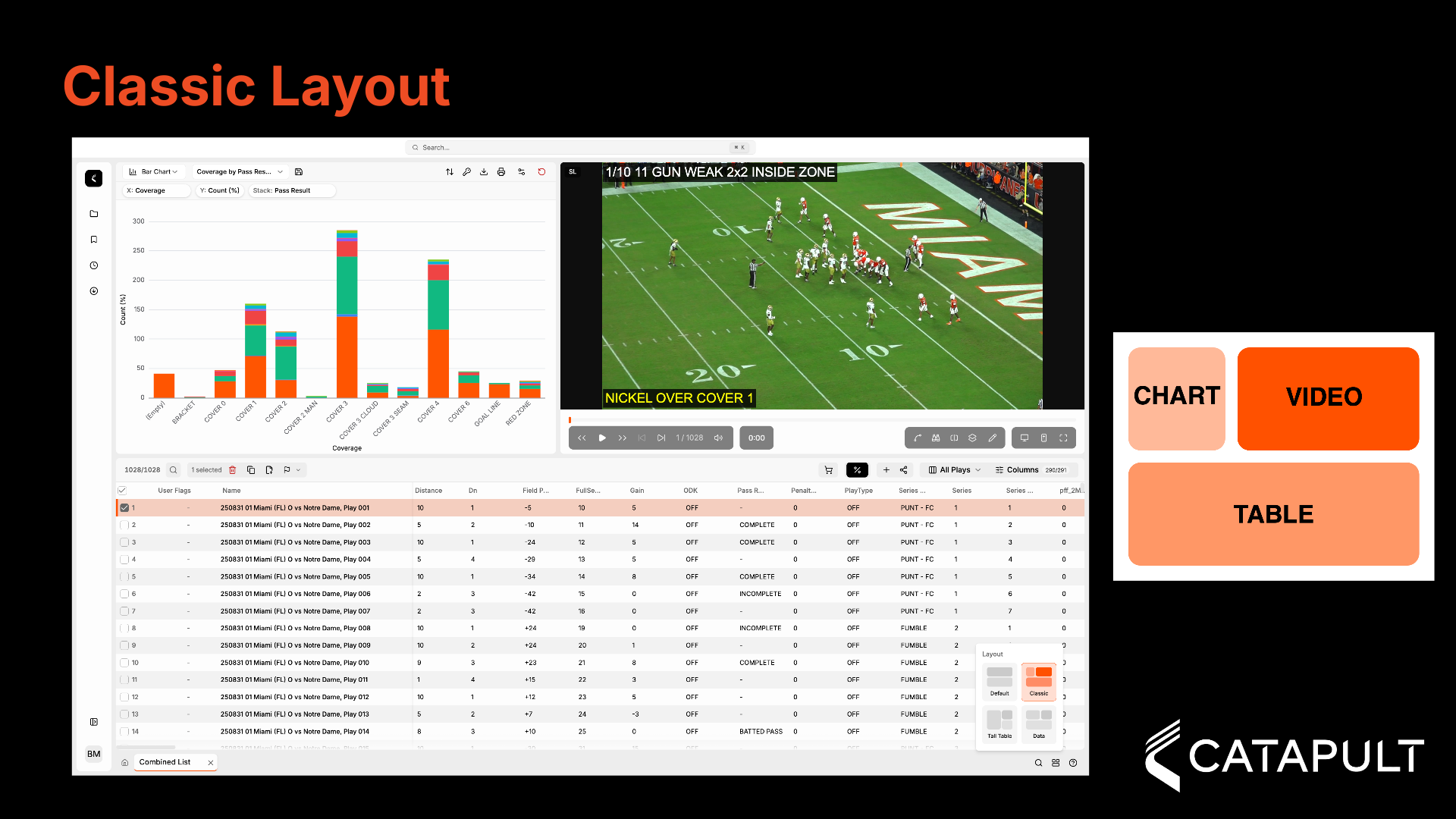
The Classic layout will present a display featuring a chart in the top left, video in the top right, and the data table in the bottom half.
4. Data Layout
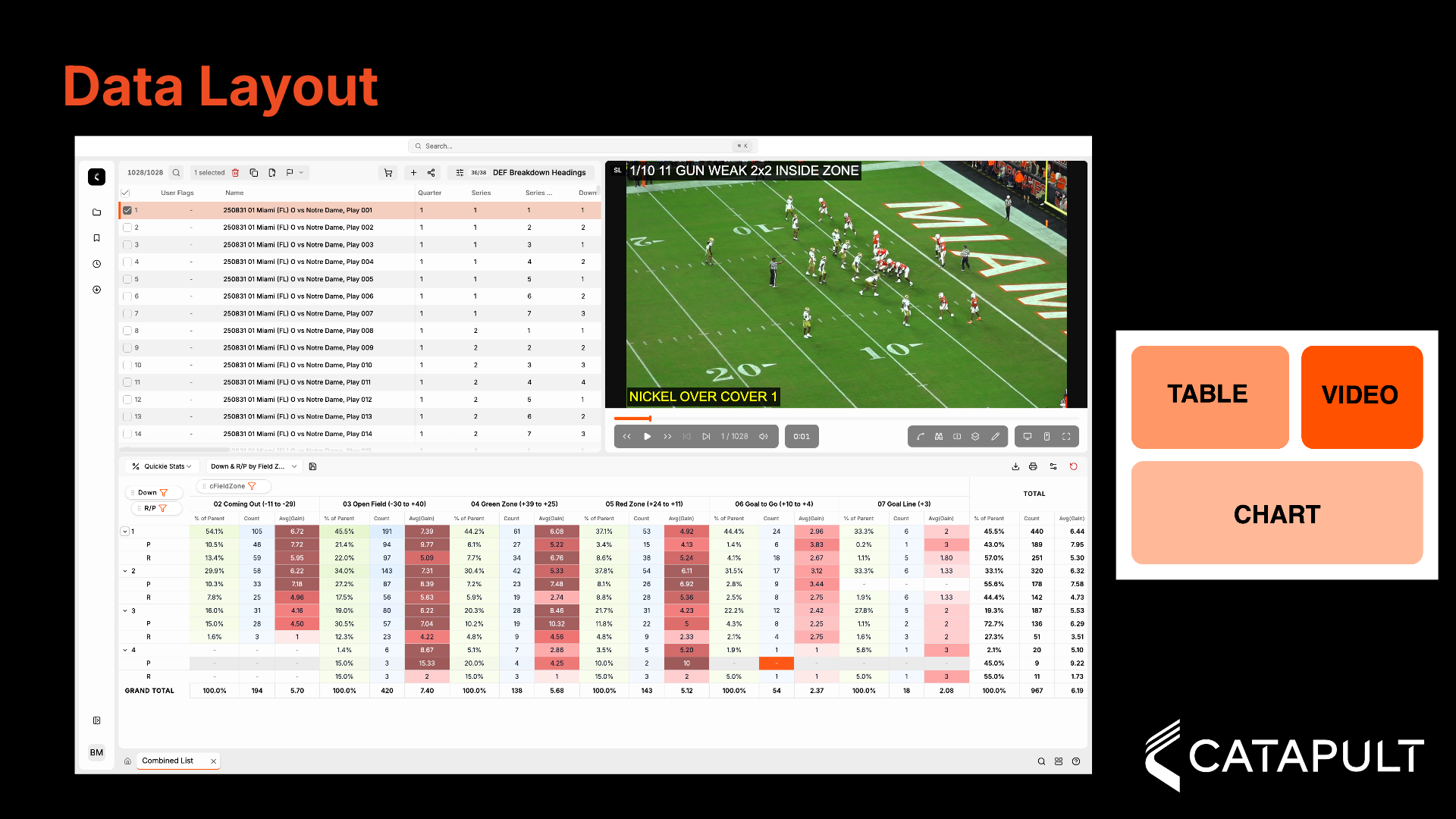
The Data layout will position the chart in the bottom half, the data table in the top left, and the video player in the top right.
5. Tall Table Layout
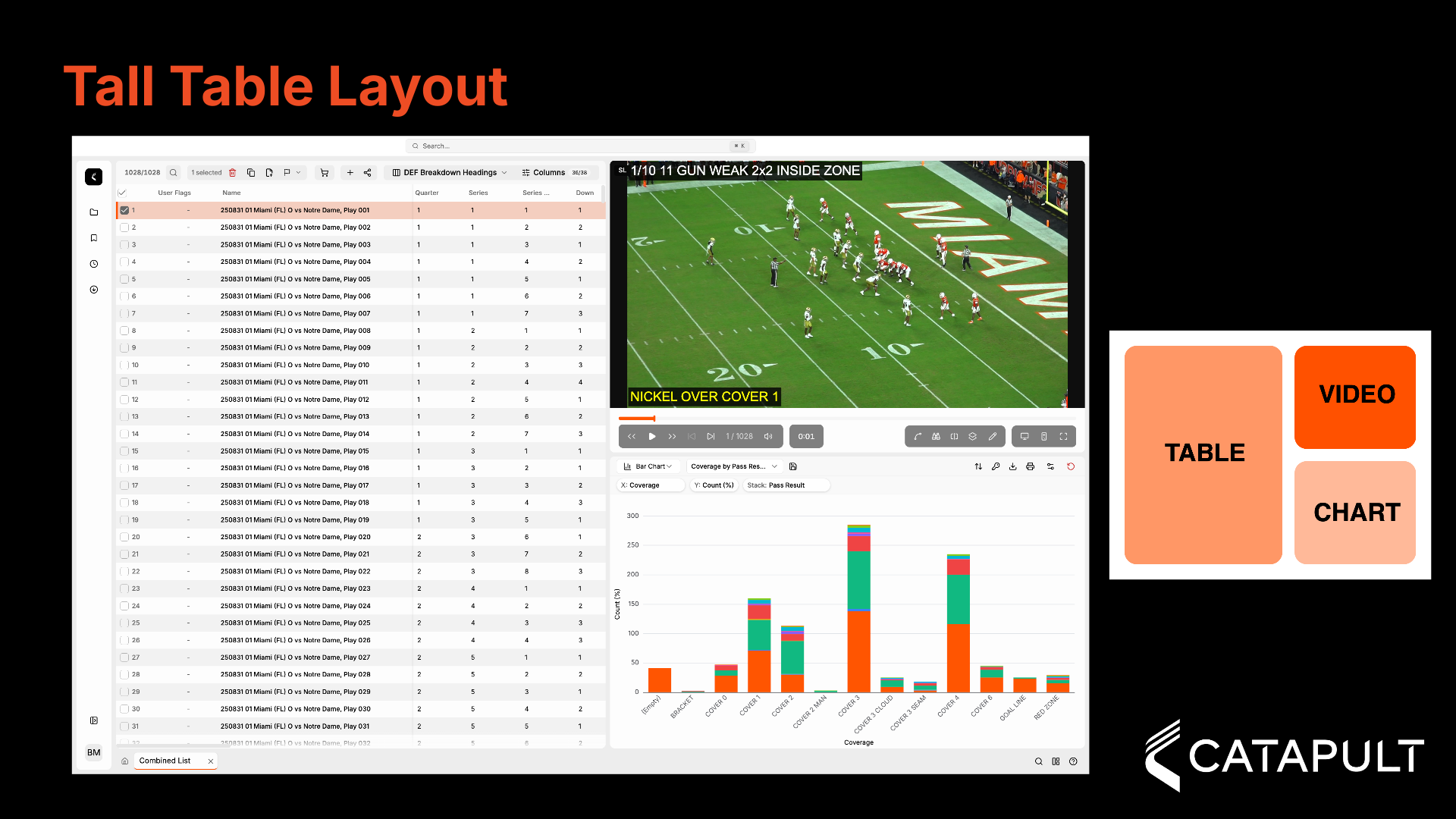
The Tall Table layout positions the data table on the left side, the video player in the top right corner, and the chart in the bottom right corner.
6. Changing Your Layout
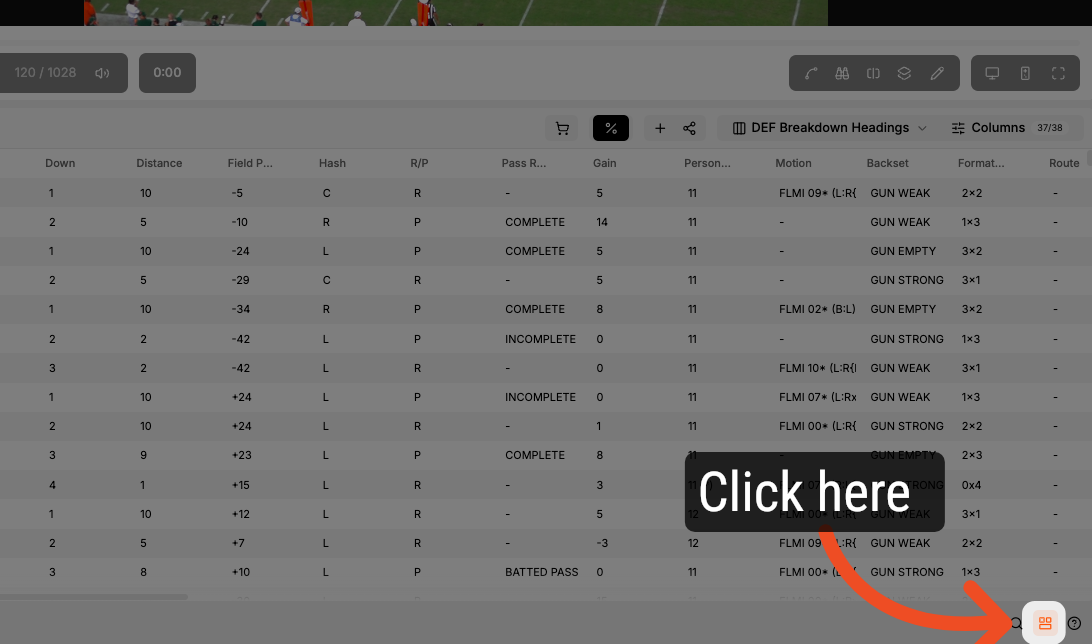
To modify your layout, click on the Layout icon located in the bottom right corner.
7. Picking Your Layout
After clicking the icon, the Layout Picker will open, allowing you to change your layout.
Comments
0 comments
Please sign in to leave a comment.